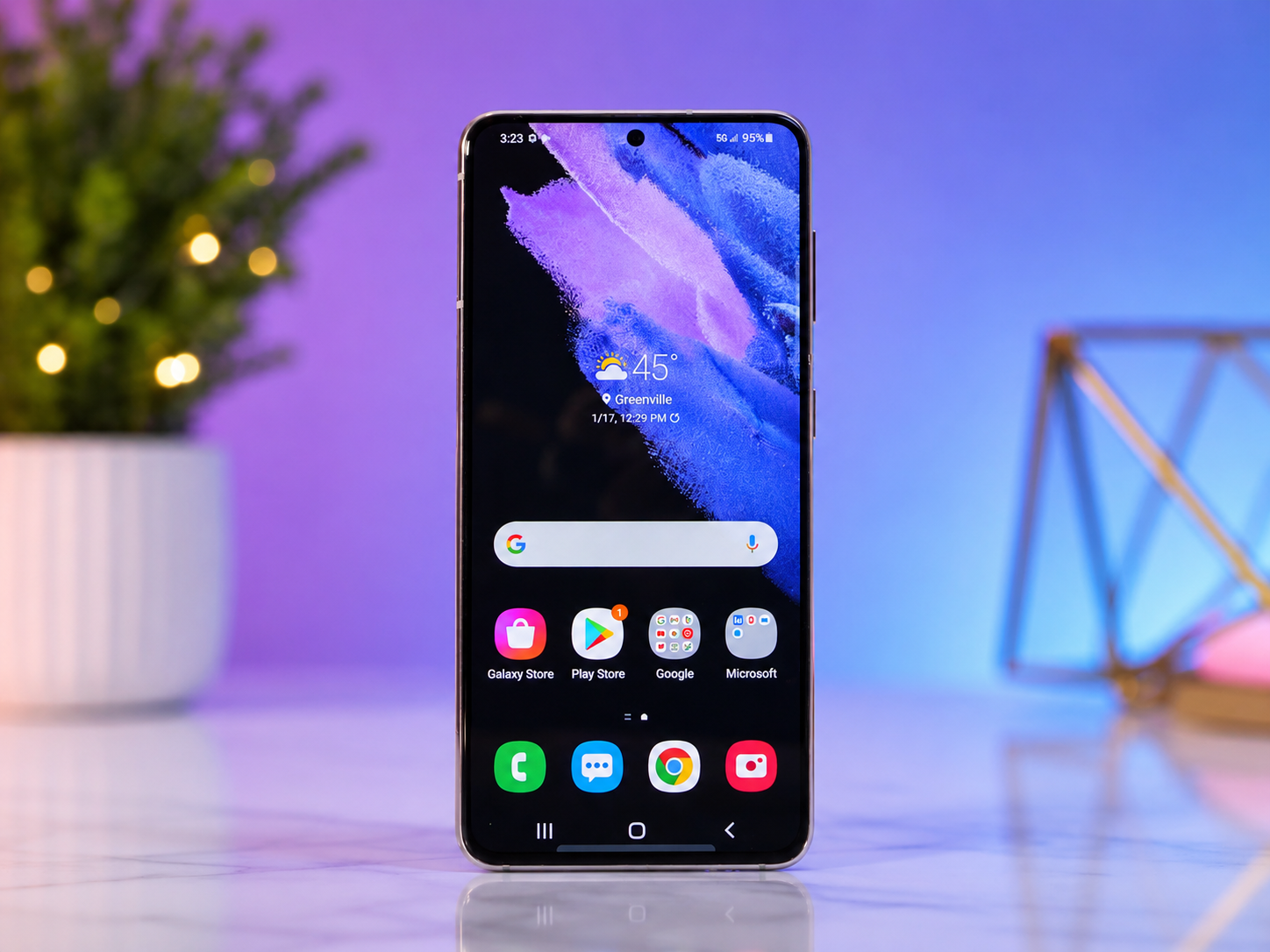
Most people use only a small fraction of what their Android smartphone is capable of. Every day, millions of users send messages, browse the internet, watch videos, take photos, and make phone calls without realizing that their device is packed with powerful tools quietly waiting to be discovered.
Android is one of the most flexible mobile operating systems in the world. Developed by Google and customized by manufacturers like Samsung, Google Pixel, OnePlus, Xiaomi, Motorola, Oppo, Vivo, and many others, Android includes hundreds of built-in features designed to improve productivity, security, accessibility, battery life, and entertainment. Many of these features remain hidden simply because they are tucked away in the Settings app or appear only under certain conditions.
The exciting part is that you do not need to install special apps, root your phone, or have advanced technical knowledge to unlock many of these capabilities. With just a little exploration, you can transform the way you use your smartphone.
This guide explains how to find hidden Android features safely, what they do, and why they can make your device smarter, faster, and easier to use.
Why Android Has Hidden Features
Android is designed for hundreds of different phone models, each with different hardware and software capabilities. Because of this flexibility, not every feature is shown prominently.
Some functions are hidden because they are intended for advanced users. Others appear only when certain hardware is available, such as a fingerprint sensor, NFC chip, or high-refresh-rate display. Manufacturers also add their own unique tools, making every Android phone slightly different.
Some features are hidden simply to keep the interface clean. If every option appeared on the main screen, navigating the operating system would become overwhelming for new users.
Instead, Android organizes advanced settings into menus that users can discover when they need them.
Start by Exploring the Settings App
The easiest place to discover hidden Android features is the Settings app.
Many users rarely look beyond the first few menu items, but nearly every section contains useful options that can improve your experience.
Spend time exploring categories such as Display, Battery, Privacy, Accessibility, Security, Notifications, Connected Devices, Digital Wellbeing, and System.
Modern Android versions also include a search bar at the top of the Settings app. Typing words like “gesture,” “battery,” “dark mode,” “screen recording,” “NFC,” “private,” or “DNS” can instantly reveal features that would otherwise be difficult to locate.
This built-in search function is one of the fastest ways to uncover hidden capabilities.
Discover the Developer Options Menu
One of Android’s best-known hidden sections is Developer Options.
Although originally designed for software developers, it also includes useful tools for curious users.
To unlock it, open the Settings app and locate the phone’s software information, often found under “About Phone.” Find the Build Number entry and tap it several times. After entering your screen lock if prompted, Android enables Developer Options.
Once unlocked, this menu usually appears under System or Additional Settings.
Inside, you can view advanced system information, adjust animation speeds to make the interface feel faster, monitor running services, enable USB debugging for development purposes, display touch locations on the screen, and access many diagnostic tools.
While most settings are safe to view, it is wise to avoid changing options unless you understand what they do, as some are intended for testing rather than everyday use.
Search for Hidden Gesture Controls
Modern Android phones support numerous gesture-based shortcuts.
Instead of relying only on traditional buttons, gestures allow you to navigate quickly and naturally.
Many phones let you swipe to return to the previous screen, go home, switch between recent apps, take screenshots, activate split-screen mode, or launch the camera instantly.
Some manufacturers also allow gestures while the screen is off, such as drawing a letter to open a favorite app or double-tapping to wake the display.
These options are usually found under System, Display, or Advanced Features, depending on your phone’s manufacturer.
Learning these gestures often makes using your phone faster and more comfortable.
Look for Accessibility Features That Help Everyone
Accessibility settings are often overlooked, yet they contain some of Android’s most useful features.
Originally created to assist people with disabilities, many of these tools benefit every user.
Features such as Live Caption automatically generate captions for spoken audio on supported devices.
Magnification lets users zoom into small text or images.
Color correction helps improve screen visibility.
Voice Access allows users to control their phone with spoken commands.
Reading Mode simplifies articles by reducing visual distractions.
Sound Amplifier can make conversations easier to hear in noisy environments.
These features demonstrate how thoughtful design can improve everyday smartphone use for everyone.
Explore Battery Optimization Tools
Hidden battery features can significantly extend your phone’s battery life.
Modern Android versions intelligently manage background activity, identify apps consuming excessive power, and reduce unnecessary energy usage.
Battery Saver limits certain background processes when power runs low.
Adaptive Battery learns your usage habits over time and prioritizes frequently used apps while restricting those you rarely open.
Some phones also include charging protection features that slow charging near full capacity to reduce long-term battery wear.
Exploring your Battery settings can reveal options that improve both battery life and battery health.
Discover Privacy Features That Protect Your Data
Android continues to introduce stronger privacy protections with each new version.
Many of these tools remain hidden inside Privacy or Security settings.
You can view which apps recently accessed your camera, microphone, or location.
Permission Manager allows you to control exactly what information each app can use.
Some Android versions let you grant location access only while an app is actively in use.
Others allow one-time permissions that disappear after the app closes.
Android also supports automatic permission removal for apps you have not used in several months, reducing unnecessary access to personal data.
These privacy features help users maintain greater control over their information.
Try the Built-in Screen Recorder
Many Android phones now include a built-in screen recorder.
Instead of downloading third-party apps, you can record gameplay, tutorials, software demonstrations, or technical problems directly from your device.
The screen recorder is often hidden within Quick Settings.
Swipe down from the top of the screen and look for Screen Record. If it is not immediately visible, edit the Quick Settings panel to add it.
Depending on your device, the recorder may capture internal audio, microphone audio, or both.
This feature is especially useful for creating instructional videos or reporting software bugs.
Customize Quick Settings
Quick Settings is more powerful than many people realize.
Beyond Wi-Fi and Bluetooth controls, many phones allow you to add shortcuts for flashlight, hotspot, QR code scanning, nearby device sharing, screen recording, dark mode, battery saver, eye comfort mode, and dozens of other functions.
Editing this panel allows you to place your most-used tools exactly where you want them.
A few minutes of customization can save countless taps every day.
Use Digital Wellbeing Features
Smartphones are designed to keep our attention, but Android also includes tools to help us manage screen time.
Digital Wellbeing provides insights into how long you use different apps.
Focus Mode temporarily pauses distracting applications while you work or study.
Bedtime Mode reduces notifications and prepares your device for nighttime use.
App timers allow you to set daily usage limits for selected applications.
These features encourage healthier technology habits without requiring additional software.
Explore Camera Settings
Many Android phones include advanced camera features that remain hidden inside the Camera app’s settings.
Night photography improves low-light images.
Pro Mode allows manual control over shutter speed, ISO, white balance, and focus.
RAW image capture preserves more photographic information for editing.
High-resolution shooting modes maximize image detail.
Motion Photo records a brief moment before and after each picture.
Some devices include astrophotography, macro photography, AI scene optimization, object erasing, long exposure, or automatic document scanning.
Exploring camera settings can dramatically improve your photos without buying new equipment.
Unlock Split-Screen Multitasking
Android supports multitasking by displaying two apps simultaneously on the screen.
This feature is especially useful for taking notes while watching a lecture, comparing documents, chatting while browsing, or reading instructions while following them.
Although the exact method varies between manufacturers, split-screen mode is usually available through the Recent Apps menu.
Once activated, both apps remain active at the same time, making multitasking far more convenient.
Search for Nearby Sharing Features
Android includes wireless sharing technologies that make transferring files easier.
Nearby Share, now integrated into Google’s Quick Share system on many devices, allows nearby Android devices and compatible computers to exchange photos, videos, documents, and other files securely without cables.
If you frequently transfer files between devices, enabling this feature can save considerable time.
Explore AI-Powered Features
Recent Android devices increasingly use artificial intelligence to improve the user experience.
AI can organize photos, suggest replies to messages, improve battery management, reduce unwanted background noise during calls, enhance photos automatically, recognize songs playing nearby, and even summarize information in supported applications.
Google Pixel devices often receive new AI-powered capabilities first, while other manufacturers develop their own intelligent features.
As AI continues advancing, hidden smart tools are becoming an increasingly important part of Android.
Check Manufacturer-Specific Features
Every Android manufacturer customizes the operating system.
Samsung includes features such as Secure Folder, DeX desktop mode, Good Lock customization tools, and advanced multitasking.
Google Pixel phones offer Call Screen, Now Playing music recognition, Magic Eraser, and exclusive AI features.
OnePlus devices provide gaming enhancements and customizable gestures.
Xiaomi, Motorola, Oppo, Vivo, Honor, and other brands each include unique tools unavailable on competing phones.
Exploring your manufacturer’s support pages or settings menus often reveals capabilities you never knew existed.
Keep Android Updated
Many hidden features arrive through software updates rather than new hardware.
Google regularly releases improvements that expand security, privacy, accessibility, performance, and AI functionality.
Phone manufacturers also introduce new tools through system updates.
Checking for software updates periodically ensures you receive the latest features, bug fixes, and security protections.
Keeping your phone current is one of the easiest ways to unlock new capabilities over time.
Be Careful with Experimental Settings
While exploring hidden features is exciting, not every option is intended for everyday use.
Developer settings, experimental functions, and beta features may occasionally affect performance or stability.
If you are unsure about a particular option, research it before making changes.
Fortunately, most Android settings can easily be restored to their default values if needed.
Thoughtful exploration is always better than random experimentation.
The Joy of Exploring Your Smartphone
One of Android’s greatest strengths is its flexibility.
Unlike many technology products that offer only fixed experiences, Android encourages users to personalize their devices according to their own preferences.
The more you explore, the more you discover small improvements that make everyday tasks easier.
Perhaps you will find a shortcut that saves time every morning, a privacy setting that increases your confidence, a battery optimization feature that extends your phone’s life, or an accessibility tool that makes reading more comfortable.
These discoveries often feel surprisingly rewarding because they reveal capabilities that have been quietly available all along.
Conclusion: Your Android Phone Is More Powerful Than You Realize
Hidden Android features are not secret tricks reserved for technology experts. They are thoughtfully designed tools that many users simply overlook. By taking time to explore the Settings app, customize your device, and understand the features already built into Android, you can unlock a smarter, safer, and more efficient smartphone experience.
Whether you want stronger privacy, longer battery life, better photos, smoother navigation, improved accessibility, or greater productivity, chances are your Android phone already has a feature that can help. Curiosity is often the only thing standing between an ordinary smartphone experience and an exceptional one. By exploring carefully and keeping your device up to date, you can discover just how much your Android phone is truly capable of.