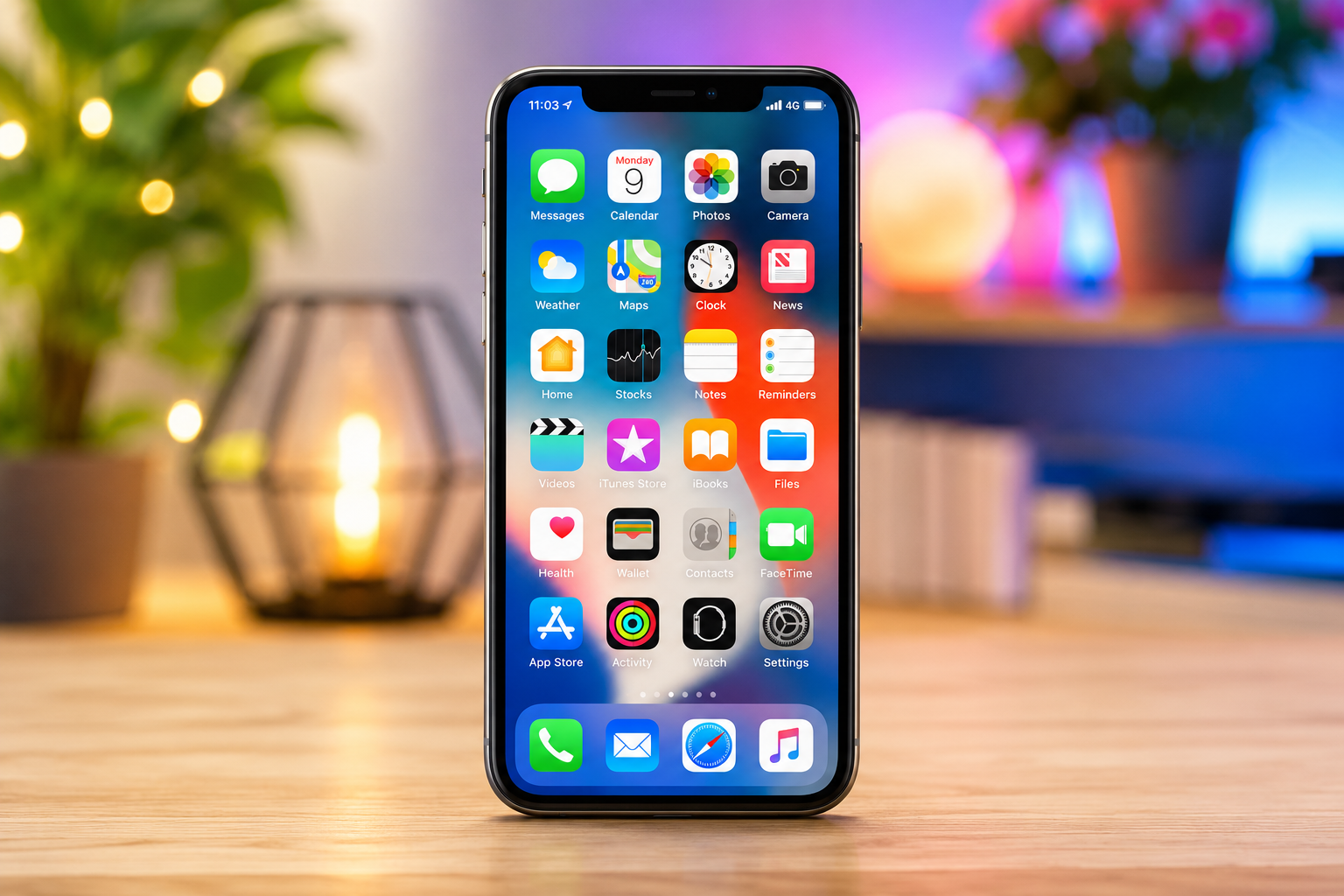
Your iPhone is much more than a phone. It stores your photos, messages, contacts, passwords, financial information, health data, and countless memories. Because of this, keeping its software up to date is one of the most important things you can do to protect your device and ensure it performs at its best.
Apple regularly releases software updates for iPhones. These updates do far more than introduce new features. They fix security vulnerabilities, improve performance, resolve software bugs, enhance battery management, and increase compatibility with apps and accessories. Sometimes an update even makes an older iPhone feel faster and more reliable by correcting issues that developed over time.
Many people delay updates because they worry something might go wrong or because the process seems complicated. Fortunately, updating an iPhone is designed to be simple, safe, and straightforward. With a little preparation, you can install the latest version of iOS in just a few steps.
What Is an iPhone Software Update?
Every iPhone runs an operating system called iOS. This is the software that controls everything your device does, from opening apps and connecting to Wi-Fi to managing the camera, Face ID, notifications, and battery usage.
An iOS update is a newer version of this operating system. Apple develops these updates to improve the user experience while addressing newly discovered software issues.
Some updates are major releases that introduce redesigned apps, new customization options, and additional capabilities. Others are smaller updates that focus mainly on improving security, fixing bugs, and making the system more stable.
No matter how large or small an update may be, each one is carefully tested before it is released to millions of users.
How to Check Your Current iOS Version
Before updating your iPhone, it’s helpful to know which version of iOS you’re currently using.
Open the Settings app and tap General. Next, tap About. Here you’ll find information about your device, including the installed iOS version.
Knowing your current version helps you determine whether your iPhone is already up to date or whether a newer version is available.
Preparing Your iPhone Before Updating
Although updating an iPhone is usually smooth, taking a few simple precautions helps ensure everything goes as planned.
Start by connecting your iPhone to a stable Wi-Fi network. Software updates can be several gigabytes in size, so downloading them over cellular data may not always be practical or available, depending on your carrier and settings.
Next, make sure your battery has enough power. Apple generally requires the battery to have at least 50 percent charge before beginning an update unless the device is connected to a charger. Plugging your iPhone into power during the update is always a good idea.
It is also wise to ensure you have enough available storage space. Large updates require free storage for downloading and installation. If storage is limited, deleting unused apps, old videos, or unnecessary files can help.
Perhaps the most important preparation is backing up your data. Although software updates rarely cause data loss, creating a backup ensures your photos, contacts, documents, and settings remain protected if something unexpected occurs.
How to Back Up Your iPhone
Backing up your iPhone gives you peace of mind before installing any software update.
One of the easiest methods is using iCloud. Open Settings, tap your Apple Account name at the top, select iCloud, choose iCloud Backup, and tap Back Up Now. The process may take several minutes depending on your internet connection and the amount of data stored on your device.
You can also back up your iPhone using a Mac or a Windows PC. Connecting the device with a USB cable allows you to create a complete local backup using Finder on macOS or the Apple Devices app or iTunes on supported versions of Windows.
Having a recent backup means your information can be restored if needed.
How to Update an iPhone Wirelessly
The easiest and most common method is updating directly from your iPhone.
Open Settings.
Tap General.
Select Software Update.
Your iPhone will automatically check Apple’s servers for the latest available version of iOS that is compatible with your device.
If an update is available, information about the new version will appear, including its size and a brief description of new features or security improvements.
Tap Update Now, Download and Install, or Install Now, depending on what appears on your screen.
If requested, enter your device passcode.
The iPhone will begin downloading the update. After the download finishes, it prepares the installation and restarts automatically.
During installation, the Apple logo and a progress bar appear on the screen. This process can take several minutes. Avoid turning off the device during this time.
Once installation is complete, your iPhone starts normally with the latest version of iOS installed.
How to Turn On Automatic Updates
If you prefer not to check for updates manually, Apple allows your iPhone to update automatically.
Open Settings.
Tap General.
Select Software Update.
Tap Automatic Updates.
Here you can enable automatic downloading and automatic installation of iOS updates.
When enabled, your iPhone downloads updates in the background and typically installs them overnight while connected to Wi-Fi and charging.
Automatic updates help ensure your device receives important security patches without requiring constant attention.
How to Update an iPhone Using a Computer
Sometimes updating directly on the iPhone isn’t possible. Perhaps storage is low, Wi-Fi is unavailable, or the update repeatedly fails.
In these situations, a computer can be used.
Connect your iPhone to your Mac or Windows PC using a USB cable.
On a Mac running a recent version of macOS, open Finder and select your iPhone from the sidebar.
On Windows, open the Apple Devices app or iTunes if your setup uses it.
Choose your iPhone.
Click Check for Update.
If an update is available, follow the prompts to download and install it.
The computer downloads the software first and then installs it onto your iPhone.
This method is often useful when troubleshooting software update problems.
How Long Does an iPhone Update Take?
The time required depends on several factors.
The speed of your internet connection affects how quickly the update downloads.
The size of the update also matters. Small security updates may download in only a few minutes, while major iOS releases can take considerably longer.
Installation itself usually takes between ten and thirty minutes, although older devices may require more time.
Most users can complete the entire process within an hour.
What Happens During an Update?
Many people wonder what their iPhone is actually doing while updating.
First, the software package downloads from Apple’s servers.
The system verifies that the download has not been corrupted.
Next, the iPhone prepares its storage by organizing system files.
The operating system is then replaced with the updated version while preserving user data, apps, settings, and personal files.
Finally, the device restarts, performs several internal system checks, and optimizes applications for the new software.
This optimization process may continue briefly after the update, during which the phone may feel slightly warmer or slower than usual. This is normal and temporary.
What to Do if an Update Won’t Download
Occasionally, an update may fail to download.
A weak or unstable Wi-Fi connection is one common reason.
Limited storage space can also prevent downloading.
Restarting the iPhone often resolves temporary software glitches.
If Apple’s servers are experiencing unusually high demand immediately after a major iOS release, waiting a few hours before trying again may help.
Ensuring your internet connection is reliable also improves the chances of a successful download.
What to Do if an Update Gets Stuck
Sometimes the progress bar seems to stop moving during installation.
In many cases, the device is still working in the background.
Waiting patiently is usually the best first step.
If the update appears frozen for an unusually long period, connecting the iPhone to a computer and updating or restoring it through Finder or the Apple Devices app can often resolve the issue.
If problems continue, Apple Support may provide additional guidance.
Will Updating Delete My Data?
Under normal circumstances, no.
An official iOS update is designed to preserve your apps, photos, contacts, messages, settings, and documents.
However, unexpected problems can occur with any electronic device, which is why creating a backup beforehand remains strongly recommended.
Having a backup provides an additional layer of protection and peace of mind.
Why Some iPhones Stop Receiving Updates
Every iPhone model has a limited software support lifespan.
As hardware becomes older, it may no longer meet the requirements of the newest iOS features.
When this happens, Apple eventually stops releasing major updates for that device.
However, some older iPhones may continue receiving important security updates for a period even after major iOS upgrades end.
If your iPhone no longer supports the latest iOS version, it can often continue functioning normally for many everyday tasks, although newer features may not be available.
Benefits of Keeping Your iPhone Updated
Installing updates provides advantages that extend well beyond new features.
Security improvements protect against newly discovered vulnerabilities that could otherwise be exploited.
Performance optimizations can make apps launch more smoothly and improve overall stability.
Battery management may become more efficient as Apple refines power usage.
Camera software sometimes receives image processing improvements that enhance photo quality.
Compatibility with new apps, accessories, and Apple services also improves over time.
For most users, staying current with software updates is one of the simplest ways to maintain a secure and reliable smartphone.
Common Myths About iPhone Updates
Some people believe every update intentionally slows older iPhones.
In reality, software updates are primarily intended to improve security, reliability, and compatibility. While performance can vary depending on the age of the hardware and the demands of newer software, Apple continues to optimize iOS for supported devices.
Another common misconception is that updates always reduce battery life.
Immediately after installing an update, battery usage may temporarily increase because the iPhone is reindexing files, optimizing photos, and completing background tasks. Once these processes finish, battery performance often returns to normal.
Some users also believe updates are optional if their phone appears to work correctly.
While your iPhone may continue functioning, skipping updates can leave known security vulnerabilities unpatched, making the device less secure over time.
Tips for a Smooth Update Experience
Choosing a time when you do not need your phone for a while makes the process less stressful. Connecting to a reliable Wi-Fi network and keeping the device plugged into a charger can help prevent interruptions. Maintaining enough free storage and backing up your data before installing the update are simple habits that greatly reduce the chance of problems.
Checking the update notes can also help you understand what changes to expect after installation.
Conclusion
Updating your iPhone is one of the easiest and most effective ways to keep it secure, stable, and ready for everyday use. Every iOS update brings improvements that help protect your personal information, fix software issues, enhance performance, and introduce useful new features that make your device even more capable.
Whether you choose to install updates manually or enable automatic updates, keeping your iPhone current is an important part of responsible device maintenance. With a stable internet connection, sufficient battery power, adequate storage, and a recent backup, the update process is typically quick, safe, and straightforward.
Technology continues to evolve, and your iPhone evolves with it through software updates. By making updates a regular habit, you help ensure that your device remains reliable, secure, and ready to support you for years to come.