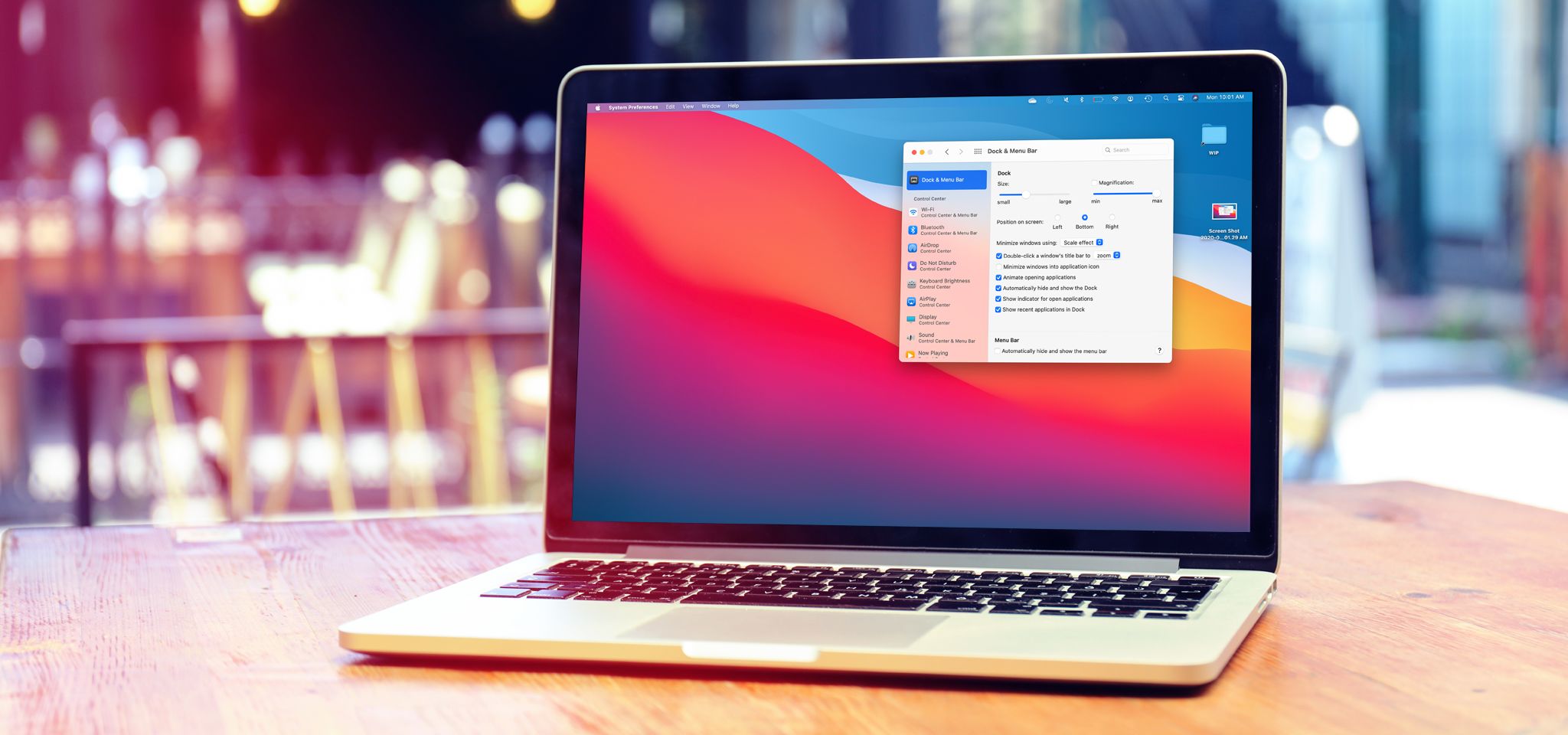
There are few things more frustrating than sitting down to use your Mac only to find that it has become slow, unresponsive, and sluggish. Apps take longer to open, websites seem to crawl, the colorful spinning beach ball appears more often than you’d like, and even simple tasks begin to feel like a test of patience. The good news is that a slow Mac doesn’t always mean it’s old or failing. In many cases, a few simple adjustments can dramatically improve its performance.
Whether you own a MacBook Air, MacBook Pro, iMac, Mac mini, or Mac Studio, understanding why your Mac has slowed down is the first step toward making it fast again. Modern versions of macOS are designed to manage hardware efficiently, but over time, accumulated files, too many background processes, outdated software, insufficient storage, or aging hardware can all contribute to slower performance.
This guide explains why Macs become slow, how to identify the cause, and the most effective ways to speed up your Mac while keeping it stable, secure, and reliable.
Why Does a Mac Become Slow?
Many people assume a slow Mac is caused by a single problem, but performance is usually affected by several factors working together.
Every application you install consumes storage and may add background processes. Every browser tab uses memory. Large photo libraries, videos, and downloads gradually fill your storage drive. Software updates introduce new features that may require more system resources than older versions.
As these factors accumulate, your Mac must work harder to perform everyday tasks.
Fortunately, macOS includes many built-in tools that help identify these issues.
Restart Your Mac Regularly
One of the simplest ways to improve performance is also one of the most overlooked.
Many users rarely restart their Macs, especially laptops that are frequently put to sleep instead of shut down.
Restarting clears temporary system files, resets memory usage, stops unnecessary background processes, and allows macOS to start with a clean state.
While restarting will not solve every performance issue, it often provides an immediate improvement, particularly if your Mac has been running continuously for days or weeks.
Keep macOS Updated
Apple regularly releases updates that improve performance, stability, and security.
Software updates often include bug fixes that reduce excessive CPU usage, improve memory management, and optimize compatibility with newer applications.
Running an outdated version of macOS can leave your computer slower than necessary.
To check for updates, open System Settings, select General, and then choose Software Update.
Installing official Apple updates helps ensure your Mac performs as efficiently as possible.
Free Up Storage Space
A nearly full storage drive is one of the most common reasons a Mac slows down.
macOS relies on free storage for virtual memory, temporary files, application caches, and system operations. When available storage becomes extremely limited, the operating system has less room to manage these tasks efficiently.
Apple generally recommends maintaining a comfortable amount of free storage rather than allowing the drive to remain nearly full.
Large video files, duplicate photos, old downloads, unused applications, and forgotten disk images often occupy surprising amounts of space.
Review your storage usage in System Settings under General and Storage to identify what is consuming the most space.
Remove Applications You No Longer Use
Many Macs accumulate software over the years.
Unused applications occupy storage and, in some cases, install helper processes that continue running even when the main application is closed.
Removing software you no longer need reduces storage usage and can decrease unnecessary background activity.
When uninstalling applications, consider whether they also installed login items or background services that should be removed.
Manage Startup Applications
Some applications automatically launch every time your Mac starts.
While convenient for software you use daily, too many startup apps can noticeably increase boot times and consume memory immediately after login.
Review your login items in System Settings under General and Login Items & Extensions.
Disabling applications that don’t need to start automatically can make your Mac feel much more responsive.
Close Applications You Aren’t Using
Modern Macs are excellent at multitasking, but every open application consumes system resources.
Even applications running in the background may use CPU time, memory, network bandwidth, or energy.
If dozens of applications remain open for long periods, your Mac has fewer resources available for the tasks you’re actively performing.
Closing applications you no longer need allows macOS to allocate resources more efficiently.
Reduce Browser Resource Usage
Web browsers have become some of the most demanding applications on any computer.
Each open tab consumes memory.
Complex websites may continuously use CPU resources for animations, advertisements, or video playback.
Extensions can also reduce browser performance.
If your Mac feels slow while browsing, try closing unnecessary tabs, removing unused extensions, and restarting your browser occasionally.
Using fewer simultaneously active tabs can significantly improve responsiveness, especially on Macs with limited memory.
Check Activity Monitor
Activity Monitor is one of macOS’s most useful diagnostic tools.
It provides real-time information about CPU usage, memory usage, energy consumption, disk activity, and network activity.
If your Mac suddenly becomes slow, Activity Monitor can reveal whether a specific application is consuming excessive resources.
Sometimes a single frozen application or browser tab may use nearly all available CPU power.
Identifying the responsible process often makes solving the problem straightforward.
Understand Memory Pressure
Many users assume that simply having high memory usage means their Mac is struggling.
In reality, macOS is designed to use available memory efficiently.
The more important indicator is Memory Pressure, shown in Activity Monitor.
When Memory Pressure remains green, your Mac is generally managing memory effectively.
If it frequently becomes yellow or red, your computer may be running too many applications simultaneously or may benefit from additional RAM if the model allows upgrades.
On Apple silicon Macs, memory is integrated into the system and cannot be upgraded after purchase.
Reduce Desktop Clutter
Every icon displayed on the desktop requires Finder to manage and render it.
Hundreds or even thousands of files on the desktop can reduce responsiveness, especially on older Macs.
Moving files into organized folders helps Finder operate more efficiently while also making your workspace easier to navigate.
Empty the Trash
Deleting files does not immediately free storage space if they remain in the Trash.
Until the Trash is emptied, those files continue occupying disk space.
Regularly emptying the Trash helps recover valuable storage capacity.
Before doing so, ensure you no longer need any files stored there.
Optimize Your Storage
macOS includes built-in storage management features designed to reduce unnecessary file accumulation.
These tools can recommend moving files to iCloud, automatically emptying the Trash after a period of time, identifying large files, and reducing clutter.
Using these built-in recommendations can help maintain healthy storage levels without installing third-party utilities.
Remove Unnecessary Browser Extensions
Browser extensions can improve productivity, but each extension consumes resources.
Poorly designed or outdated extensions may slow webpage loading, increase memory usage, or create compatibility issues.
Review your installed extensions periodically and remove those you no longer use.
A lighter browser generally performs better.
Limit Visual Effects
Modern versions of macOS include smooth animations and transparency effects that enhance the user experience.
On older Macs, reducing these visual effects may improve responsiveness.
Accessibility settings allow users to reduce motion and transparency, which can slightly decrease graphics workload while making the interface feel more responsive.
Keep Your Desktop Organized
Beyond improving Finder performance, an organized desktop helps reduce distractions and makes it easier to locate important files.
Folders, labels, and consistent organization habits contribute to a smoother computing experience.
Good digital organization often improves productivity as much as hardware upgrades.
Avoid Running Too Many Apps at Once
While Apple silicon processors excel at multitasking, every computer has practical limits.
Running multiple video editors, virtual machines, professional design software, and dozens of browser tabs simultaneously can exceed available system resources.
If you notice slowdowns, try completing one resource-intensive task before beginning another.
Efficient multitasking is not simply about running everything at once—it is about using available resources wisely.
Keep Applications Updated
Software developers regularly release updates that improve compatibility with newer versions of macOS.
Performance improvements, bug fixes, and memory optimizations are common in application updates.
Running outdated software may cause unnecessary slowdowns or increased resource consumption.
Updating applications through the App Store or the developer’s official updater helps maintain optimal performance.
Scan for Malware if Performance Suddenly Changes
Although macOS includes strong built-in security features and malware is less common than on some other operating systems, it is not immune to malicious software.
Unexpected pop-ups, unusually high CPU usage, unknown background processes, or browser redirects may indicate unwanted software.
Keeping macOS updated, downloading applications only from trusted sources, and reviewing installed software regularly are among the best defenses.
Be Careful with “Mac Cleaner” Apps
Many third-party utilities promise dramatic performance improvements with a single click.
In reality, macOS already performs many maintenance tasks automatically.
Some so-called cleaning applications provide little benefit, while others may consume resources themselves or encourage unnecessary changes.
Before installing optimization software, understand exactly what it does and whether its features duplicate tools already included in macOS.
Keep Your Mac Cool
Heat directly affects computer performance.
When processors become too hot, macOS reduces processing speed through a protective mechanism known as thermal throttling.
Blocked air vents, dusty environments, soft surfaces like blankets, or high ambient temperatures can all contribute to overheating.
Using your Mac on a hard, flat surface allows proper airflow.
Keeping ventilation openings unobstructed helps maintain peak performance.
Check Your Internet Connection
Sometimes a Mac appears slow when the real issue is a slow internet connection.
Websites, cloud storage, streaming services, and online applications depend heavily on network speed.
If local applications perform normally but websites load slowly, testing your internet connection can help determine whether the issue lies with your computer or your network.
Restart Resource-Heavy Applications
Some applications gradually consume increasing amounts of memory during extended use.
Closing and reopening these applications occasionally can restore responsiveness.
Creative software, web browsers, and development tools often benefit from periodic restarts during long work sessions.
Upgrade Hardware If Possible
Some older Intel-based Macs allow hardware upgrades.
Replacing a traditional hard disk drive with a solid-state drive (SSD) often provides one of the largest performance improvements possible.
An SSD dramatically reduces boot times, application launch times, and file transfer delays.
Certain older Mac models also support additional RAM, allowing smoother multitasking.
However, most modern Apple silicon Macs use integrated storage and unified memory that cannot be upgraded after purchase.
Resetting macOS as a Last Resort
If performance problems persist despite other solutions, reinstalling macOS may resolve issues caused by software corruption or long-term system problems.
Modern versions of macOS allow reinstalling the operating system without necessarily erasing personal files, although creating a complete backup beforehand is essential.
A clean installation can sometimes restore performance, particularly on systems that have accumulated years of software changes.
Habits That Keep Your Mac Fast
Maintaining good performance is easier than recovering it after years of neglect.
Regular software updates, occasional restarts, organized storage, responsible application management, and periodic reviews of login items all contribute to a consistently responsive Mac.
Avoid filling your storage drive completely, install software only from trusted sources, and remove applications you no longer use.
Small maintenance habits performed regularly often prevent larger performance problems from developing.
When a Slow Mac Signals Aging Hardware
Not every slowdown can be solved through software optimization.
As applications become more sophisticated, their hardware requirements naturally increase. A Mac that performed exceptionally well a decade ago may struggle with today’s demanding software, especially for video editing, 3D graphics, machine learning, or modern gaming.
If your Mac remains slow despite careful maintenance and has older hardware, it may simply be reaching the practical limits of its design.
Even then, optimizing storage, reducing background activity, and keeping software up to date can extend its useful life and improve the overall experience.
A Faster Mac Starts With Understanding the Cause
Speeding up a Mac is rarely about finding a single magic setting. Instead, it involves understanding how macOS manages storage, memory, processing power, and background tasks. Most performance issues arise gradually and can be addressed through a combination of regular maintenance, smart software management, and healthy storage habits.
By identifying the real source of the slowdown instead of relying on myths or quick fixes, you can restore much of your Mac’s original responsiveness. Whether you’re using a brand-new MacBook Air powered by Apple silicon or an older Intel-based iMac, thoughtful maintenance and informed decisions can keep your Mac running smoothly for years to come.