Bluetooth has quietly become one of the most useful technologies in modern life. Every day, millions of people connect wireless earbuds to their phones, pair keyboards with laptops, sync smartwatches with smartphones, or link speakers to tablets—all without plugging in a single cable.
What feels like a simple tap on a screen is actually the result of a sophisticated wireless communication system that allows devices to discover, identify, and securely communicate with one another. Whether you’re listening to your favorite music during a morning walk, joining an online meeting with wireless headphones, or transferring files between devices, Bluetooth makes these experiences convenient and effortless.
If you’ve ever wondered how to pair Bluetooth devices or struggled to get two gadgets to connect, you’re not alone. Pairing is usually straightforward, but knowing how Bluetooth works and understanding the correct steps can save you time and frustration.
What Is Bluetooth?
Bluetooth is a short-range wireless communication technology that allows electronic devices to exchange data without physical cables.
Instead of using wires, Bluetooth relies on low-power radio waves in the 2.4 GHz Industrial, Scientific, and Medical (ISM) frequency band. These radio waves enable compatible devices to communicate over relatively short distances, typically ranging from about 10 meters (33 feet) for many consumer devices, though some Bluetooth devices are designed to operate over much greater distances.
Bluetooth was developed to replace cables while consuming very little power. This efficiency is one reason it has become a standard feature in smartphones, laptops, tablets, televisions, cars, gaming consoles, fitness trackers, wireless headphones, smart home devices, and countless other products.
What Does Pairing Mean?
Pairing is the process of introducing two Bluetooth devices so they recognize each other and can communicate securely.
Think of pairing as exchanging digital introductions. Before two devices can trust each other, they need to identify themselves and establish a secure connection.
Once successfully paired, many devices remember each other. The next time Bluetooth is enabled, they often reconnect automatically without requiring the pairing process again.
This makes everyday use fast and convenient.
How Bluetooth Pairing Actually Works
Although pairing usually takes only a few seconds, several important processes happen behind the scenes.
One device first broadcasts its presence, making itself discoverable to nearby devices.
The second device scans the surrounding area for available Bluetooth devices.
When it finds the desired device, the user selects it from the list.
The devices then exchange identifying information and establish an encrypted communication link.
Some devices ask you to confirm a matching code or PIN to ensure you’re connecting to the correct device. Others complete the process automatically using secure pairing methods built into modern Bluetooth standards.
Once authentication is complete, the devices store each other’s information for future connections.
Preparing Your Devices Before Pairing
Before starting, make sure Bluetooth is turned on for both devices.
Many Bluetooth accessories must also be placed into Pairing Mode. This tells the accessory to announce itself so nearby devices can discover it.
Most wireless headphones, earbuds, speakers, keyboards, and mice have a dedicated Bluetooth or power button that activates pairing mode. Often, holding the button for several seconds causes an indicator light to flash rapidly, signaling that the device is ready to connect.
If you’re unsure how to activate pairing mode, consult the product’s manual, as the exact method varies by manufacturer.
It’s also helpful to ensure both devices have sufficient battery power. Low battery levels can sometimes interrupt or prevent successful pairing.
How to Pair Bluetooth Devices on an Android Phone
Android smartphones make Bluetooth pairing relatively simple.
Open the Settings app and navigate to the Bluetooth settings. Turn Bluetooth on if it isn’t already enabled.
Place the accessory into pairing mode.
Your phone will begin scanning for nearby Bluetooth devices.
When the device appears in the available devices list, tap its name.
If prompted, confirm the pairing request or verify the displayed pairing code.
After a few moments, the device should appear as connected.
Once paired, many accessories reconnect automatically whenever Bluetooth is enabled and both devices are nearby.
How to Pair Bluetooth Devices on an iPhone or iPad
Apple devices use a similarly straightforward process.
Open the Settings app and select Bluetooth.
Enable Bluetooth if necessary.
Place your Bluetooth accessory into pairing mode.
Wait while your iPhone or iPad searches for nearby devices.
Tap the accessory’s name when it appears.
If a confirmation message or pairing code appears, approve the connection.
After pairing is complete, the accessory will move to the list of connected devices.
Future connections are often automatic.
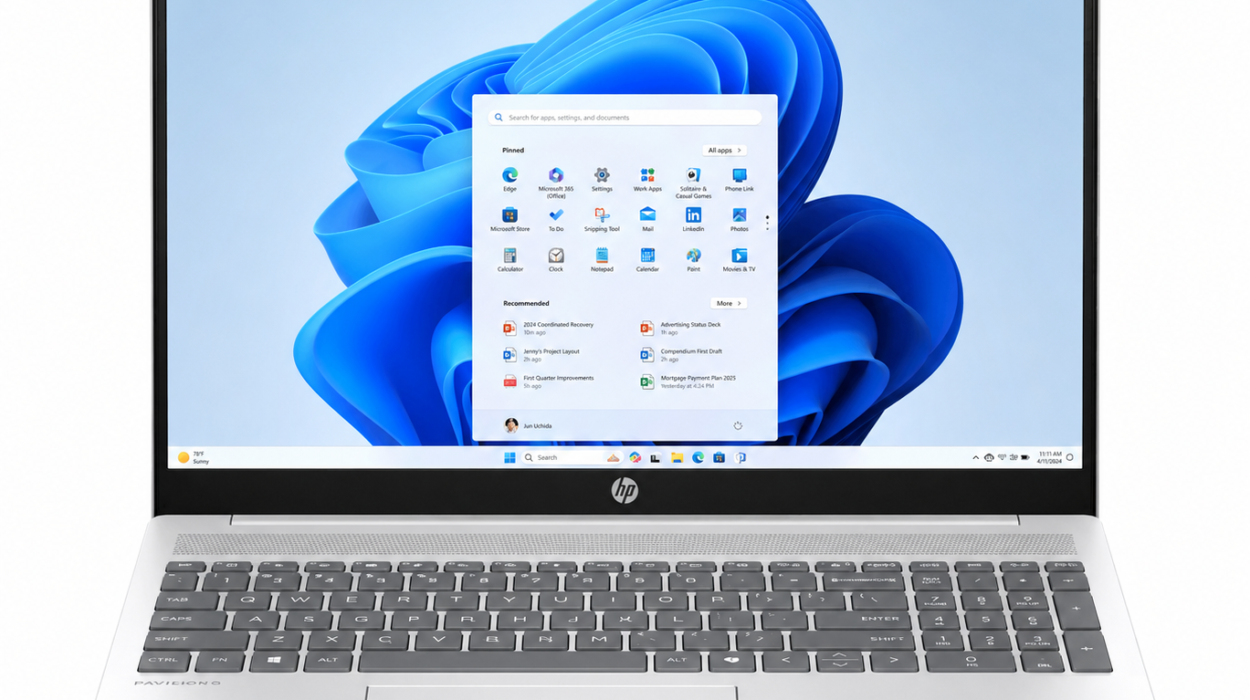
How to Pair Bluetooth Devices on a Windows Computer
Windows supports a wide variety of Bluetooth accessories.
Open the Settings application and navigate to the Bluetooth & devices section.
Turn Bluetooth on.
Place your Bluetooth accessory into pairing mode.
Choose the option to add a Bluetooth device.
Windows scans for nearby devices and displays those available.
Select the correct device from the list.
If necessary, confirm the pairing request.
Within seconds, Windows should report that the device has been connected successfully.
How to Pair Bluetooth Devices on a Mac
Mac computers also offer easy Bluetooth pairing.
Open System Settings and select Bluetooth.
Enable Bluetooth if it is currently off.
Put your Bluetooth accessory into pairing mode.
Wait while your Mac searches for nearby devices.
Click Connect next to the desired device.
If a pairing request appears, approve it.
Once connected, many accessories automatically reconnect whenever they’re nearby.
Pairing Wireless Earbuds and Headphones
Wireless earbuds are among the most commonly paired Bluetooth devices.
Most earbuds automatically enter pairing mode the first time they’re removed from their charging case. Others require pressing and holding a button on the earbuds or charging case.
Once pairing mode is active, simply open your phone’s Bluetooth settings, select the earbuds, and approve the connection if prompted.
After the initial setup, the earbuds typically reconnect automatically whenever they’re removed from the charging case and Bluetooth is enabled on the paired device.
Pairing Bluetooth Speakers
Bluetooth speakers usually include a dedicated Bluetooth button.
Pressing or holding this button places the speaker into pairing mode.
Your phone, tablet, or computer can then discover the speaker through its Bluetooth settings.
After pairing, all compatible audio from your device is transmitted wirelessly to the speaker.
Many speakers remember multiple previously paired devices, though they generally connect to only one audio source at a time unless they specifically support multipoint or similar features.
Pairing Keyboards and Mice
Bluetooth keyboards and mice eliminate cable clutter while providing reliable wireless input.
Most models include a pairing button or a switch that activates pairing mode.
After selecting the accessory from your computer’s Bluetooth settings, you may occasionally be asked to type a displayed pairing code using the keyboard itself before pressing Enter. This confirms that the keyboard being paired is the one physically in front of you.
Once connected, the keyboard or mouse usually reconnects automatically whenever it’s powered on.
Pairing Smartwatches and Fitness Trackers
Wearable devices often use Bluetooth together with a companion app.
Instead of pairing only through the phone’s Bluetooth settings, many smartwatches complete the connection during setup within the manufacturer’s mobile application.
The app guides users through pairing, software updates, account setup, health permissions, and synchronization.
Following the instructions provided by the watch manufacturer generally produces the most reliable connection.
Pairing Bluetooth Devices in a Car
Modern vehicles frequently support Bluetooth for hands-free calling and wireless audio streaming.
Open your vehicle’s Bluetooth menu using the infotainment system.
Enable pairing mode on the car if required.
Open your smartphone’s Bluetooth settings and search for nearby devices.
Select your vehicle’s name.
Confirm any pairing codes shown on both displays.
After pairing, your phone may automatically reconnect whenever you start the vehicle.
Many cars also allow access to contacts, call history, and media playback after permission is granted.
Why Bluetooth Devices Sometimes Fail to Pair
Although Bluetooth is designed to be simple, pairing problems occasionally occur.
Sometimes the accessory isn’t actually in pairing mode.
In other cases, the accessory may already be connected to another nearby device.
Bluetooth devices often prioritize reconnecting to previously paired devices instead of accepting new connections.
Distance can also affect pairing. Although Bluetooth works wirelessly, devices generally need to be relatively close during the initial setup.
Temporary software glitches, outdated operating systems, incompatible Bluetooth profiles, or low battery levels may also interfere with successful pairing.
How to Fix Common Bluetooth Pairing Problems
Many Bluetooth issues have straightforward solutions.
Turning Bluetooth off and back on often refreshes the wireless connection.
Restarting both devices can clear temporary software issues.
If the accessory doesn’t appear during scanning, confirm that pairing mode is still active. Many devices automatically exit pairing mode after a short period if no connection is made.
Removing an old Bluetooth connection and pairing the device again can solve persistent problems.
Updating your phone, computer, or accessory firmware may also improve compatibility and stability.
Keeping devices within a few feet of each other during pairing helps establish a strong initial connection.
Understanding Bluetooth Versions
Bluetooth has evolved significantly since its introduction.
Newer versions generally improve speed, range, reliability, security, and energy efficiency.
For example, Bluetooth Low Energy (BLE), introduced as part of Bluetooth 4.0, dramatically reduced power consumption for devices such as fitness trackers, medical sensors, and smart home products.
More recent Bluetooth versions continue improving wireless performance while remaining backward compatible with many older devices.
Although devices with different Bluetooth versions often work together, some advanced features may require support from both devices.
Is Bluetooth Pairing Secure?
Modern Bluetooth pairing is designed with security in mind.
Most current devices use encrypted communication to protect data exchanged between paired devices.
Secure pairing methods help prevent unauthorized devices from connecting without permission.
Nevertheless, users should avoid pairing with unknown devices in public places and should disable discoverable mode after pairing if their device keeps it enabled. This reduces unnecessary visibility to nearby devices.
Keeping device software updated also helps protect against known security vulnerabilities.
How Bluetooth Saves Battery Power
One of Bluetooth’s greatest strengths is its efficiency.
Modern Bluetooth technology is designed to use minimal power, allowing wireless earbuds, smartwatches, keyboards, and fitness trackers to operate for extended periods on relatively small batteries.
Bluetooth Low Energy is particularly effective because it allows devices to remain connected while transmitting only small amounts of data when necessary.
This efficient communication makes today’s wearable technology practical for everyday use.
Bluetooth Profiles Make Devices Work Together
Not every Bluetooth device performs the same tasks.
Bluetooth uses standardized profiles that define how different categories of devices communicate.
Audio devices use profiles designed for music and voice transmission.
Keyboards and mice use profiles intended for human interface devices.
Smartwatches, medical sensors, and fitness trackers often rely on Bluetooth Low Energy profiles for efficient data exchange.
These standardized profiles allow products from different manufacturers to work together with a high degree of compatibility.
The Science Behind Wireless Communication
Bluetooth works by sending information through rapidly changing radio frequencies within the 2.4 GHz band.
This technique, known as frequency hopping spread spectrum, helps reduce interference from other wireless technologies operating in the same frequency range, such as Wi-Fi and some cordless devices.
By switching frequencies many times per second, Bluetooth maintains reliable communication even in environments with multiple wireless signals.
Error detection and correction techniques further improve data reliability by helping devices identify and recover from transmission errors.
Everyday Benefits of Bluetooth Pairing
Once devices are paired, everyday tasks become much simpler.
Music streams wirelessly during workouts.
Hands-free calls improve driving safety.
Wireless keyboards create cleaner workspaces.
Fitness trackers automatically synchronize health information.
Game controllers connect instantly to gaming systems.
Smart home devices communicate seamlessly without complicated wiring.
What once required cables and connectors now happens almost effortlessly through invisible radio communication.
Looking Toward the Future of Bluetooth
Bluetooth technology continues to evolve as wireless devices become increasingly interconnected.
Newer developments improve audio quality, reduce power consumption, increase connection stability, and expand the number of devices that can communicate simultaneously.
Innovations such as Bluetooth LE Audio introduce more efficient audio transmission and support features like Auracast™ broadcast audio, enabling compatible devices to receive shared audio streams in supported environments.
As homes, workplaces, healthcare, transportation, and wearable technology continue becoming smarter, Bluetooth will remain one of the essential technologies enabling seamless wireless communication.
Final Thoughts
Pairing Bluetooth devices may seem like a simple tap on a screen, but it represents a remarkable achievement in wireless engineering. Behind every successful connection is a carefully designed process involving radio communication, device discovery, authentication, encryption, and standardized protocols that allow products from different manufacturers to work together.
Understanding how Bluetooth pairing works not only makes troubleshooting easier but also helps users appreciate the technology they rely on every day. Whether connecting wireless headphones for an evening walk, syncing a smartwatch with a phone, or linking a laptop to a keyboard, Bluetooth transforms complicated wireless communication into an experience that feels almost effortless. As the technology continues to improve, pairing devices will become even faster, more secure, and more seamless, making wireless connectivity an even more natural part of everyday life.