Bluetooth headphones have transformed the way we enjoy music, movies, games, and phone calls. Gone are the days of tangled cables and limited movement. Whether you’re exercising, commuting, working from home, or simply relaxing on the couch, Bluetooth headphones offer the freedom to move while staying connected to your favorite devices.
If you’ve just bought your first pair of wireless headphones, connecting them might seem intimidating at first. You may wonder why the headphones don’t appear on your phone, why they refuse to connect to your laptop, or why they keep disconnecting. The good news is that Bluetooth technology is designed to make wireless connections simple and reliable. Once you understand the basic process, connecting Bluetooth headphones becomes one of the easiest things you’ll do with your devices.
This guide explains everything you need to know about connecting Bluetooth headphones to smartphones, computers, tablets, televisions, gaming devices, and more. You’ll also learn how Bluetooth pairing works, why connection problems happen, and how to solve them.
What Are Bluetooth Headphones?
Bluetooth headphones are wireless audio devices that use Bluetooth technology to communicate with another electronic device without the need for cables.
Instead of transmitting sound through a wire, Bluetooth sends digital audio data using short-range radio waves in the 2.4 GHz Industrial, Scientific, and Medical (ISM) radio band. The audio is encoded by the source device, transmitted wirelessly, and decoded inside the headphones almost instantly.
Modern Bluetooth headphones contain a tiny computer chip, antennas, rechargeable batteries, microphones, speakers, and software that manage wireless communication. Together, these components create a seamless listening experience while allowing users to move freely.
How Bluetooth Pairing Works
Before two Bluetooth devices can communicate, they must first recognize and trust each other. This process is called pairing.
When your headphones enter pairing mode, they become discoverable. This means they begin broadcasting their identity so nearby Bluetooth devices can detect them.
When you select the headphones from your phone, tablet, or computer, the two devices exchange encrypted information and establish a secure wireless connection. Once paired, most devices remember each other, allowing them to reconnect automatically whenever Bluetooth is enabled and both devices are nearby.
This secure pairing process helps prevent nearby strangers from accidentally connecting to your headphones.
Before You Connect Your Bluetooth Headphones
Taking a few moments to prepare can make the connection process much smoother.
First, ensure that your headphones have enough battery power. Many connection problems occur simply because the battery is nearly empty. Charging the headphones before their first use is always a good idea.
Next, turn on Bluetooth on the device you want to connect.
Finally, place the headphones into pairing mode. Every manufacturer does this a little differently, but most headphones enter pairing mode by holding the power button for several seconds until an LED flashes rapidly or you hear a voice saying “Pairing.”
If you’re unsure how your specific headphones work, the user manual usually explains the exact procedure.
How to Connect Bluetooth Headphones to an Android Phone
Connecting Bluetooth headphones to an Android phone is quick and straightforward.
Open the Settings app on your phone and navigate to the Bluetooth section. Make sure Bluetooth is turned on.
With your headphones already in pairing mode, wait a few moments while your phone searches for nearby devices. Your headphones should appear in the available devices list.
Tap the name of the headphones. Within seconds, the connection should be established. Many headphones also play a sound or voice prompt confirming that they are connected.
Once paired, Android will usually reconnect to the headphones automatically whenever both devices are turned on.
How to Connect Bluetooth Headphones to an iPhone or iPad
Apple devices make Bluetooth pairing equally simple.
Open the Settings app and tap Bluetooth.
Turn Bluetooth on if it is disabled.
Place the headphones into pairing mode and wait for their name to appear.
Tap the device name, and your iPhone or iPad will complete the pairing process automatically.
The headphones will now appear in your list of saved Bluetooth devices and reconnect automatically whenever they are nearby.
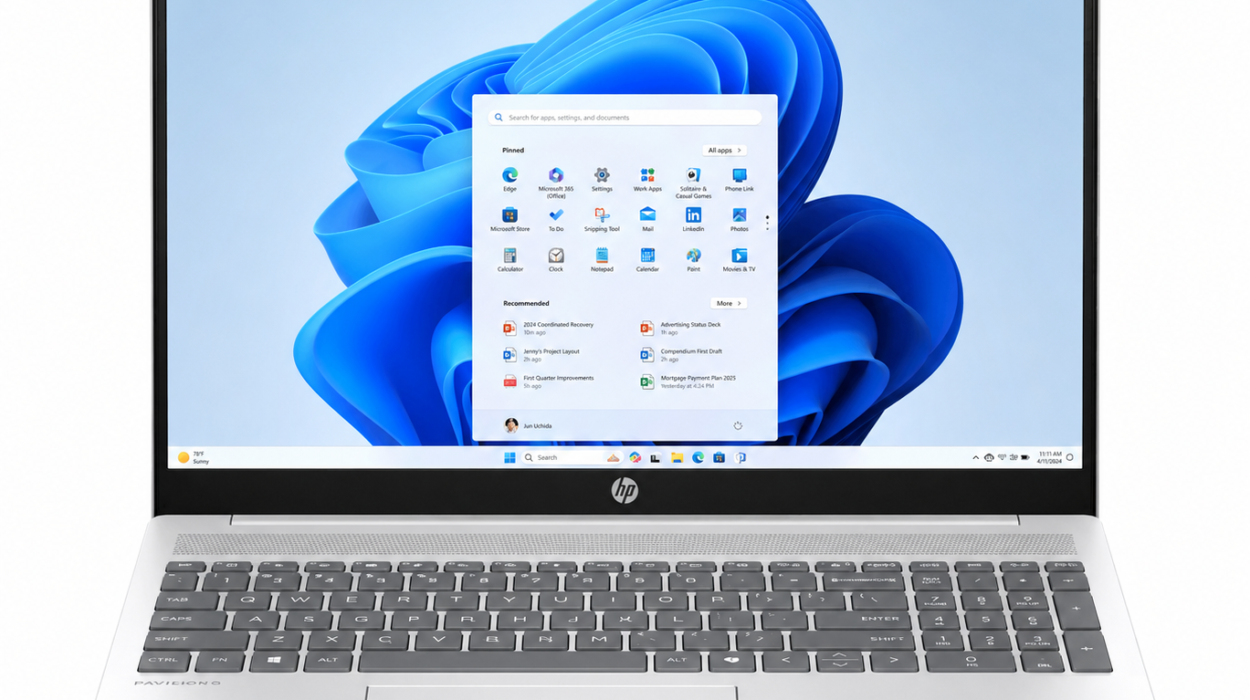
How to Connect Bluetooth Headphones to a Windows Computer
Many people use Bluetooth headphones for online meetings, gaming, music, and video streaming on Windows PCs.
Open the Windows Settings menu and navigate to Bluetooth & devices.
Enable Bluetooth if necessary.
Choose the option to add a new Bluetooth device.
Put your headphones into pairing mode.
After Windows discovers them, select the headphones from the list.
Once connected, Windows may automatically configure them as the default audio output device.
If sound continues playing through your computer speakers, simply choose the headphones as the default playback device in your sound settings.
How to Connect Bluetooth Headphones to a Mac
Apple computers also support Bluetooth audio devices.
Open System Settings or System Preferences, depending on your macOS version.
Select Bluetooth.
Ensure Bluetooth is turned on.
Place your headphones into pairing mode.
When they appear in the nearby devices list, click Connect.
Your Mac should now send audio directly to the headphones.
How to Connect Bluetooth Headphones to a Smart TV
Many modern smart TVs include built-in Bluetooth support.
Open the television’s settings menu and locate the Bluetooth or Audio Devices section.
Place the headphones into pairing mode.
Allow the television to search for nearby Bluetooth devices.
Select the headphones once they appear.
Some televisions may introduce a slight audio delay because Bluetooth transmission requires digital encoding and decoding. Many newer TVs compensate for this automatically.
How to Connect Bluetooth Headphones to a Gaming Console
Support varies depending on the gaming system.
Some gaming consoles include built-in Bluetooth audio support, while others require a compatible wireless adapter or certified headset.
Before purchasing headphones specifically for gaming, it’s worth checking whether your console supports standard Bluetooth audio or requires proprietary wireless technology.
How to Know Your Headphones Are Connected
Most Bluetooth headphones provide clear confirmation once connected.
Many play a short tone.
Others announce “Connected” through a voice prompt.
Some display a steady LED light instead of a flashing one.
On your phone or computer, you’ll usually see the headphone name listed as “Connected” in the Bluetooth settings.
You can also verify the connection by playing music. If the sound comes through the headphones rather than the device’s speakers, the connection has been established successfully.
Why Bluetooth Headphones Won’t Connect
Occasionally, Bluetooth connections don’t work as expected.
The most common reason is that the headphones are not actually in pairing mode. Simply turning them on isn’t always enough. Pairing mode often requires holding the power button for several extra seconds.
Another common issue occurs when the headphones are already connected to another device nearby. Since many headphones automatically reconnect to previously paired devices, they may connect to your laptop instead of your phone.
Turning Bluetooth off on the other device or disconnecting the headphones usually solves this problem.
Low battery levels can also prevent successful pairing.
Sometimes restarting both devices clears temporary software glitches and restores normal operation.
What to Do If Your Headphones Keep Disconnecting
Frequent disconnections can be frustrating, but they usually have simple explanations.
Bluetooth has a limited operating range. Most modern Bluetooth devices work reliably within about 10 meters, or roughly 33 feet, although walls, furniture, and electronic interference can reduce this distance.
If you move too far away, the connection may drop.
Wireless interference from crowded Wi-Fi networks or numerous nearby Bluetooth devices can occasionally affect signal quality.
Keeping your headphones charged and updating your device’s software can also improve connection stability.
Can Bluetooth Headphones Connect to Multiple Devices?
Many premium Bluetooth headphones support multipoint Bluetooth, a feature that allows them to remain connected to two devices simultaneously.
For example, you might listen to music from your laptop while staying connected to your smartphone. If someone calls your phone, the headphones can automatically switch from the computer’s audio to the incoming call.
Not all headphones support multipoint, so checking the product specifications is helpful if this feature is important to you.
Understanding Bluetooth Versions
Bluetooth technology has improved significantly over the years.
Each new version generally brings better energy efficiency, improved stability, greater security, and sometimes lower audio latency. However, newer Bluetooth versions are designed to remain compatible with many older devices, so a modern smartphone can usually connect to headphones using an earlier Bluetooth version.
While having the latest Bluetooth version can improve performance, factors such as the quality of the headphones, the supported audio codecs, and the surrounding environment often have a greater impact on the listening experience.
Do Bluetooth Headphones Reduce Sound Quality?
Modern Bluetooth audio has become remarkably good.
Although Bluetooth compresses audio before transmission, advanced codecs can preserve excellent sound quality. Many listeners cannot distinguish high-quality Bluetooth audio from wired audio during everyday listening.
Professional audio engineers and critical listeners may still prefer wired connections for certain studio applications, but for music streaming, movies, podcasts, and video calls, Bluetooth provides impressive performance with the added convenience of wireless freedom.
Are Bluetooth Headphones Safe?
Bluetooth headphones emit low-power radio waves.
The energy levels used are much lower than those produced by many other wireless communication devices and are classified as non-ionizing radiation. Non-ionizing radio waves do not carry enough energy to damage DNA or ionize atoms.
Current scientific evidence has not established that Bluetooth headphones, when used within international safety guidelines, pose health risks from their radio frequency emissions. As with any headphones, however, listening at excessively high volumes for long periods can damage hearing. Keeping the volume at a moderate level and taking regular listening breaks helps protect long-term hearing health.
Tips for a Better Bluetooth Experience
Keeping your headphones charged helps maintain reliable performance throughout the day.
Staying within the recommended operating range improves signal stability.
Updating your phone, computer, and headphone firmware can fix bugs and improve compatibility.
If you experience repeated connection issues, removing the headphones from your device’s Bluetooth list and pairing them again often resolves the problem.
Learning how to reset your headphones can also be useful, especially after changing phones or connecting to many different devices.
The Future of Bluetooth Audio
Bluetooth technology continues to evolve.
Newer wireless standards improve efficiency, reduce power consumption, and support higher-quality audio. Advances in audio codecs and wireless communication are making Bluetooth headphones more capable than ever, with features such as adaptive sound, intelligent noise cancellation, spatial audio, and seamless switching between multiple devices becoming increasingly common.
As smartphones and computers continue to move away from traditional headphone jacks, Bluetooth is expected to remain the primary way people enjoy wireless audio for years to come.
Conclusion
Connecting Bluetooth headphones is much easier than it may first appear. Once you understand pairing mode and the basic connection process, you can quickly enjoy wireless audio across smartphones, tablets, computers, televisions, and many other devices. Behind this simple experience lies sophisticated radio technology that securely transfers digital sound through the air in a fraction of a second.
Whether you’re listening to your favorite playlist, joining a video meeting, watching a movie, or making a phone call, Bluetooth headphones offer a convenient combination of mobility, comfort, and impressive sound quality. With a little familiarity and a few troubleshooting techniques, you’ll be able to connect your headphones confidently and enjoy a smooth wireless listening experience wherever you go.