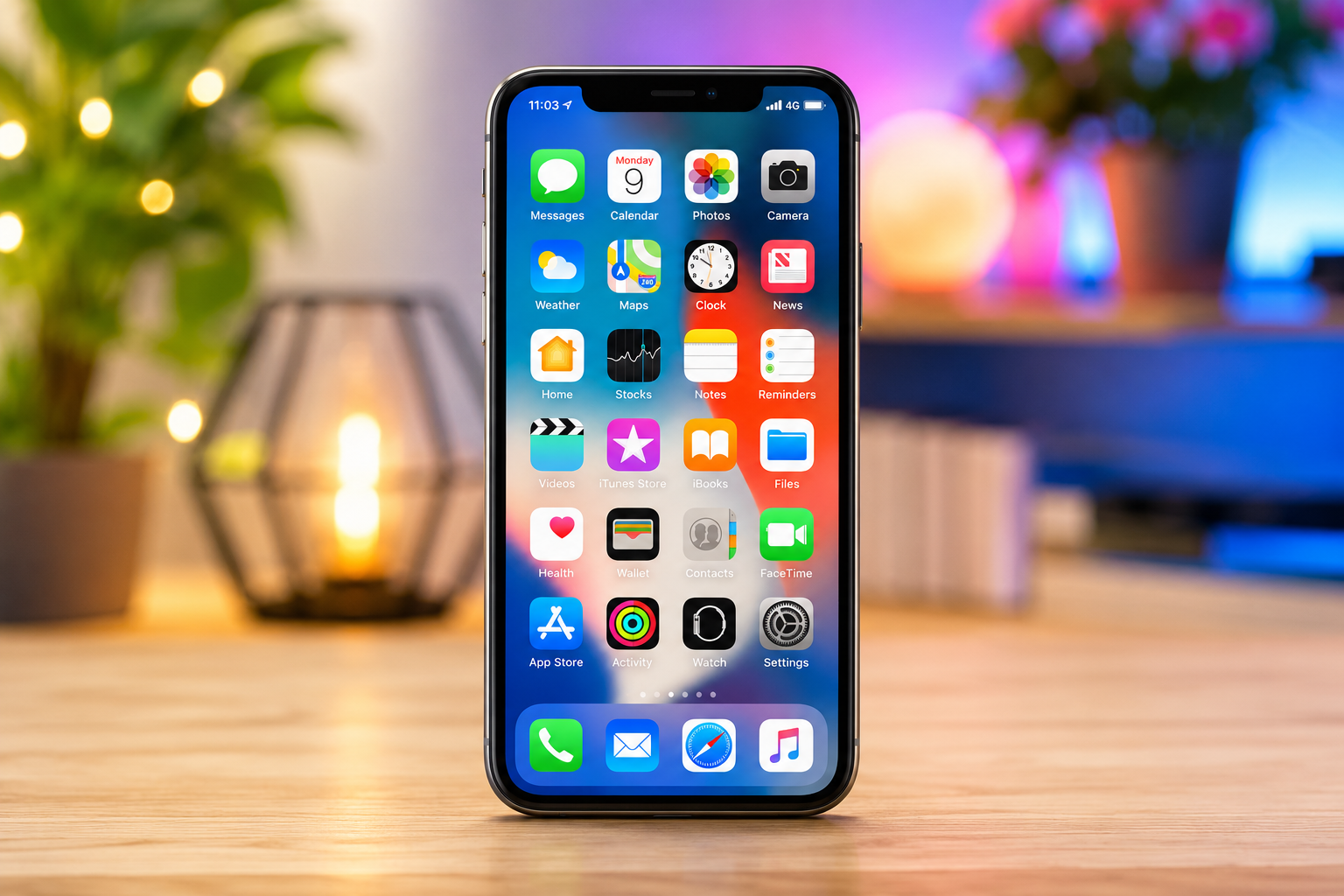
An iPhone is one of the most reliable smartphones available, but even the best technology can occasionally run into problems. Maybe your battery drains too quickly, apps keep crashing, Wi-Fi refuses to connect, or your iPhone suddenly becomes slow. These issues can be frustrating, especially when you rely on your phone for work, communication, navigation, entertainment, and everyday life.
The good news is that most common iPhone problems do not require a trip to a repair shop. Many issues are caused by software glitches, incorrect settings, outdated apps, or temporary system errors that can be fixed in just a few minutes.
Understanding why these problems happen is just as important as knowing how to fix them. Modern iPhones are incredibly sophisticated devices powered by advanced processors, complex software, wireless communication systems, and rechargeable lithium-ion batteries. Because so many components work together, a small issue in one area can sometimes affect the overall experience.
This guide explains the most common iPhone problems, why they occur, and the safest ways to solve them.
Why iPhone Problems Happen
Before diving into specific fixes, it helps to understand why smartphones develop problems in the first place.
An iPhone is essentially a compact computer. Like any computer, it constantly manages memory, processes data, communicates with networks, stores files, and runs multiple applications simultaneously.
Problems can occur because of temporary software bugs, outdated iOS versions, incompatible apps, insufficient storage, damaged settings, weak internet connections, battery aging, or hardware failures.
Fortunately, Apple designs iOS with many built-in recovery features, making it possible to resolve most software-related issues without losing your data.
Your iPhone Is Running Slow
A slow iPhone is one of the most common complaints.
You may notice delays when opening apps, switching between screens, typing on the keyboard, or browsing the web.
One common reason is that too many apps are consuming system resources. Although iOS efficiently manages memory, keeping numerous demanding apps active can temporarily reduce performance.
Restarting the iPhone clears temporary processes and often restores normal speed.
Another common cause is low storage space. When an iPhone has very little available storage, the operating system has less room to manage temporary files efficiently.
You can check storage by opening Settings, selecting General, and then choosing iPhone Storage.
Deleting unused apps, old videos, duplicate photos, and unnecessary downloads can noticeably improve performance.
Keeping iOS updated is also important because Apple regularly releases performance improvements and bug fixes.
Battery Drains Too Quickly
Battery life naturally decreases over time because every rechargeable lithium-ion battery slowly loses capacity as it ages.
However, sudden battery drain is often caused by software rather than hardware.
Apps running continuously in the background may consume more power than expected.
Background App Refresh allows applications to update even when you’re not actively using them. Turning this feature off for apps that don’t need constant updates can improve battery life.
Screen brightness is another major factor.
The display is usually one of the largest power consumers in any smartphone.
Using Auto-Brightness or lowering screen brightness manually can significantly reduce battery usage.
Location Services can also consume considerable power.
Some apps continuously access GPS even when unnecessary.
Reviewing location permissions in Settings allows you to limit access to only the apps that genuinely need it.
Checking Battery Health provides valuable information.
If the maximum battery capacity has dropped significantly after years of use, replacing the battery may restore much of the phone’s original endurance.
iPhone Won’t Charge
Charging problems are often easier to solve than people expect.
First, inspect the charging cable and power adapter.
Frayed cables, damaged connectors, or faulty adapters can prevent proper charging.
The charging port should also be examined carefully.
Pocket lint, dust, and debris often accumulate inside the Lightning or USB-C port, preventing a secure connection.
Cleaning the port gently with a non-metallic tool can sometimes restore charging.
Trying another certified charging cable helps determine whether the issue lies with the cable or the phone itself.
If wireless charging also fails, restarting the iPhone may resolve temporary software issues affecting charging management.
Apps Keep Crashing
Apps occasionally close unexpectedly because of software conflicts, memory issues, or programming bugs.
If only one app crashes repeatedly, updating it through the App Store is usually the first solution.
Developers frequently release updates that fix compatibility issues with newer versions of iOS.
If updating doesn’t help, deleting and reinstalling the app often removes corrupted files.
When multiple apps crash, restarting the iPhone and updating iOS usually resolves the problem.
Persistent crashes after a major software update sometimes disappear after another update, as developers optimize their apps for the latest operating system.
Wi-Fi Won’t Connect
A stable internet connection depends on both the iPhone and the wireless router.
If your iPhone refuses to connect to Wi-Fi, start by turning Wi-Fi off and back on.
If that doesn’t work, restart both the iPhone and the router.
Sometimes the saved network settings become corrupted.
Forgetting the Wi-Fi network and reconnecting by entering the password again often solves authentication problems.
Weak signals, network congestion, or outdated router firmware can also affect performance.
Testing another Wi-Fi network helps determine whether the issue is with the iPhone or the router.
Cellular Data Isn’t Working
Mobile data problems can have several causes.
Airplane Mode may have been enabled accidentally.
Turning it off restores wireless communication.
Sometimes toggling Cellular Data off and on refreshes the network connection.
Restarting the iPhone allows it to reconnect to nearby cellular towers.
Carrier settings updates released by mobile providers can also improve connectivity.
Installing these updates ensures the phone communicates efficiently with your network.
If service problems affect many nearby users, the issue may actually be with your mobile carrier rather than your device.
Bluetooth Won’t Connect
Bluetooth enables wireless communication with headphones, speakers, watches, cars, and many other devices.
When pairing fails, turning Bluetooth off and back on often resets the connection.
If the accessory has previously been paired, removing it from the Bluetooth device list and pairing it again frequently solves communication problems.
Some Bluetooth accessories allow connections to only one device at a time.
Disconnecting them from another phone or computer may allow successful pairing.
Keeping both the iPhone and accessories updated improves compatibility.
The iPhone Keeps Freezing
A frozen screen can feel alarming, but it’s often caused by a temporary software malfunction.
If the display becomes completely unresponsive, performing a force restart usually resolves the problem.
Unlike a standard restart, a force restart immediately reboots the operating system without deleting personal data.
If freezing becomes frequent, updating iOS, freeing storage space, and removing problematic apps often restore stability.
Repeated freezing accompanied by unexpected restarts may indicate a deeper software or hardware issue that requires professional diagnosis.
Touchscreen Isn’t Responding Properly
The touchscreen depends on both hardware and software working together.
Sometimes a screen protector or thick phone case interferes with touch sensitivity.
Removing these accessories helps determine whether they are causing the issue.
Water droplets, dirt, grease, or debris on the display can also reduce responsiveness.
Cleaning the screen with a soft microfiber cloth often improves touch accuracy.
If only certain areas of the display fail to respond consistently, physical screen damage may be responsible.
Face ID Isn’t Working
Face ID uses advanced infrared sensors and depth mapping rather than ordinary photographs.
If Face ID suddenly stops recognizing you, ensure the TrueDepth camera isn’t blocked by dust, fingerprints, or a phone case.
Good lighting isn’t always necessary because Face ID uses infrared technology, but extreme angles or partially covered faces can reduce recognition accuracy.
Re-registering your face in Settings often restores reliable performance.
If Face ID remains unavailable after restarting the phone, hardware servicing may be required.
iPhone Gets Too Hot
It’s normal for an iPhone to become warm while charging, recording high-resolution video, playing demanding games, or downloading large software updates.
However, excessive heat should not persist.
Direct sunlight, especially inside parked vehicles, can quickly raise the device’s temperature beyond safe operating limits.
Closing resource-intensive apps and allowing the phone to cool naturally is usually the best solution.
Avoid placing an overheated iPhone in a refrigerator or freezer because sudden temperature changes may create internal condensation that damages electronic components.
Storage Is Almost Full
Modern photos, videos, apps, and games consume significant storage.
When storage becomes nearly full, overall performance may decline.
Reviewing storage usage helps identify the largest files.
Videos often occupy much more space than photos.
Deleting duplicate images, old downloads, unused apps, and unnecessary documents can free substantial storage.
Cloud services can also help reduce local storage usage while keeping files accessible.
Maintaining several gigabytes of free storage allows iOS to operate more efficiently.
Camera Isn’t Working Properly
If the Camera app displays a black screen or crashes unexpectedly, restarting the iPhone is often enough to restore normal operation.
Closing other camera-related apps prevents conflicts because only one application can fully access the camera hardware at a time.
Cleaning the camera lens improves image quality dramatically.
Even a small fingerprint can reduce sharpness and contrast.
If focusing remains inconsistent despite a clean lens, physical damage or internal hardware problems may require professional repair.
Speaker Sounds Quiet
A muffled speaker isn’t always broken.
Dust and lint can partially block the speaker grille, reducing sound volume.
Cleaning the openings gently with a soft brush often restores audio quality.
Checking whether the phone is connected to Bluetooth headphones or speakers is also worthwhile, since sound may actually be playing through another device.
Software updates occasionally improve audio performance by correcting bugs.
Microphone Isn’t Picking Up Your Voice
If callers cannot hear you clearly, inspect the microphone openings for dirt or debris.
Testing the microphone using the Voice Memos app helps determine whether the problem affects all applications or only phone calls.
Removing thick phone cases can improve sound pickup if they partially block the microphones.
If multiple microphones fail simultaneously, restarting the phone and updating iOS are good first troubleshooting steps.
Notifications Have Stopped Appearing
Missing notifications are often caused by settings rather than software failures.
Focus modes can silence alerts without users realizing it.
Checking whether Focus or Do Not Disturb is active can quickly solve the problem.
Individual apps also have separate notification settings.
Reviewing these options ensures banners, sounds, and lock screen alerts are enabled as desired.
Software Updates Won’t Install
iOS updates require enough available storage and a stable internet connection.
Deleting unnecessary files can create the required free space.
A strong Wi-Fi connection reduces the chance of download interruptions.
Charging the iPhone during installation is recommended because some updates require a minimum battery level before they can begin.
If an update repeatedly fails, restarting the device often clears temporary installation errors.
Safari Isn’t Working Correctly
If websites refuse to load or Safari behaves unusually, clearing browsing history and website data can solve many problems.
Too many open tabs may also slow browser performance.
Closing unused tabs reduces memory usage.
Testing another browser helps determine whether the problem lies with Safari itself or with the internet connection.
iPhone Is Stuck on the Apple Logo
Occasionally, an interrupted software update or startup error may leave the iPhone displaying only the Apple logo.
A force restart is the safest first step.
If the phone still won’t start, Recovery Mode allows iOS to be reinstalled without necessarily erasing personal data, depending on the repair method used.
Keeping regular backups makes recovery much easier if a complete restore becomes necessary.
When to Reset Your iPhone
Resetting should generally be considered only after simpler troubleshooting steps have failed.
Resetting network settings can solve persistent Wi-Fi and cellular problems without affecting personal files.
Resetting all settings restores system preferences while preserving photos, apps, and documents.
Erasing the entire device should be reserved for major software issues or when preparing the phone for sale.
Before performing a complete reset, always create a current backup.
Keeping Your iPhone Running Smoothly
Preventing problems is often easier than fixing them.
Installing iOS updates regularly provides important security improvements and bug fixes.
Keeping apps updated ensures compatibility with the latest operating system.
Avoiding extremely low storage levels helps maintain performance.
Using certified charging accessories protects both the battery and charging circuitry.
Backing up important data regularly safeguards your information if unexpected problems occur.
Protecting the phone from excessive heat, water damage, and severe impacts also extends its lifespan.
When Professional Repair Is Necessary
Not every problem can be solved at home.
Cracked displays, swollen batteries, persistent charging failures, severe water damage, camera hardware faults, and repeated startup failures often require professional repair.
Ignoring hardware issues may allow further damage to develop over time.
Seeking qualified service as soon as symptoms appear can sometimes prevent more expensive repairs later.
Conclusion
Most iPhone problems may seem serious at first, but many are surprisingly simple to fix. A restart, software update, storage cleanup, or settings adjustment is often enough to restore normal performance. Understanding how your iPhone works—and why certain issues occur—can save time, reduce frustration, and help you keep your device running smoothly for years.
Technology is most useful when it works quietly in the background. By maintaining your iPhone with regular updates, sufficient storage, careful charging habits, and routine backups, you can minimize interruptions and enjoy a faster, safer, and more reliable experience. Whether you’re sending messages, capturing memories, navigating unfamiliar places, or staying connected with loved ones, a well-maintained iPhone is ready to handle the moments that matter most.