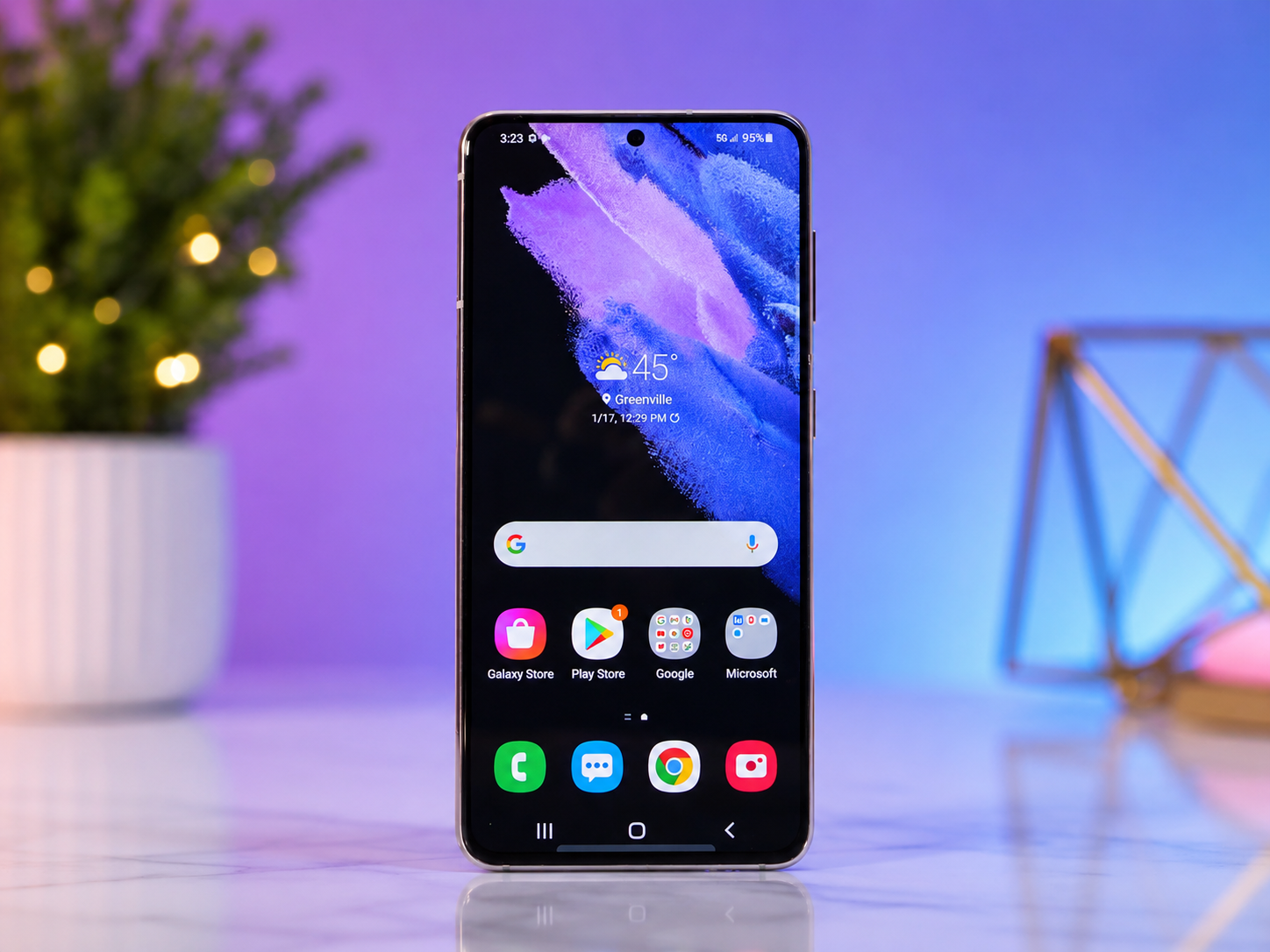
Few things are more frustrating than picking up your Android phone only to find that it has suddenly become slow, refuses to connect to Wi-Fi, drains its battery too quickly, or crashes while opening your favorite app. Because smartphones have become an essential part of daily life, even a small problem can interrupt work, communication, entertainment, and navigation.
The good news is that most Android problems are not caused by permanent hardware failures. In many cases, they result from temporary software glitches, outdated apps, overloaded storage, or settings that can be adjusted in just a few minutes. Understanding why these problems happen is the first step toward fixing them.
Android is one of the world’s most widely used mobile operating systems. It powers billions of devices made by companies such as Samsung, Google, Motorola, OnePlus, Xiaomi, Oppo, Vivo, Sony, and many others. Although each manufacturer adds its own interface and features, the underlying troubleshooting methods are remarkably similar across most Android phones and tablets.
This guide explains the most common Android problems, why they occur, and how you can solve them safely without risking your data or damaging your device.
Why Android Phones Develop Problems
An Android phone is essentially a small computer. Like any computer, it constantly runs software, manages memory, communicates with networks, stores files, and processes millions of instructions every second.
Over time, temporary files accumulate, apps become outdated, storage fills up, and background processes compete for system resources. Occasionally, software updates introduce bugs, while incompatible apps may interfere with normal system behavior.
Environmental factors also matter. Heat, moisture, damaged charging cables, aging batteries, and physical wear can all affect performance.
Fortunately, Android includes numerous built-in tools that help diagnose and resolve many of these issues.
Fixing a Slow Android Phone
One of the most common complaints is that an Android phone gradually becomes slower than it used to be.
This often happens because too many apps are running in the background, available storage is running low, or the device has not been restarted for a long time.
A simple restart is often surprisingly effective. Restarting clears temporary memory, stops unnecessary background processes, and allows Android to reload essential system services.
If the phone remains slow, check your available storage. Android performs best when some storage remains free. When internal storage is nearly full, installing updates, saving photos, and running apps all become more difficult.
Removing unused apps, deleting unnecessary downloads, and clearing large media files can significantly improve performance.
Keeping Android and installed apps updated is equally important because software updates frequently include performance improvements and bug fixes.
Solving Battery Drain Problems
Rapid battery drain is another issue that affects many Android users.
Battery life naturally decreases as rechargeable lithium-ion batteries age, but software settings often play an equally important role.
Start by checking which apps consume the most power. Android provides battery usage statistics that identify apps running excessively in the background.
Reducing screen brightness can dramatically improve battery life because the display is usually one of the phone’s largest power consumers.
Enabling adaptive brightness allows Android to adjust the screen automatically based on surrounding light.
Turning off Bluetooth, GPS, Wi-Fi, or mobile hotspot when they are not needed also reduces energy consumption.
Battery Saver mode limits background activity and lowers power usage without significantly affecting normal operation.
If battery performance suddenly changes after installing a new app, that application may be consuming excessive resources. Updating or uninstalling the app often solves the problem.
What to Do When Apps Keep Crashing
Apps occasionally close unexpectedly or freeze completely.
This usually happens because of corrupted temporary files, software bugs, insufficient storage, or compatibility issues.
Clearing an app’s cache removes temporary data without deleting your personal information.
If that does not help, updating the app through the Google Play Store may resolve known bugs.
When problems continue, uninstalling and reinstalling the app often restores proper functionality.
Sometimes the app itself is functioning normally, but the Android operating system requires an update to maintain compatibility.
Keeping both the operating system and apps current greatly reduces crashes.
Fixing Wi-Fi Connection Problems
Reliable internet access is essential for most smartphone functions.
If your Android device refuses to connect to Wi-Fi, first confirm that other devices can connect to the same network. If every device has lost connection, the router may need restarting.
If only your phone is affected, turning Wi-Fi off and back on often resolves temporary communication errors.
For persistent problems, forgetting the saved network and reconnecting using the password creates a fresh connection.
Restarting both the router and the phone can eliminate many temporary networking issues.
Software updates for both Android and the router’s firmware may also improve compatibility and stability.
Solving Mobile Data Issues
Sometimes mobile data stops working even when signal strength appears normal.
Airplane Mode may have been enabled accidentally.
Turning Airplane Mode on for a few seconds and then switching it off forces the phone to reconnect to the mobile network.
Checking whether mobile data is enabled is another simple but important step.
Network outages from your mobile carrier can also interrupt service temporarily.
If problems continue, resetting the phone’s network settings restores Wi-Fi, Bluetooth, and mobile network configurations to their default state without deleting photos or personal files.
Fixing Bluetooth Problems
Bluetooth technology allows wireless communication between smartphones, headphones, speakers, watches, keyboards, and vehicles.
Pairing failures often occur because devices remain connected to another phone or have outdated pairing information.
Turning Bluetooth off and back on refreshes the wireless connection.
Removing the paired device and pairing it again frequently resolves communication issues.
Keeping both devices close together during pairing reduces interference.
Updating device firmware, especially for wireless earbuds and smartwatches, can improve compatibility with newer Android versions.
What to Do If Your Phone Won’t Charge
Charging problems can have many causes.
Dust or lint trapped inside the charging port is surprisingly common.
Carefully inspecting the charging port under good lighting may reveal debris preventing the cable from making proper contact.
Using the original charger or a certified replacement helps ensure proper voltage and current delivery.
Damaged charging cables often work intermittently or stop functioning altogether.
Testing another cable and charger is one of the fastest ways to identify the source of the problem.
If wireless charging suddenly stops working, removing thick protective cases may improve charging efficiency.
Phones that become excessively hot during charging may temporarily slow or pause charging to protect the battery.
When the Phone Overheats
Modern smartphones automatically reduce performance when temperatures become too high.
This protective feature prevents damage to internal components.
Overheating commonly occurs while gaming, recording high-resolution video, navigating in direct sunlight, or using fast charging.
Moving the phone into a cooler environment usually allows temperatures to return to normal.
Removing thick protective cases during heavy workloads may improve heat dissipation.
Closing demanding applications also reduces processor activity.
If overheating occurs even during light use, an app may be malfunctioning in the background or the battery may require professional evaluation.
Fixing Touchscreen Problems
An unresponsive touchscreen can make a phone nearly impossible to use.
Sometimes moisture, dirt, or oily fingerprints interfere with touch detection.
Cleaning the display using a soft microfiber cloth often restores normal responsiveness.
If a screen protector has lifted or contains air bubbles, replacing it may solve touch sensitivity issues.
Restarting the phone can resolve temporary software glitches affecting touch input.
Physical damage from drops may require professional repair if parts of the display no longer respond.
Solving Camera Problems
The Android camera depends on both hardware and software working together.
If the camera app freezes or refuses to open, restarting the device is a good first step.
Closing other camera-related apps prevents conflicts because Android generally allows only one application to access the camera at a time.
Cleaning the camera lens improves image quality significantly.
Blurry photos are often caused by fingerprints or dust rather than faulty hardware.
Keeping the camera app updated ensures compatibility with the latest Android version.
Fixing Storage Problems
Running out of storage affects almost every aspect of phone performance.
Apps may refuse to update.
Photos cannot be saved.
System updates may fail.
Deleting duplicate photos, unnecessary videos, downloaded files, and unused applications frees valuable storage space.
Cloud storage services can safely store photos while reducing local storage usage.
Many Android phones also provide built-in storage analysis tools that identify large files consuming significant space.
Dealing with Random Restarts
A phone that restarts unexpectedly may have software conflicts, unstable apps, or hardware issues.
Installing pending Android updates should always be the first step.
If the problem began after installing a particular app, removing that app may solve the issue.
Booting the phone in Safe Mode temporarily disables third-party applications. If the phone becomes stable in Safe Mode, a recently installed app is likely responsible.
Persistent restart problems despite software troubleshooting may indicate failing hardware or battery deterioration.
When Notifications Stop Appearing
Missing notifications can cause users to overlook important messages and reminders.
Android allows notification settings to be customized individually for every app.
Checking whether notifications have been disabled for a particular app is worthwhile.
Battery optimization features sometimes delay notifications to reduce power consumption.
Allowing important messaging apps to run without battery restrictions often restores timely notifications.
Do Not Disturb mode can also silence alerts without users realizing it has been activated.
Fixing Google Play Store Problems
Occasionally, apps refuse to download or update.
Temporary Play Store errors often disappear after restarting the phone.
Clearing the Google Play Store cache may resolve download issues.
Ensuring that sufficient storage space is available is equally important because installations require free internal memory.
Verifying that the Google account is functioning correctly also helps restore Play Store services.
Improving Phone Security
Performance is important, but security is equally essential.
Keeping Android updated protects against newly discovered security vulnerabilities.
Downloading apps only from trusted sources significantly reduces malware risks.
Google Play Protect automatically scans installed applications for harmful behavior and should remain enabled.
Strong screen locks, fingerprint authentication, or facial recognition help prevent unauthorized access if the phone is lost.
Regular software updates remain one of the most effective ways to maintain device security.
The Importance of Restarting Your Phone
Many users rarely restart their phones.
However, restarting periodically clears temporary system memory, refreshes background services, reconnects wireless networks, and often resolves minor software glitches before they become larger problems.
Even modern smartphones benefit from an occasional reboot.
It is one of the simplest maintenance habits with surprisingly effective results.
When a Factory Reset Becomes Necessary
If numerous troubleshooting methods fail and software problems continue, performing a factory reset may restore the phone to its original condition.
A factory reset removes installed apps, personal files, settings, and stored accounts from the device.
Before performing one, it is essential to back up photos, contacts, messages, documents, and other important information.
Factory resets are especially useful for persistent software corruption, repeated crashes, or preparing a phone for resale.
Because this process erases user data, it should generally be considered a last resort after less disruptive solutions have been tried.
Preventing Future Android Problems
Good maintenance habits greatly reduce the likelihood of future issues.
Keeping software updated ensures access to the latest security patches and performance improvements. Installing applications from trusted sources minimizes compatibility problems and security risks. Regularly removing unused files prevents storage shortages, while avoiding prolonged exposure to excessive heat helps preserve battery health.
Charging the device with reliable accessories, restarting it occasionally, and monitoring storage usage all contribute to long-term stability.
Most Android phones can remain fast and dependable for years when they are maintained properly.
Conclusion
Android smartphones are powerful computers that fit comfortably in your pocket, capable of handling communication, photography, navigation, entertainment, productivity, and countless other tasks. Like any sophisticated technology, they occasionally encounter problems, but most issues have straightforward solutions that users can perform without technical expertise.
Understanding the reasons behind slow performance, battery drain, app crashes, charging issues, connectivity problems, and storage limitations makes troubleshooting far less intimidating. In many cases, simple actions such as restarting the device, updating software, freeing storage space, or adjusting settings can restore normal operation within minutes.
By combining regular maintenance with thoughtful troubleshooting, you can keep your Android phone running smoothly, securely, and efficiently. Rather than seeing occasional problems as signs that a device has reached the end of its life, they can often be viewed as routine maintenance tasks that help extend its performance and reliability for years to come.