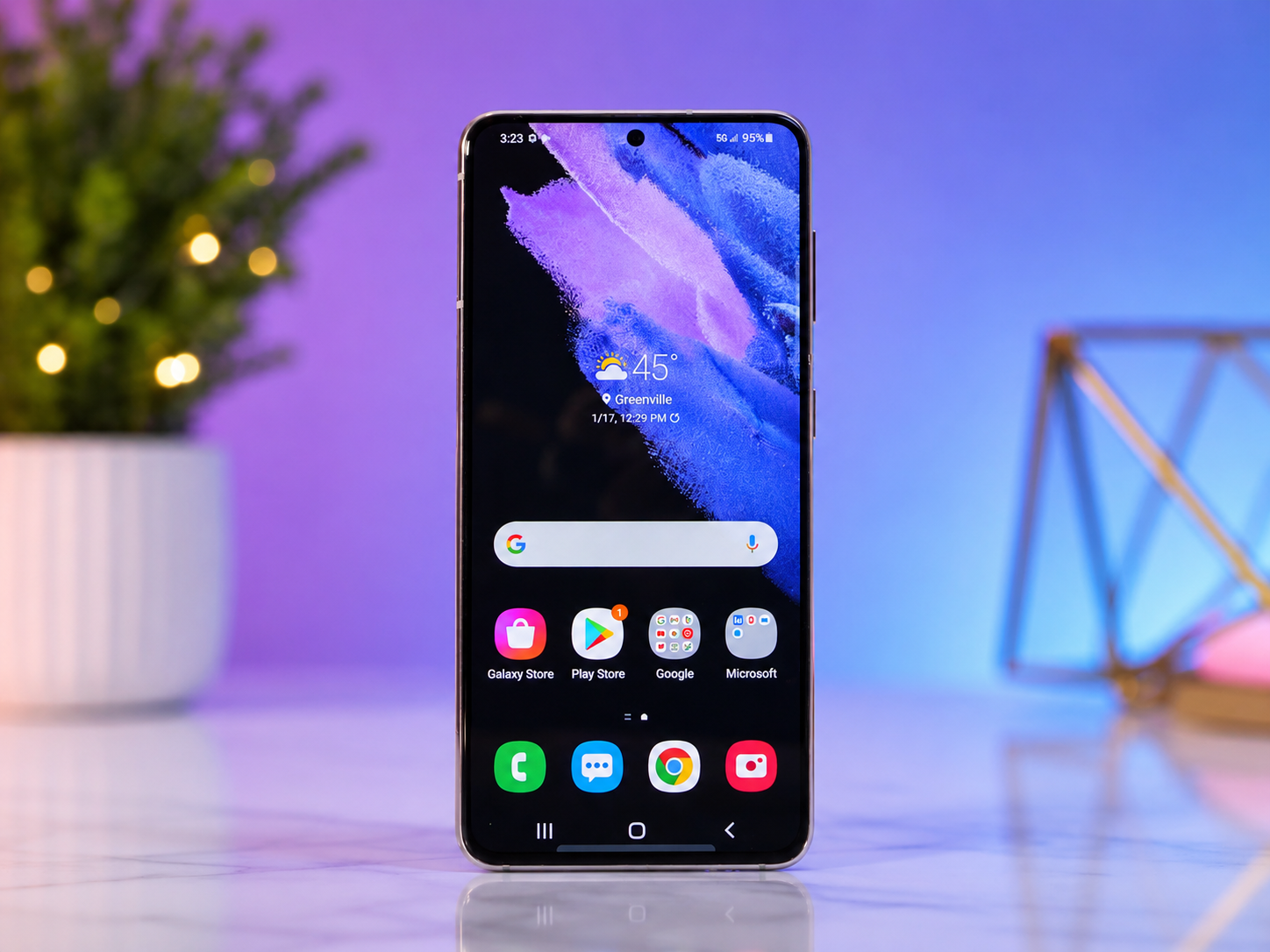
Buying a new Android phone is exciting. A faster processor, a brighter display, a better camera, and longer battery life promise a fresh experience. But before you can fully enjoy your new device, there is one important task to complete—transferring your data.
Your photos capture precious memories. Your contacts connect you to family and friends. Your messages hold important conversations. Your apps, documents, calendars, and settings make your phone uniquely yours. Moving all of this to a new Android phone might sound complicated, but modern Android devices make the process much easier than ever before.
Whether you are upgrading from another Android phone or replacing a damaged device, there are several reliable ways to move your information safely. Most transfers can be completed in less than an hour, depending on how much data you have.
This guide explains everything you need to know about transferring data to a new Android phone, helping you start using your new device with confidence.
Why Data Transfer Matters
Your smartphone stores much more than just files. It contains your digital life.
Photos preserve family vacations, birthdays, and unforgettable moments. Contacts keep your personal and professional relationships organized. Messages may include important information, verification codes, and cherished conversations. Apps remember your preferences, and calendars help manage your daily schedule.
Without a proper transfer, you could lose valuable information or spend hours manually setting everything up again.
Fortunately, Android provides several secure methods for moving data, many of which require little more than following on-screen instructions.
What You Can Transfer
Modern Android phones can transfer nearly every type of personal data.
This includes contacts, call history, text messages, photos, videos, music, downloaded files, calendars, installed apps, Wi-Fi passwords, wallpapers, alarms, device settings, browser bookmarks, and many app preferences.
Some apps automatically restore your information when you sign in with your account. Others require you to log in again for security reasons.
Certain sensitive data, such as banking information, digital wallets, authentication apps, and some passwords, may need to be set up manually to protect your privacy and security.
Prepare Your Phones Before You Begin
A smooth transfer starts with a little preparation.
Fully charge both phones or connect them to chargers. Data transfers can take time, especially if you have many photos or videos.
Connect both devices to a stable Wi-Fi network if you plan to transfer wirelessly or restore from cloud backups.
If you are using a cable, make sure you have a compatible USB cable. Many modern Android phones support direct device-to-device transfers using a USB-C cable.
It is also a good idea to update your old phone to the latest available Android version before transferring data. Software updates often improve compatibility and reduce transfer problems.
Back Up Your Old Phone First
Before making any major changes, create a backup of your existing phone.
Android devices usually back up important information to your Google Account automatically when backup is enabled.
This backup may include app data, contacts, SMS messages, call history, Wi-Fi settings, wallpapers, device preferences, and other information.
Photos and videos can also be backed up separately using Google Photos if backup is enabled.
Creating a backup provides an extra layer of protection in case something unexpected happens during the transfer process.
Transfer Data During Phone Setup
The easiest time to transfer your information is while setting up your new Android phone.
When you turn on a new Android device for the first time, it typically asks whether you want to copy apps and data from another device.
Simply follow the on-screen instructions.
Depending on your phone model, you may be able to connect both devices using a USB cable or transfer everything wirelessly.
The setup assistant guides you through each step, making the process straightforward even for first-time users.
Once complete, your new phone will begin downloading apps, restoring settings, and organizing your data.
Using a Cable for Faster Transfers
A wired transfer is often the fastest and most reliable option.
When both phones are connected with a compatible cable, they communicate directly without relying on internet speed.
This method can transfer large photo libraries, videos, and apps much more quickly than wireless methods.
Many Android manufacturers include the necessary cable in the phone box or provide an adapter if needed.
After connecting both devices, simply follow the prompts on the screen and choose which data you would like to move.
Transferring Data Wirelessly
If you do not have a cable, wireless transfer works very well.
Many Android phones establish a direct Wi-Fi connection between the two devices.
The phones securely exchange information without requiring additional equipment.
Wireless transfers are especially convenient when moving moderate amounts of data.
However, if your photo collection contains thousands of images or many large videos, the process may take longer than a wired transfer.
Keeping both phones close together during the transfer helps maintain a stable connection.
Restoring from Your Google Account
Google’s cloud backup system makes upgrading phones remarkably simple.
During setup, sign in using the same Google Account you used on your previous phone.
If a recent backup is available, Android will offer to restore it.
Your contacts, calendars, Wi-Fi passwords, many device settings, and supported app data will automatically begin downloading.
Installed apps are usually restored from the Google Play Store.
This method is especially useful if your old phone has been lost, stolen, or damaged.
Moving Photos and Videos
Photos and videos are often the most valuable files on a smartphone.
If Google Photos backup is enabled on your old phone, your media will appear automatically after signing into the same Google Account on your new phone.
If cloud backup was not enabled, you can transfer media directly using a USB cable, wireless transfer, or by copying files to a computer and then onto your new device.
Large video collections may take longer to copy because video files are much larger than photos.
Transferring Contacts
Contacts are among the easiest types of data to move.
If your contacts are saved to your Google Account, they automatically sync to your new Android phone after you sign in.
If some contacts were stored only on the device or SIM card, Android provides options to import or export them.
Checking your contacts before resetting or selling your old phone helps ensure nothing important is left behind.
Restoring Apps
Most Android apps are downloaded automatically during the setup process.
Once restored, many apps allow you to continue where you left off after signing in.
However, some apps require additional verification for security reasons.
Banking apps, payment services, password managers, and two-factor authentication apps often require manual setup to protect sensitive information.
This security feature helps prevent unauthorized access if someone gains possession of your device.
What Happens to Your Messages?
Text messages can usually be restored automatically if they were included in your Google backup.
Some messaging apps also store conversations in the cloud.
For example, messaging platforms that use account-based synchronization often restore chats after you log in.
However, if a messaging app does not provide cloud synchronization or local backup, you may need to use its built-in backup feature before changing phones.
Checking each important messaging app beforehand can prevent unexpected data loss.
Transferring Music and Documents
Music, PDFs, spreadsheets, presentations, and other files can be copied using several methods.
A USB cable allows direct file transfer between devices.
Cloud storage services also make moving documents simple.
If your music was purchased or streamed through an online service, signing into the same account usually restores your playlists and library.
Locally stored music files can be copied manually if necessary.
Manufacturer Transfer Tools
Many Android phone manufacturers offer their own transfer applications.
These tools often move additional settings, wallpapers, home screen layouts, and device-specific preferences that may not transfer through Google’s standard system.
Although each manufacturer’s app works slightly differently, most guide users step by step and support both wired and wireless transfers.
These tools are especially helpful when upgrading to another phone from the same manufacturer.
How Long Does Data Transfer Take?
Transfer time depends on several factors.
A small amount of data may transfer in just a few minutes.
A phone containing hundreds of gigabytes of photos, videos, and apps may require an hour or more.
Wireless transfers generally take longer than wired transfers.
Internet speed also affects cloud restoration.
After the initial setup finishes, your phone may continue downloading apps and synchronizing information in the background for several hours.
This is normal.
What If Something Doesn’t Transfer?
Sometimes certain files or settings may not appear immediately.
Before worrying, give the phone some time.
Background syncing continues after setup.
Check that your Google Account is signed in correctly.
Confirm that synchronization is enabled for contacts, calendars, photos, and other services.
If an app appears empty, signing into your account often restores its data automatically.
Restarting the phone can also resolve temporary synchronization issues.
Protect Your Data During Transfer
Keeping your personal information secure is just as important as transferring it.
Only use trusted transfer methods built into Android or provided by your phone manufacturer.
Avoid downloading unknown transfer applications from unofficial sources.
If you use public Wi-Fi, consider waiting until you have access to a secure home network before transferring sensitive information.
Strong screen locks, fingerprint authentication, and secure passwords help protect your new device after setup.
Don’t Reset Your Old Phone Too Soon
One common mistake is erasing the old phone immediately after the transfer appears complete.
Instead, spend a day or two checking your new device.
Open important apps.
Verify your photos.
Check your contacts.
Read a few text messages.
Make sure important documents are present.
Once you are completely satisfied that everything transferred successfully, you can safely erase the old phone before selling, recycling, or giving it away.
Factory resetting the device removes your personal information and protects your privacy.
Troubleshooting Common Transfer Problems
Occasionally, transfers may pause or fail.
Low battery, unstable Wi-Fi, incompatible cables, or outdated software are common causes.
Restarting both phones often resolves temporary issues.
Updating Android to the latest available version can also improve compatibility.
If cloud restoration does not begin automatically, checking your Google backup settings may reveal the problem.
Most transfer issues are temporary and can be resolved without losing data.
Why Android Makes Upgrading Easier Than Ever
Over the years, Android has become increasingly user-friendly.
Earlier generations of smartphones often required manually copying contacts, photos, and files.
Today, cloud synchronization, direct cable transfers, and wireless migration tools automate much of the process.
These improvements reduce the risk of losing valuable memories while making phone upgrades faster and less stressful.
Behind the scenes, Android securely verifies user accounts, encrypts transferred information when appropriate, and restores compatible settings to create a familiar experience on your new device.
Conclusion
Transferring data to a new Android phone is no longer a difficult or intimidating task. Thanks to built-in Android features, Google cloud services, and manufacturer transfer tools, most users can move their photos, contacts, apps, messages, settings, and documents with just a few guided steps.
The key to a successful transfer is preparation. Back up your old phone, keep both devices charged, use a secure transfer method, and verify that your important data has arrived before resetting your old device.
A new phone should feel like an upgrade, not a fresh start from scratch. With the right approach, your favorite memories, essential information, and everyday tools can move with you seamlessly, allowing you to enjoy your new Android device from the very first moment.