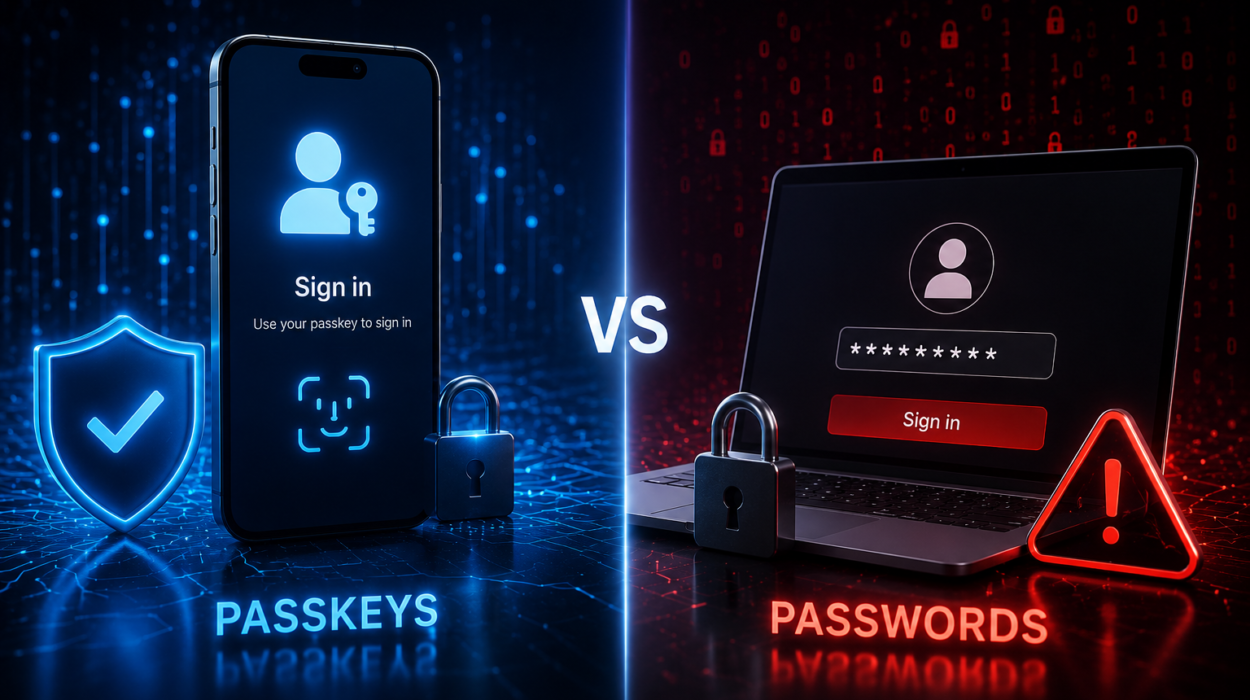
For decades, passwords have been the gatekeepers of our digital lives. We use them to unlock smartphones, access email, manage bank accounts, shop online, store precious photos, and communicate with friends and family. Yet despite their importance, passwords have always had one major weakness: they depend on people creating, remembering, and protecting them.
Many people reuse the same password across multiple websites. Others choose passwords that are easy to guess, while some struggle to remember dozens of complex combinations. As cybercriminals become more sophisticated, stolen passwords have become one of the most common ways online accounts are compromised.
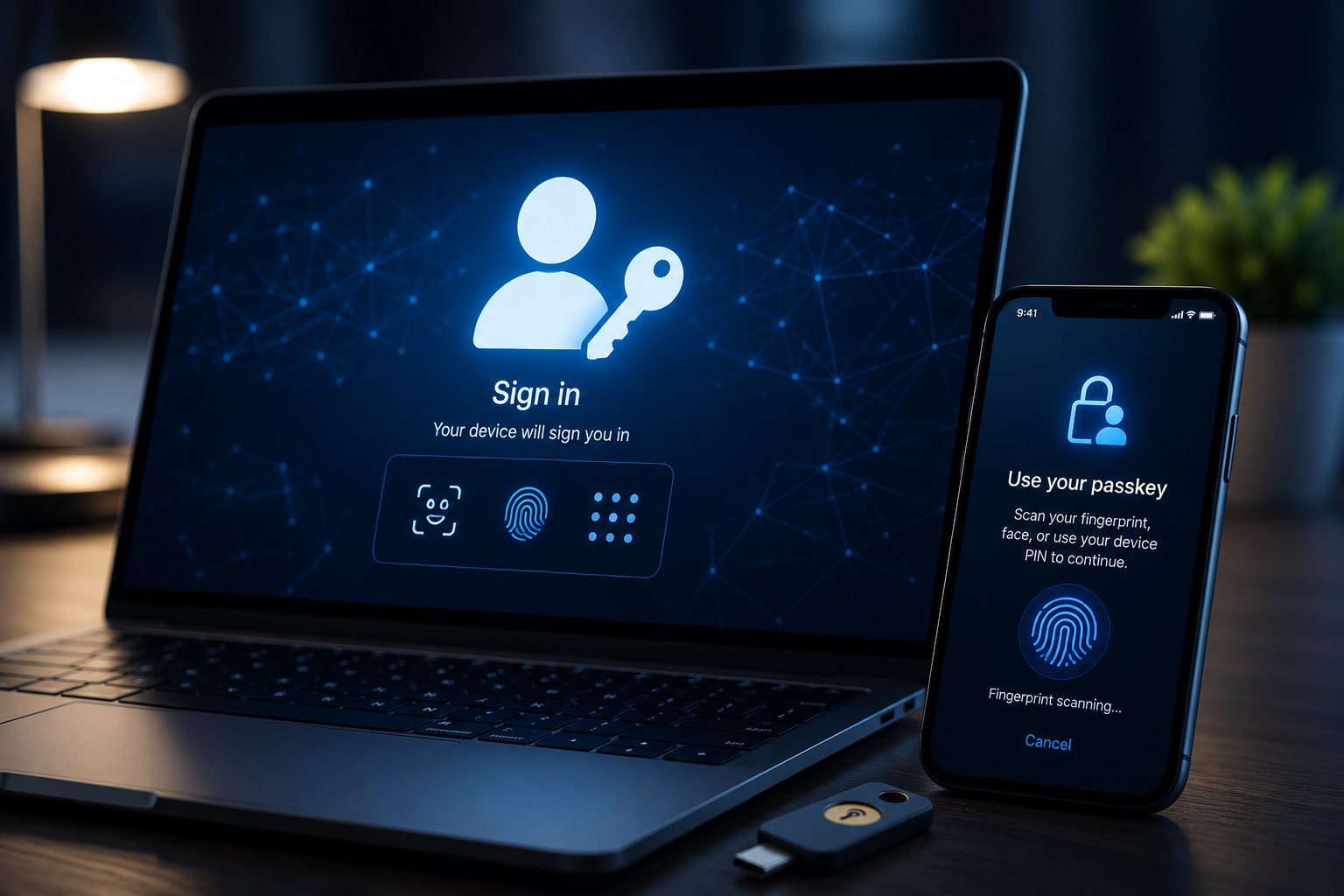
A new technology is changing that reality. Instead of relying on passwords, many websites and apps now support passkeys, a modern and far more secure way to sign in. With a passkey, you can unlock your account using your fingerprint, face recognition, or your device’s PIN, without ever typing a password.
Setting up passkeys may sound technical, but it is surprisingly simple. Once configured, they make signing in faster, easier, and significantly more secure. This guide explains what passkeys are, how they work, why they are safer than traditional passwords, and how to set them up on your devices.
What Are Passkeys?
A passkey is a digital credential that allows you to sign in to an online account without entering a traditional password.
Unlike passwords, which are strings of characters that you must remember, passkeys are securely stored on your device. They work together with your device’s built-in authentication system, such as fingerprint recognition, facial recognition, or a screen lock PIN.
When you sign in using a passkey, your device verifies that you are the authorized user before allowing access to your account.
Because you never type or share a password, passkeys greatly reduce many common security risks.
How Passkeys Work
Behind the scenes, passkeys rely on a well-established cryptographic technique known as public-key cryptography.
When you create a passkey for a website or app, your device generates two mathematically related digital keys.
One key, called the private key, stays securely stored on your device. It never leaves your phone, tablet, or computer.
The other key, known as the public key, is sent to the website or online service.
When you later sign in, the website sends a cryptographic challenge to your device. Your device uses the private key to prove your identity. The website verifies the response using the public key already stored on its servers.
Because the private key never leaves your device, attackers cannot steal it from the website.
Why Passkeys Are More Secure Than Passwords
Traditional passwords can be guessed, stolen, reused, leaked in data breaches, or captured through phishing attacks.
Passkeys eliminate many of these risks.
Even if a company’s servers are compromised, attackers cannot obtain your private key because it was never stored there.
Passkeys are also resistant to phishing attacks. If someone creates a fake website designed to look like a legitimate service, your device will recognize that the website’s identity does not match the original account. As a result, the passkey simply will not authenticate.
This built-in protection makes passkeys one of the biggest advances in online account security in many years.
Why More Companies Are Adopting Passkeys
Major technology companies have embraced passkeys because they improve both security and convenience.
Instead of remembering long passwords or waiting for one-time verification codes, users can simply verify their identity with a fingerprint or facial scan.
Many popular online services now support passkeys, and more continue to add compatibility.
As support grows, passkeys are expected to gradually replace passwords for many online accounts.
What You Need Before Setting Up Passkeys
Before creating your first passkey, your device should have a secure screen lock enabled.
This could be a fingerprint sensor, facial recognition, or a PIN that protects your device.
Your operating system should also be reasonably up to date, since passkey support is built into modern versions of Android, iOS, iPadOS, macOS, Windows, and many web browsers.
Most importantly, the website or app you want to secure must support passkeys.
If passkeys are available, you will usually find the option inside your account’s security or sign-in settings.
Setting Up Passkeys on an Android Phone
On Android devices, passkeys are integrated into the operating system.
Begin by opening the website or app where you want to enable passkeys. Navigate to your account settings and locate the security section.
If passkeys are supported, choose the option to create one.
Your phone will ask you to confirm your identity using your fingerprint, face recognition, or screen lock.
After successful verification, Android securely creates and stores the passkey.
Future sign-ins become much faster. Instead of typing a password, you simply confirm your identity using your chosen authentication method.
Setting Up Passkeys on an iPhone or iPad
Apple devices include built-in support for passkeys through iCloud Keychain.
First, make sure iCloud Keychain is enabled on your device. This allows passkeys to synchronize securely across your Apple devices if you choose.
Next, visit a website or app that supports passkeys and open your account’s security settings.
Choose to create a passkey.
Your iPhone or iPad will ask you to authenticate with Face ID, Touch ID, or your device passcode.
After confirmation, the passkey is securely saved.
The next time you sign in, your device automatically offers the stored passkey instead of asking for a password.
Setting Up Passkeys on a Windows Computer
Windows supports passkeys through Windows Hello.
Before creating passkeys, configure Windows Hello using facial recognition, a fingerprint reader, or a secure PIN.
Then visit a compatible website using a supported browser.
Navigate to your account’s security settings and select the option to create a passkey.
Windows Hello will verify your identity.
Once completed, your computer stores the passkey securely for future use.
Setting Up Passkeys on a Mac
Modern versions of macOS also support passkeys.
Open a compatible website using Safari or another supported browser.
Go to your account settings and select the passkey option.
Authenticate using Touch ID or your Mac login password when prompted.
The passkey is securely stored and can synchronize through iCloud Keychain if that feature is enabled.
Using Passkeys Across Multiple Devices
One of the greatest advantages of passkeys is that they can often be synchronized across devices within the same ecosystem.
For example, Apple users can access passkeys on multiple Apple devices through iCloud Keychain.
Similarly, Android devices may synchronize passkeys through Google Password Manager when synchronization is enabled.
This means creating a passkey on one trusted device may allow you to use it on another compatible device without creating a new one.
Signing In on Another Device
Sometimes you need to log in on a computer that does not store your passkeys.
Many services allow you to use a nearby smartphone to authenticate.
The website may display a QR code.
You scan the code using your phone.
Your phone verifies your identity using your fingerprint or face recognition.
After approval, the login is completed on the other device without exposing your private key.
This process keeps your credentials secure while making cross-device access convenient.
What Happens If You Lose Your Device?
Losing a phone or laptop can be stressful, but passkeys are designed with recovery in mind.
If your passkeys synchronize securely through your account provider, signing in on a replacement device is often straightforward after verifying your identity.
If synchronization is not enabled, account recovery procedures provided by the website may be necessary.
For this reason, keeping recovery methods updated, such as a recovery email or phone number, remains important.
Can You Still Use Passwords?
Many websites currently allow both passwords and passkeys.
This transition period gives users time to become comfortable with the new technology.
Eventually, more services may offer passwordless accounts where passkeys become the primary sign-in method.
Until then, you may see both options available for many online accounts.
Are Passkeys Safe?
Security experts generally consider passkeys to be much safer than traditional passwords.
The private cryptographic key never leaves your device.
There is no password that hackers can steal from a website’s database.
There is no password for you to accidentally reuse across multiple accounts.
Phishing attacks become far less effective because passkeys only work with the legitimate website for which they were created.
These protections significantly reduce several of today’s most common cybersecurity threats.
Do Passkeys Replace Two-Factor Authentication?
In many situations, passkeys provide security that is comparable to or stronger than using passwords together with traditional two-factor authentication.
Your identity is verified through both possession of your trusted device and local authentication, such as your fingerprint or face.
Some organizations may still require additional security checks depending on their policies, especially for sensitive accounts.
Which Websites Support Passkeys?
Support for passkeys continues to expand rapidly.
Many major technology companies, financial institutions, online retailers, social media platforms, and productivity services now offer passkey sign-in.
If you do not see the option today, check again in the future, as many services are actively adding support.
Tips for Using Passkeys Safely
Although passkeys greatly improve security, protecting your devices remains essential.
A strong screen lock is your first line of defense. Whether you use a fingerprint, facial recognition, or a PIN, make sure it is configured securely.
Keep your operating system updated so you receive the latest security improvements.
Avoid disabling your device’s built-in security features.
Use only trusted devices to create and store passkeys.
If your account offers recovery options, ensure they remain current in case you ever need to regain access.
These simple habits help maximize the security benefits of passkeys.
Common Questions About Passkeys
Many people wonder whether passkeys store their fingerprint or facial image online.
The answer is no.
Your biometric information stays on your device. Websites do not receive your fingerprint, facial scan, or private cryptographic key.
Others ask whether an internet connection is required to create or use passkeys.
Since passkeys authenticate with online services, internet access is generally required during account sign-in, but the authentication process itself relies on secure cryptographic verification rather than transmitting biometric data.
Some users also worry that passkeys are difficult to learn.
In practice, most people find them easier than remembering dozens of passwords. After initial setup, signing in often becomes as simple as unlocking your phone.
The Future of Passkeys
The internet is steadily moving toward a future where passwords become less common.
Cybersecurity researchers, software developers, and technology companies continue improving authentication methods that are both secure and easy to use.
Passkeys represent one of the most significant steps in this evolution.
As more websites, apps, and operating systems adopt the technology, users will spend less time resetting forgotten passwords and more time enjoying a safer online experience.
While passwords have served the digital world for decades, they have always required a compromise between convenience and security. Passkeys offer a better balance. They combine strong cryptographic protection with the simplicity of unlocking your own device, making online accounts easier to access while significantly reducing the risks posed by password theft, phishing, and data breaches. As support continues to expand across the internet, learning how to set up and use passkeys today is an investment in a more secure digital future.