Have you ever wanted to send a photo, video, document, or app from one Android device to another without using the internet? Maybe you’ve struggled with slow Bluetooth transfers or found yourself emailing a file just to move it between your own devices. Google created a solution that makes sharing almost effortless: Nearby Share.
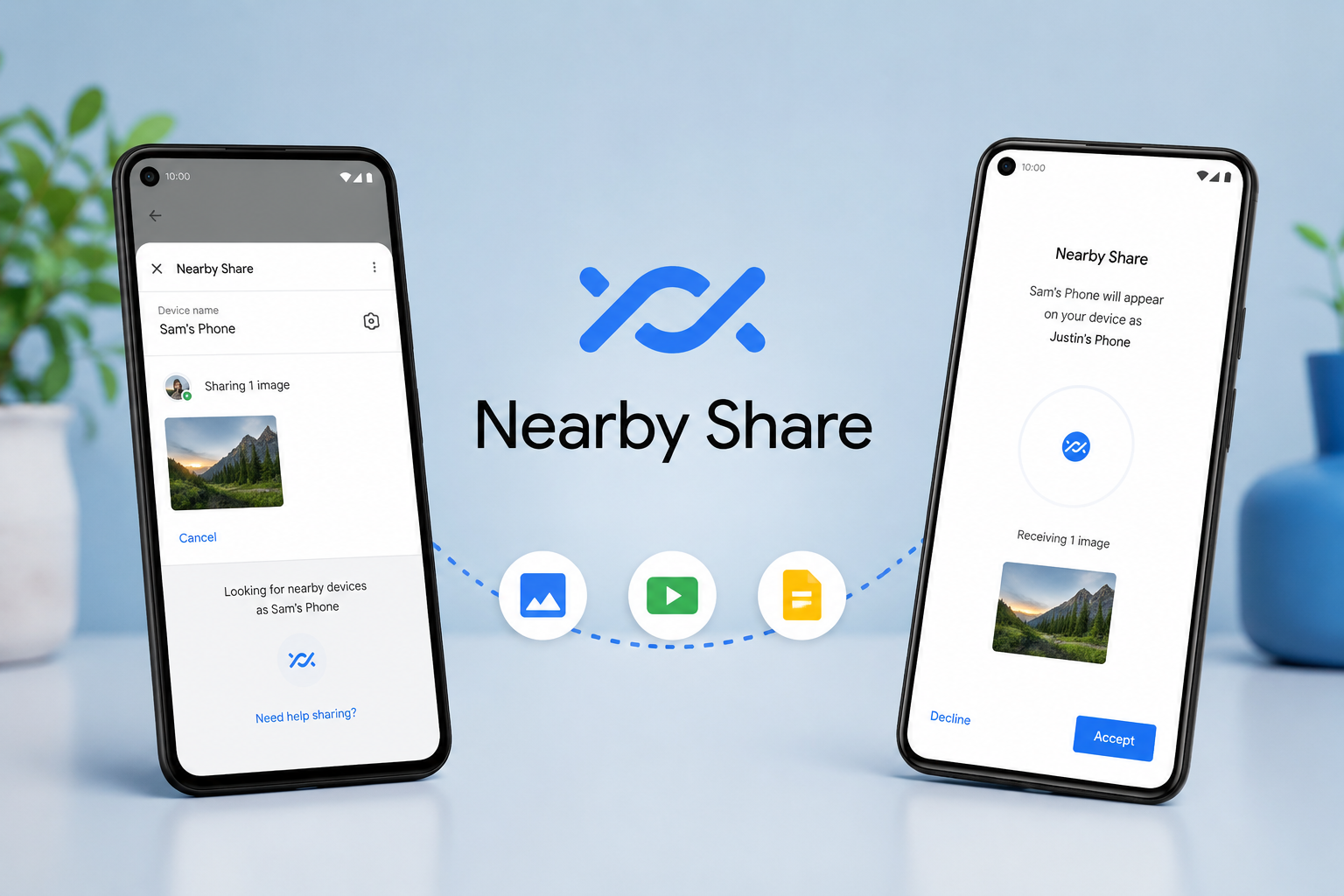
With just a few taps, Nearby Share allows Android users to transfer files wirelessly between compatible devices. It feels almost magical—the receiving device appears nearby, you tap its name, accept the transfer, and within moments the file arrives. No cables, no messaging apps, and no cloud uploads are required.
Today, Nearby Share has become an essential feature for millions of Android users. Whether you’re sharing vacation photos with friends, sending a large video to a family member, or moving documents between your phone and computer, Nearby Share offers a fast, secure, and convenient way to do it.
What Is Google Nearby Share?
Google Nearby Share is a wireless file-sharing feature developed by Google that allows users to send and receive files between nearby compatible devices.
It works much like Apple’s AirDrop but is designed primarily for Android devices. Instead of relying on a single technology, Nearby Share intelligently combines several wireless communication methods, including Bluetooth, Wi-Fi Direct, and peer-to-peer Wi-Fi connections, to provide fast and reliable transfers.
Nearby Share can transfer almost any type of digital content. This includes photos, videos, music files, PDF documents, contacts, web links, apps, and many other file types.
The feature works best when the two devices are physically close to each other, usually within a few meters.
Why Did Google Create Nearby Share?
For many years, Android users had several ways to share files, but none of them were perfect.
Bluetooth worked almost everywhere but was often slow for large files.
Cloud storage services required an internet connection and could take time to upload and download files.
Messaging apps often compressed photos and videos, reducing their quality.
USB cables were reliable but inconvenient because both devices needed to be connected physically.
Google recognized the need for a faster, easier, and more secure solution. Nearby Share was introduced to eliminate these frustrations by allowing direct device-to-device transfers without depending on the internet.
The result is a smoother sharing experience that feels nearly instant for many everyday tasks.
How Does Nearby Share Work?
Although using Nearby Share is simple, the technology behind it is surprisingly sophisticated.
When you choose to share a file, your device first searches for compatible devices nearby using Bluetooth. Bluetooth is mainly used to discover nearby devices and establish an initial connection while consuming very little power.
Once the receiving device is detected, Nearby Share automatically determines the fastest available method for transferring the actual file.
For small files, Bluetooth may be sufficient.
For larger files, Nearby Share usually switches to Wi-Fi Direct or another peer-to-peer Wi-Fi connection. These technologies create a direct wireless link between the devices, allowing data to move much faster than standard Bluetooth.
Because the transfer happens directly between devices, the file usually never passes through Google’s servers during the sharing process.
Does Nearby Share Require an Internet Connection?
One of Nearby Share’s biggest advantages is that it generally does not require an internet connection to transfer files.
As long as both devices have Bluetooth and Wi-Fi enabled, they can usually exchange files directly.
However, an internet connection may still be required in certain situations, such as downloading an app after sharing its Play Store link or completing software updates that improve Nearby Share itself.
For ordinary file transfers, internet access is typically unnecessary.
What Can You Share Using Nearby Share?
Nearby Share supports an impressive variety of content.
You can send photos from your camera, high-resolution videos, PDF documents, Word files, spreadsheets, presentations, music files, ZIP archives, contacts, website links, maps, notes, and many other file formats.
Many Android apps also include Nearby Share directly within their built-in Share menu, making it easy to send content without leaving the app.
Because Nearby Share works with Android’s standard sharing system, it feels like a natural part of the operating system rather than a separate application.
Which Devices Support Nearby Share?
Nearby Share was originally introduced for Android smartphones and tablets.
Most Android devices running Android 6.0 (Marshmallow) or later support the feature, although availability may vary depending on the manufacturer and Google Play Services support.
Google has also brought Nearby Share to Windows computers through an official application, allowing users to transfer files between Android devices and compatible Windows PCs.
Some Chromebook devices also support nearby file sharing through Google’s ecosystem, making it easier to move files between Android phones and ChromeOS laptops.
Although Nearby Share works across many Android devices, it is not designed to communicate directly with Apple’s AirDrop because the two systems use different technologies and protocols.
How Fast Is Nearby Share?
Transfer speed depends on several factors.
The size of the file matters.
The distance between the devices also affects performance.
Modern devices with newer Wi-Fi hardware generally transfer files much faster than older phones.
When Nearby Share uses Wi-Fi Direct or peer-to-peer Wi-Fi, speeds can be dramatically higher than traditional Bluetooth transfers. Large videos that might take many minutes over Bluetooth can often be transferred much more quickly using Wi-Fi-based connections.
Small photos and documents often arrive within just a few seconds.
Is Nearby Share Safe?
Security is one of Nearby Share’s strongest features.
Google designed the system to protect users from unwanted file transfers.
By default, your device is not always visible to everyone nearby. You can choose who is allowed to discover your device.
You may choose to make your device visible only to your contacts, only to your own devices signed into the same Google account, to everyone nearby for a limited time, or to no one at all.
When someone wants to send you a file, you typically receive a notification asking whether you want to accept the transfer.
Without your approval, the file generally will not be received.
Nearby Share also uses encryption during file transfers, helping protect data while it moves between devices.
How to Use Nearby Share
Using Nearby Share is intentionally simple.
Open the file, photo, or document you want to send.
Tap the Share button.
Choose Nearby Share from the sharing options.
Your phone searches for nearby compatible devices.
Once the recipient’s device appears, tap its name.
The recipient accepts the transfer request.
The file begins transferring immediately.
The entire process usually takes only a few moments for small files.
Nearby Share Between Android and Windows
One of the most useful additions to Nearby Share is its support for Windows computers.
By installing Google’s Nearby Share application on a compatible Windows PC, users can easily exchange files between their Android phones and computers without connecting cables.
This makes moving photos from a phone to a computer, transferring work documents, or backing up important files much faster and more convenient.
For many users, this feature replaces the need for USB cables altogether.
Nearby Share and Quick Share
In 2024, Google and Samsung announced that Google’s Nearby Share and Samsung’s Quick Share would be unified under the Quick Share name. Rather than maintaining two separate but similar services, the companies combined their efforts to create a single, more consistent file-sharing experience across Android devices.
Today, many Android phones use the Quick Share branding while retaining the core capabilities that Nearby Share introduced. Existing users can still enjoy the same fast, secure, and reliable sharing experience, with improved compatibility across a wider range of Android devices.
How Nearby Share Compares With Bluetooth
Bluetooth has been used for wireless file sharing for decades.
While it remains useful for connecting headphones, keyboards, mice, and other accessories, it has limitations when transferring large files.
Nearby Share improves upon traditional Bluetooth by using Bluetooth primarily to discover nearby devices and establish the connection.
Once connected, it often switches to significantly faster wireless technologies for the actual file transfer.
This intelligent approach combines Bluetooth’s convenience with the speed of modern Wi-Fi technologies.
Nearby Share Compared With Cloud Storage
Cloud storage services such as Google Drive allow files to be uploaded to remote servers before being downloaded to another device.
This approach works well when the devices are far apart, but it depends on internet speed and available storage.
Nearby Share takes a different approach.
Instead of sending files through the cloud, it transfers them directly between nearby devices.
This often makes sharing faster, avoids unnecessary internet usage, and allows transfers even when no internet connection is available.
Battery Usage
Because Nearby Share activates wireless radios only when needed, its impact on battery life is generally small.
Bluetooth Low Energy helps discover nearby devices efficiently, while Wi-Fi is used only during transfers.
For most users, occasional file sharing has little noticeable effect on daily battery usage.
Common Situations Where Nearby Share Is Helpful
Imagine returning home after a vacation with hundreds of high-resolution photos on your phone. Instead of uploading everything to the cloud or searching for a USB cable, you can quickly transfer the images directly to your laptop.
Students can exchange lecture notes during class without relying on campus Wi-Fi.
Families can instantly share holiday photos and videos during gatherings.
Coworkers can exchange presentations or reports in meeting rooms without emailing attachments.
Nearby Share is especially useful in places where internet access is slow, expensive, or unavailable.
Troubleshooting Nearby Share
If Nearby Share isn’t working, the issue is often easy to fix.
Ensure Bluetooth and Wi-Fi are enabled on both devices.
Keep the devices close together.
Check that Nearby Share or Quick Share is turned on and that the receiving device’s visibility settings allow it to be discovered.
Updating Google Play Services and your device’s software can also resolve compatibility problems.
In some cases, simply restarting the devices can restore proper operation.
The Future of Wireless File Sharing
Wireless file sharing continues to improve as smartphones become more powerful.
Faster Wi-Fi standards, better wireless chips, and improved software are making transfers quicker and more reliable than ever.
Google’s collaboration with Samsung to unify Nearby Share and Quick Share represents an important step toward creating a more seamless Android ecosystem. Future updates may further improve speed, compatibility, and integration with additional devices.
Final Thoughts
Google Nearby Share transformed one of the most common smartphone tasks into something remarkably simple. By combining Bluetooth for discovery with faster Wi-Fi-based technologies for the actual transfer, it offers a convenient way to send files directly between nearby devices without relying on the internet.
Whether you’re sharing treasured family photos, moving important work documents, or transferring videos between your phone and computer, Nearby Share provides a secure and efficient solution that saves both time and effort. As Android’s ecosystem continues to evolve under the Quick Share name, this technology remains one of the easiest and most practical ways to keep your digital life connected.