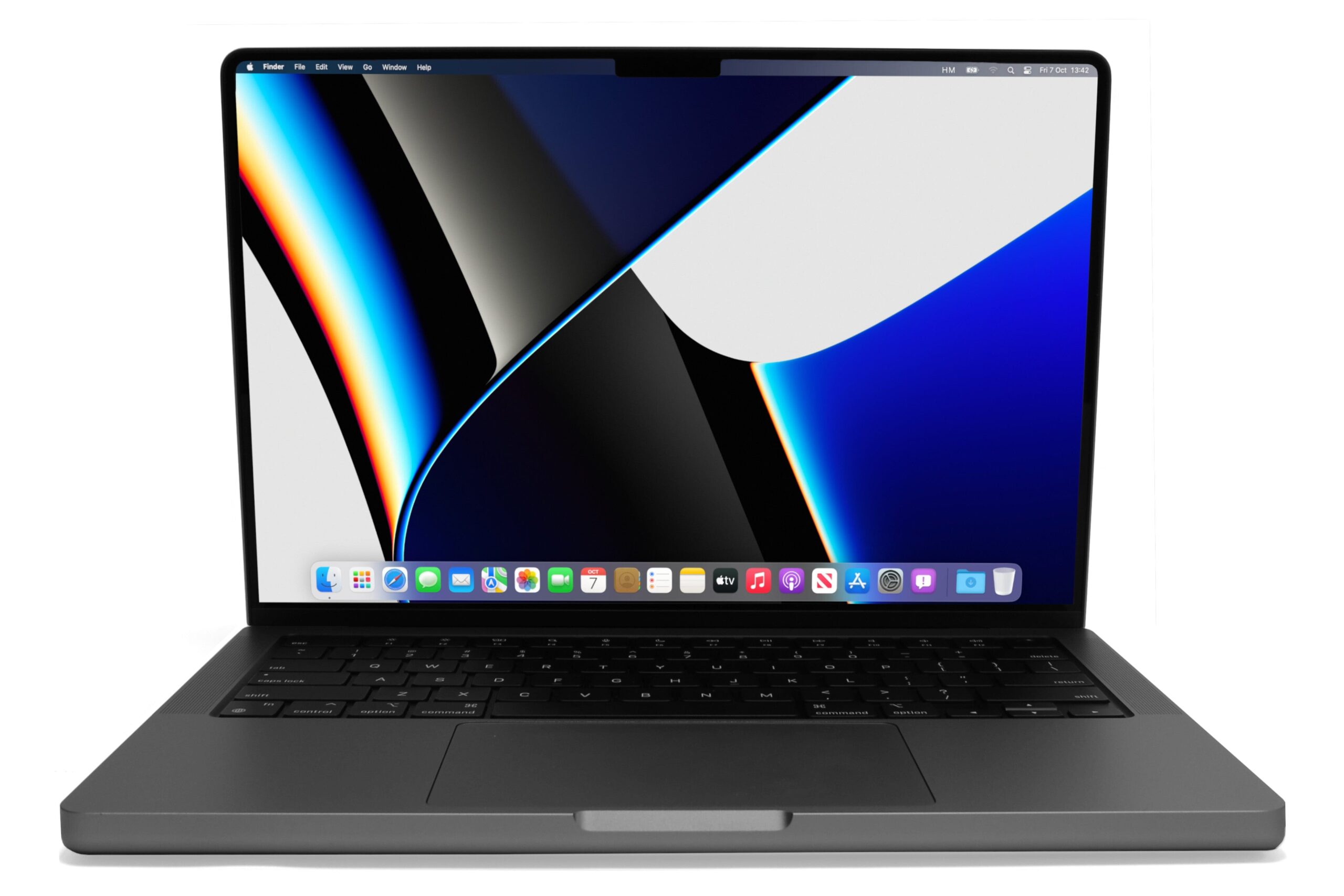
A Mac is known for its speed, reliability, and smooth performance. Whether you’re using a MacBook Air, MacBook Pro, iMac, Mac mini, or Mac Studio, Apple’s computers are designed to remain responsive for years. Yet even the fastest Mac can gradually begin to feel sluggish. Apps may take longer to open, websites may load slowly, the colorful spinning cursor—often called the “spinning beach ball”—may appear more frequently, and everyday tasks can become frustrating.
The good news is that a slow Mac doesn’t necessarily mean it’s old or broken. In many cases, poor performance is caused by software, storage limitations, background processes, outdated applications, or simple maintenance issues that can be resolved without replacing your computer.
Understanding why your Mac has slowed down is the first step toward restoring its performance. This guide explains the most common causes of a slow Mac and the best ways to fix them using methods that are both practical and scientifically accurate.
Why Does a Mac Become Slow?
A Mac performs thousands of operations every second. It reads files from storage, manages memory, communicates with hardware, processes graphics, connects to networks, and runs applications simultaneously.
As more applications are installed and more files accumulate over time, the operating system has more work to do. Some apps continue running in the background even after you stop using them. Others automatically launch whenever the Mac starts.
Storage devices also become crowded, software grows more demanding, and web browsers often consume significant amounts of memory. These factors combine to make even a powerful Mac feel slower than it once did.
The slowdown usually develops gradually, making it difficult to notice until everyday tasks become noticeably frustrating.
Restart Your Mac
One of the simplest and most effective solutions is restarting the computer.
Many users keep their Mac running for weeks without rebooting. Although macOS is designed to remain stable for long periods, temporary files, inactive background processes, memory usage, and cached system resources can accumulate over time.
Restarting clears temporary memory, closes hidden processes, reloads system services, and often restores smooth performance.
If your Mac suddenly becomes slow after several days of continuous use, a restart may solve the problem within minutes.
Check Available Storage Space
A nearly full startup disk is one of the most common reasons for poor Mac performance.
macOS needs free storage for virtual memory, temporary files, software updates, system caches, and application data. When available space becomes very limited, the operating system has difficulty managing these tasks efficiently.
Apple generally recommends keeping sufficient free storage available so the system can operate normally. While there is no single percentage that applies to every situation, having at least several tens of gigabytes of free space is often beneficial, especially on systems with smaller drives.
If your storage is almost full, removing unnecessary files can significantly improve responsiveness.
Remove Large Files You No Longer Need
Over time, Macs accumulate large files that many users forget about.
Old videos, downloaded installers, duplicate photos, archived projects, virtual machine files, and unused applications often consume enormous amounts of storage.
Reviewing your storage usage can reveal surprisingly large files that are no longer needed.
Deleting unnecessary files not only frees storage but also helps macOS manage its working space more efficiently.
Empty the Trash
Deleting files does not immediately remove them from your storage device.
Until you empty the Trash, those files continue occupying disk space.
Many users assume deleting a file automatically frees storage, but that only happens after the Trash is emptied.
If your Mac is running low on storage, this simple step can immediately recover valuable space.
Update macOS
Software updates often include important performance improvements.
Apple regularly releases updates that optimize system stability, improve security, fix bugs, and enhance compatibility with newer applications.
Older versions of macOS may contain issues that have already been corrected in later releases.
Before updating, it is wise to back up important files using Time Machine or another reliable backup solution.
Update Your Applications
Applications evolve continuously.
Developers frequently release updates that improve speed, reduce memory usage, fix compatibility problems, and eliminate software bugs.
Running outdated applications may lead to crashes, excessive processor usage, or poor interaction with newer versions of macOS.
Keeping software current helps ensure your Mac performs as efficiently as possible.
Close Applications You Are Not Using
Modern Macs can multitask exceptionally well, but every running application consumes system resources.
Some applications continue operating even after their windows are closed.
Web browsers with dozens of open tabs, video editing software, virtual machines, communication apps, and cloud synchronization services may all remain active in the background.
Closing applications you no longer need frees memory and reduces processor workload.
Reduce the Number of Startup Apps
Many applications automatically launch whenever your Mac starts.
While convenient, too many startup items can dramatically increase boot time and consume memory immediately after login.
Some programs continue running invisibly throughout the day even if you rarely use them.
Reviewing and reducing unnecessary login items often results in noticeably faster startup performance.
Monitor Activity with Activity Monitor
macOS includes a powerful built-in utility called Activity Monitor.
This tool allows you to see how much CPU, memory, energy, storage activity, and network bandwidth each application is using.
If your Mac suddenly becomes slow, Activity Monitor often reveals which process is consuming unusually high resources.
Sometimes a single malfunctioning application or browser tab is responsible for most of the slowdown.
Identifying the problem makes it much easier to solve.
Manage Memory Usage
Memory, commonly called RAM, temporarily stores information that applications need while they are running.
When available memory becomes limited, macOS begins using storage as virtual memory through a process called memory swapping.
Modern solid-state drives perform this task efficiently, but storage is still much slower than RAM.
If memory pressure remains consistently high, overall system performance may decline.
Closing unnecessary applications and reducing browser tabs can significantly lower memory usage.
Reduce Browser Resource Usage
For many people, the web browser is the most demanding application on the Mac.
Each browser tab consumes memory, processor resources, and sometimes graphics processing power.
Websites containing videos, animations, advertisements, or complex scripts require even more resources.
Keeping dozens or even hundreds of tabs open can noticeably slow almost any computer.
Closing unused tabs, removing unnecessary browser extensions, and restarting the browser periodically can restore responsiveness.
Disable Unnecessary Browser Extensions
Browser extensions add useful features but also consume system resources.
Poorly designed extensions may continuously process webpage content, monitor browsing activity, or communicate with remote servers.
Some outdated extensions can also create compatibility issues after browser updates.
Removing extensions you rarely use often results in a faster browsing experience.
Keep Desktop Clutter Under Control
The macOS desktop may seem like an ordinary folder, but every icon displayed requires system resources.
Hundreds or thousands of files scattered across the desktop can increase the work Finder performs.
Organizing files into folders helps keep the desktop responsive and easier to manage.
A cleaner desktop also improves productivity by reducing visual clutter.
Reduce Visual Effects
macOS includes beautiful animations, transparency effects, and motion features that contribute to its polished appearance.
On older Macs, these visual effects may require graphics resources that could otherwise be used for applications.
Reducing certain interface animations can improve responsiveness, particularly on aging hardware.
The improvement may not be dramatic on modern Macs, but every optimization can contribute to smoother performance.
Check for Background Synchronization
Cloud services continuously synchronize files between your Mac and online storage.
When large numbers of files are being uploaded or downloaded, processor activity, storage access, and internet bandwidth may all increase.
Photo libraries, cloud backups, document synchronization, and shared folders sometimes continue updating for hours after significant changes.
If your Mac feels unusually slow, checking whether cloud synchronization is still running may explain the temporary slowdown.
Scan for Malware
Although macOS includes strong built-in security protections, it is not completely immune to malicious software.
Adware, browser hijackers, unwanted background utilities, and deceptive applications can reduce system performance.
Downloading software only from trusted sources greatly reduces this risk.
If you suspect malware, using reputable security software can help identify and remove unwanted programs.
Remove Applications You No Longer Use
Unused applications occupy valuable storage and sometimes install background services that continue running.
Over several years, many Macs accumulate dozens of applications that are rarely or never opened.
Removing software you no longer need frees storage and may reduce background activity.
A leaner software environment often contributes to better long-term performance.
Clear System and Application Caches
Applications create cache files to speed up future operations.
Normally, cached data improves performance.
However, corrupted or excessively large caches can occasionally contribute to software problems.
In many cases, applications automatically rebuild their caches if needed.
While manually deleting caches is sometimes helpful when troubleshooting specific issues, it should be done carefully because unnecessary removal may temporarily slow applications as they recreate cached data.
Check Your Internet Connection
Sometimes the Mac itself is not slow.
A weak internet connection can make websites, streaming services, cloud applications, and online games appear sluggish.
Testing internet speed can help determine whether the problem lies with your network rather than your computer.
Restarting the router or switching to a stronger Wi-Fi signal may solve the issue.
Let Spotlight Finish Indexing
After major macOS updates or when many files are added, Spotlight begins indexing the contents of your storage.
During this process, processor and storage activity may temporarily increase.
This behavior is normal and usually ends automatically once indexing is complete.
Performance often returns to normal afterward.
Check Battery Health
For MacBooks, battery condition can influence performance.
Lithium-ion batteries naturally age over time.
If a battery becomes severely degraded, macOS may manage system performance to help maintain stable operation and prevent unexpected shutdowns under demanding workloads.
Checking battery health provides useful insight into the overall condition of the laptop.
If the battery has reached the end of its service life, replacing it may improve reliability and, in some cases, performance.
Consider Hardware Limitations
Software optimization can accomplish a great deal, but hardware also has limits.
Modern applications require more processing power and memory than those released years ago.
A Mac that once handled demanding tasks effortlessly may struggle with today’s professional software, high-resolution video editing, advanced games, or artificial intelligence applications.
Older Intel-based Macs may particularly experience slower performance with the latest software compared to newer Apple silicon models.
Understanding these hardware limitations helps set realistic expectations.
Factory Reset as a Last Resort
If performance problems continue despite extensive troubleshooting, reinstalling macOS may help.
A clean installation removes accumulated software issues, corrupted settings, and unnecessary background components.
Before erasing your Mac, creating a complete backup is essential.
Restoring personal files after reinstalling the operating system allows you to begin with a fresh, clean environment.
This approach should generally be considered only after less disruptive solutions have been tried.
Habits That Keep Your Mac Running Fast
Long-term performance depends as much on maintenance as on hardware.
Regular software updates, sufficient free storage, responsible application management, organized files, periodic restarts, and careful installation of trusted software all contribute to a smoother experience.
Simple habits practiced consistently are often more effective than dramatic troubleshooting performed only after problems become severe.
Treating your Mac as a system that benefits from regular care helps maintain its speed for many years.
When Is It Time to Upgrade?
Sometimes no amount of optimization can fully overcome aging hardware.
If your Mac struggles with everyday tasks despite having ample storage, current software, and minimal background activity, its processor or memory may simply no longer meet your needs.
For users who frequently edit 4K or 8K video, develop software, create 3D graphics, run virtual machines, or work with artificial intelligence tools, upgrading to a newer Mac may provide a significant improvement in productivity.
Apple’s transition to its own silicon chips has brought substantial gains in performance and energy efficiency, making newer models noticeably faster for many workloads.
Final Thoughts
A slow Mac can be frustrating, but in most cases the problem is neither mysterious nor permanent. More often than not, sluggish performance results from limited storage, resource-heavy applications, outdated software, excessive background activity, or years of accumulated digital clutter rather than a hardware failure.
By understanding how macOS manages storage, memory, and processing resources, you can identify the true cause of the slowdown and apply the right solution. Regular maintenance, thoughtful software management, and keeping your system up to date can restore much of your Mac’s original speed and help it remain reliable for years to come. Whether your Mac is only a few months old or has served you faithfully for many years, a little care can go a long way toward keeping it responsive, efficient, and enjoyable to use.