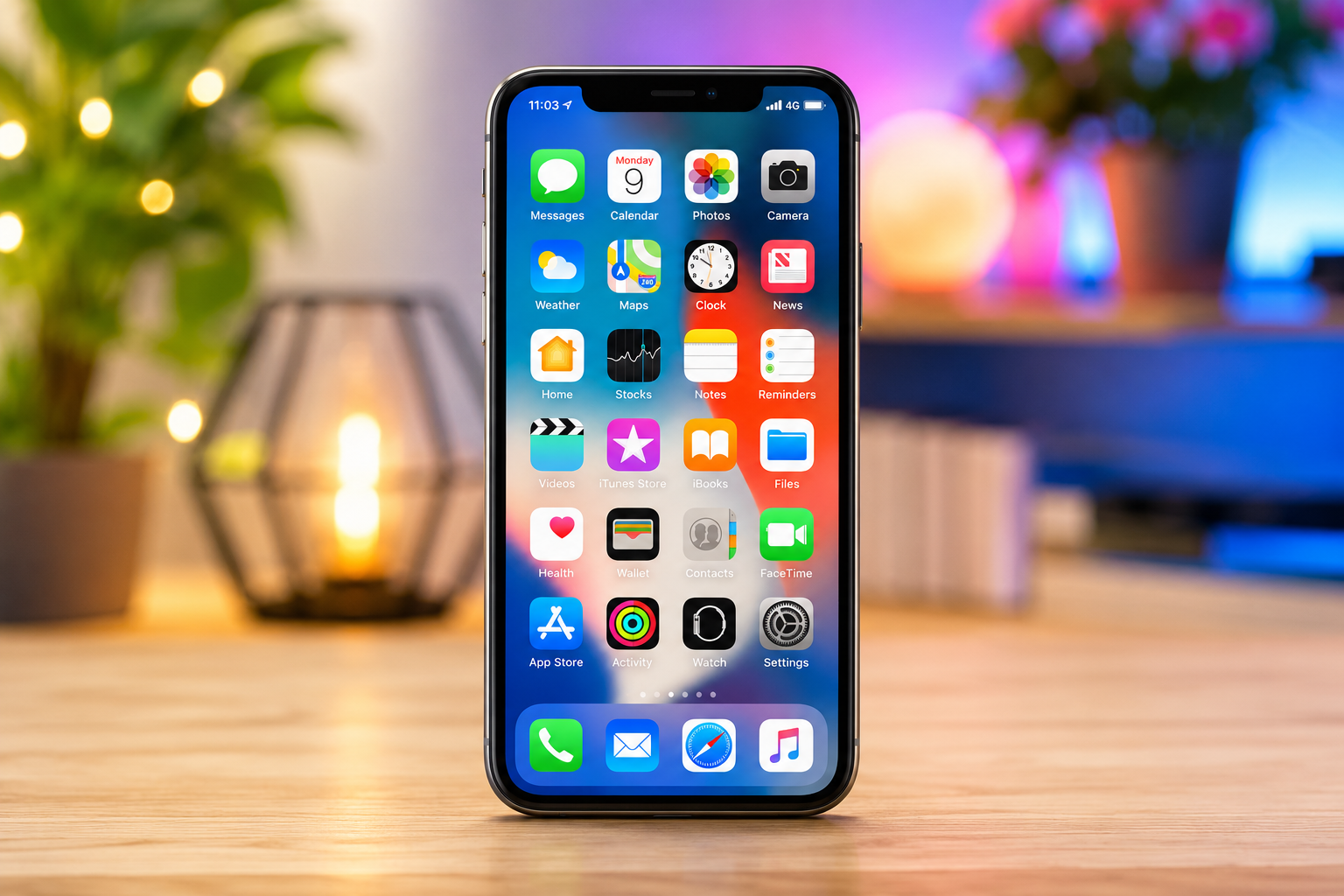
When you first unbox a new iPhone, everything feels incredibly fast. Apps open instantly, animations are smooth, and multitasking is effortless. But after months or years of everyday use, many people begin to notice that their iPhone no longer feels as responsive. Apps may take longer to launch, the keyboard may lag while typing, web pages may load more slowly, or the battery may drain faster than before.
If this sounds familiar, don’t worry. A slower iPhone does not necessarily mean it is old or damaged. In many cases, the problem can be fixed without buying a new device.
An iPhone is essentially a small computer. Like any computer, it stores files, runs software, manages memory, and processes thousands of tasks every second. As more apps, photos, videos, and background activities accumulate, the system has to work harder. Fortunately, Apple includes many built-in tools that can help restore performance.
Understanding why an iPhone slows down is the first step toward making it fast again.
Why iPhones Become Slower
An iPhone’s speed depends on several hardware and software factors working together. The processor handles calculations, memory keeps active apps running, storage holds your data, and iOS manages all of these components.
As time passes, software becomes more demanding. New apps often require more processing power than older ones, and operating system updates introduce new features that use additional resources.
Storage can also become crowded. When an iPhone has very little free space available, the operating system has less room to manage temporary files efficiently. This can make everyday tasks feel slower.
Background apps may constantly refresh data, check for notifications, update locations, synchronize photos, or download content. While each individual task uses only a small amount of processing power, many of them running together can affect overall responsiveness.
Battery health also plays an important role. Lithium-ion batteries gradually lose their ability to deliver peak power as they age. When a battery becomes significantly degraded, iOS may reduce processor performance to prevent unexpected shutdowns. This behavior helps maintain stability but can make the device feel slower.
Understanding these causes makes it easier to improve performance in meaningful ways.
Restart Your iPhone Regularly
One of the simplest ways to improve performance is also one of the most overlooked.
Restarting your iPhone clears temporary system memory, stops background processes that may not be working properly, and allows iOS to start fresh.
Over time, apps can leave temporary data in memory even after you stop using them. A restart helps clear this information and can eliminate small glitches that accumulate during continuous use.
You do not need to restart your iPhone every day, but doing so once every week or two can help keep the system running smoothly.
Keep iOS Updated
Apple regularly releases software updates that improve performance, fix bugs, enhance security, and optimize battery efficiency.
Although some users hesitate to install updates out of concern that their phones may become slower, updates often solve problems that affect speed and stability.
Apple engineers continually optimize iOS for supported devices. Many updates include improvements that reduce app crashes, improve memory management, and make animations smoother.
If your iPhone supports the latest version of iOS, keeping it updated is generally one of the best ways to maintain long-term performance.
Free Up Storage Space
Storage plays a surprisingly important role in iPhone performance.
When storage becomes nearly full, iOS has less room for temporary files, system caches, and background operations. This can make everyday tasks slower.
Large video files, downloaded movies, duplicate photos, old messages with attachments, and unused apps often consume far more space than users realize.
Removing unnecessary files gives the operating system more breathing room.
Photos and videos usually occupy the most storage. If you rarely view older videos, transferring them to cloud storage or an external drive can free significant space.
Deleting apps that you no longer use also helps reduce clutter.
Maintaining a comfortable amount of available storage helps your iPhone perform more efficiently.
Remove Apps You No Longer Need
Many people install apps that they only use once or twice.
Over time, these unused apps accumulate.
Some continue updating themselves in the background, downloading new content, or requesting location information.
Removing apps you no longer need reduces storage usage, decreases background activity, and simplifies your device.
If you think you might need an app later, Apple also provides an option to offload unused apps. This removes the application itself while keeping its documents and data. If you reinstall it later, your information is restored.
Close Apps Only When Necessary
Many users believe that constantly force-closing every app improves performance.
In reality, this is generally unnecessary.
iOS is specifically designed to manage memory efficiently. Apps that remain in the recent apps screen are usually suspended rather than actively consuming processor power.
Force-closing apps repeatedly can actually require more energy because the app must completely reload the next time you open it.
The better approach is to force-close only apps that have frozen, become unresponsive, or are clearly malfunctioning.
Letting iOS manage memory usually provides the best balance of speed and battery life.
Reduce Background App Activity
Many apps continue working even when you are not actively using them.
Some check for new content, refresh social media feeds, synchronize cloud files, or update location information.
While background activity provides convenience, it also consumes processing power, memory, network bandwidth, and battery.
Reducing unnecessary background refresh allows the processor to focus on the tasks you are currently performing.
Apps that do not require constant updates can often function perfectly well without continuous background activity.
Manage Notifications
Notifications are useful, but every notification requires the system to wake certain processes, display alerts, and occasionally update app data.
If dozens of apps constantly send notifications throughout the day, they contribute to background activity.
Disabling notifications from apps that are not important can reduce unnecessary processing while also creating a less distracting experience.
Your iPhone becomes quieter—and often feels smoother.
Check Battery Health
Battery condition directly affects iPhone performance.
All rechargeable lithium-ion batteries gradually age.
After hundreds of charging cycles, they lose some of their original capacity and become less capable of delivering peak power during demanding tasks.
Apple includes a Battery Health feature that estimates the battery’s maximum capacity compared to when it was new.
If battery health has declined significantly, iOS may activate performance management to prevent unexpected shutdowns.
Replacing an aging battery often makes an older iPhone feel dramatically faster because the processor can once again operate at full performance when needed.
For many users, replacing the battery is far less expensive than buying a new phone.
Keep Apps Updated
App developers regularly improve performance.
New versions often include bug fixes, better memory management, improved compatibility with newer iOS releases, and reduced battery consumption.
Outdated apps sometimes struggle with modern operating systems, leading to slower performance or unexpected crashes.
Keeping frequently used apps updated helps ensure they operate as efficiently as possible.
Reduce Motion Effects
Apple includes elegant animations throughout iOS.
Windows smoothly slide across the screen, apps zoom open, and menus transition beautifully.
Although these animations are visually appealing, reducing motion can make an iPhone feel faster because transitions occur more quickly.
The processor spends less time rendering complex visual effects, making navigation appear more immediate.
This setting can also improve accessibility for users who are sensitive to motion.
Limit Widget Usage
Home Screen widgets provide useful information at a glance.
Weather forecasts, calendars, reminders, news headlines, stock prices, and fitness data can all appear without opening an app.
However, each widget periodically refreshes its content.
Having dozens of widgets means more background activity.
Keeping only the widgets you actually use reduces unnecessary system workload while making your Home Screen cleaner and easier to navigate.
Optimize Safari
Safari stores cached images, website data, cookies, and browsing history to load websites faster.
Over long periods, this stored information can become quite large.
Occasionally clearing browsing data may improve website performance, especially if pages load incorrectly or behave unexpectedly.
Closing an excessive number of open browser tabs can also help.
Hundreds of active tabs require additional memory and processing, even if they are not currently visible.
Keeping Safari organized can improve responsiveness.
Organize Your Photos
Modern iPhones take incredibly detailed photos and videos.
High-resolution images, Live Photos, and 4K video recordings consume substantial storage.
Removing blurry photos, accidental screenshots, duplicate images, and unwanted videos helps free storage.
If you use iCloud Photos, enabling storage optimization allows full-resolution files to remain safely stored in the cloud while smaller versions stay on your device until needed.
This approach saves local storage without sacrificing access to your photo library.
Watch for Apps That Use Too Many Resources
Not all apps are equally efficient.
Some games, social media platforms, and video editing apps require significant processing power.
Occasionally, poorly optimized apps continue consuming resources even after you stop actively using them.
If your iPhone suddenly becomes warm, battery drains unusually fast, or performance decreases immediately after installing a new app, that app may be responsible.
Removing or updating problematic apps often restores normal performance.
Avoid Extreme Temperatures
Temperature has a surprisingly large effect on smartphone performance.
Lithium-ion batteries operate best within a moderate temperature range.
Very high temperatures may cause iOS to temporarily reduce processor performance to protect internal components.
Very cold temperatures can temporarily reduce battery efficiency, causing the phone to shut down unexpectedly even when some charge remains.
Keeping your iPhone out of direct sunlight, avoiding overheating during charging, and allowing it to cool after intensive gaming or video recording helps maintain consistent performance.
Restart Apps That Freeze
Occasionally, an individual app—not the entire iPhone—is responsible for sluggish performance.
If one app becomes unresponsive, freezes, or behaves unusually, closing only that app and reopening it often resolves the issue.
This prevents one malfunctioning application from affecting your overall experience.
Consider Resetting Settings
Sometimes unusual software behavior results from conflicting settings rather than hardware problems.
Resetting system settings restores many configuration options to their defaults without deleting personal files such as photos, videos, messages, or apps.
Network settings, display preferences, privacy settings, and other configurations return to their original state.
This can solve persistent performance problems caused by corrupted settings while preserving your data.
Back Up Before Major Changes
If your iPhone continues performing poorly despite trying multiple solutions, creating a complete backup is an important precaution before making larger changes.
A backup protects your photos, contacts, messages, documents, and other personal information.
If a full factory reset becomes necessary, your data can later be restored.
Fortunately, many performance issues can be solved without reaching this point.
Know When Hardware Is the Limiting Factor
Every generation of iPhone becomes older relative to modern software.
New applications often include more advanced graphics, artificial intelligence features, larger databases, and increasingly sophisticated functions.
An older processor may eventually reach the limits of what it can comfortably handle.
Even so, many older iPhones remain surprisingly capable when storage is managed carefully, unnecessary background activity is reduced, and the battery is in good condition.
A slower experience does not automatically mean the device has reached the end of its useful life.
Building Healthy Habits for Long-Term Performance
Keeping an iPhone fast is less about one dramatic fix and more about consistent maintenance.
Installing software updates, removing unused apps, maintaining adequate free storage, checking battery health, restarting occasionally, and avoiding unnecessary background activity all work together to keep the system responsive.
These habits require very little effort but can significantly extend the smooth, reliable performance of your device.
Conclusion
A slow iPhone can be frustrating, but it is rarely a mystery. In most cases, reduced performance results from predictable factors such as limited storage, aging batteries, excessive background activity, outdated software, or resource-intensive apps. The good news is that these issues are often easy to address without replacing the device.
By keeping iOS and apps updated, freeing storage space, monitoring battery health, reducing unnecessary background tasks, and using Apple’s built-in optimization features, you can often restore much of your iPhone’s original speed. These scientifically grounded maintenance practices not only improve performance but also help extend the lifespan of your device.
Whether your iPhone is only a year old or has been your trusted companion for several years, regular care can make a remarkable difference. A well-maintained iPhone stays responsive, efficient, and ready to keep up with your daily life, proving that sometimes the fastest upgrade isn’t a new phone—it’s simply taking better care of the one you already have.