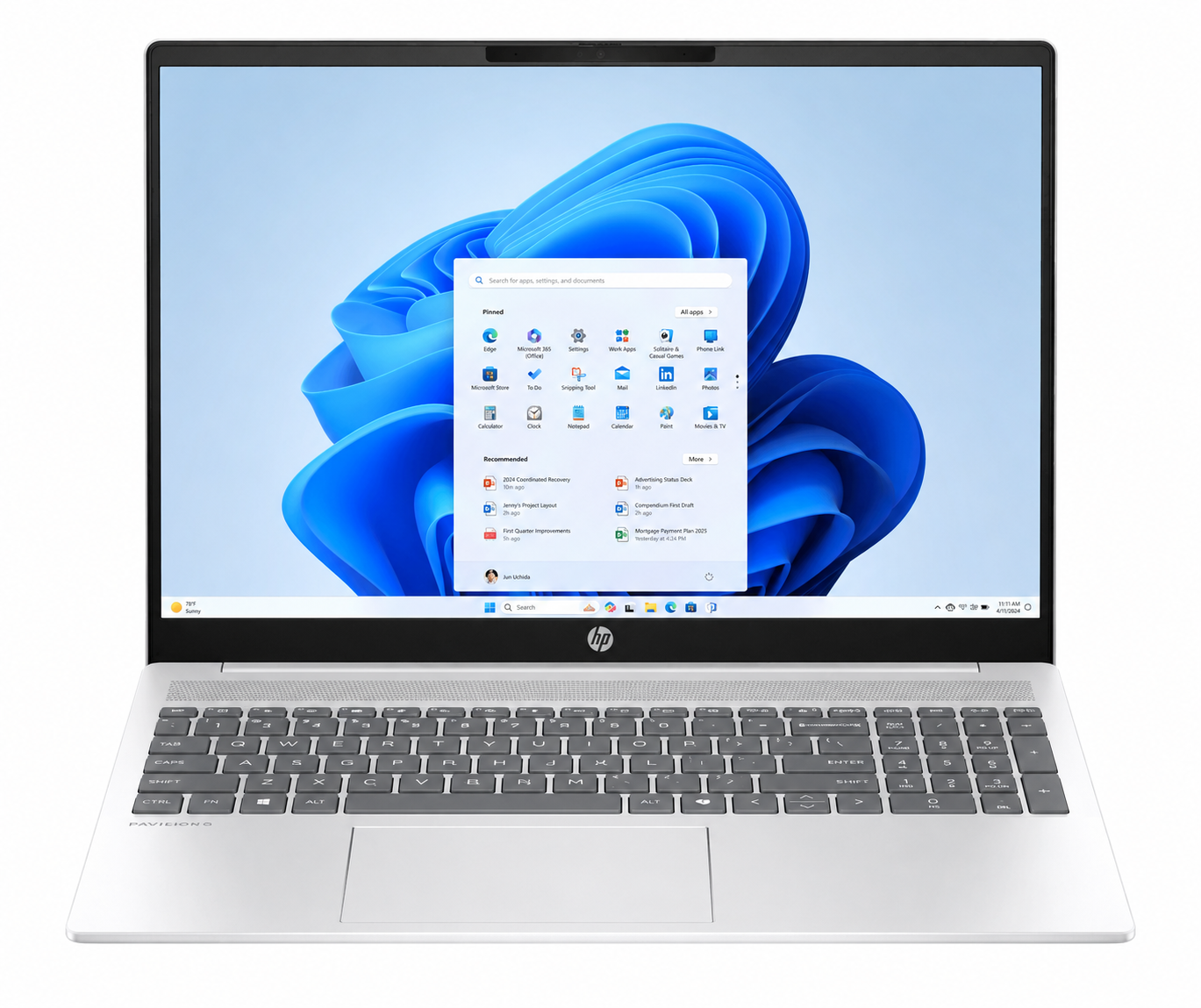
Almost every Windows computer feels incredibly fast when it’s brand new. Applications launch instantly, files open without delay, and everything responds smoothly. But as weeks, months, or years pass, many users notice that their PC becomes slower. Programs take longer to open, startup times increase, web browsers lag, and even simple tasks can feel frustrating.
This slowdown is usually not because Windows is “wearing out.” Modern versions of Windows are designed to remain stable for years. Instead, performance changes because computers gradually accumulate software, background processes, temporary files, outdated drivers, unnecessary startup programs, and storage clutter. In some cases, aging hardware also plays an important role.
The good news is that many performance problems can be solved without buying a new computer. With the right maintenance and settings, even an older Windows PC can become noticeably faster.
Whether you use Windows 11 or Windows 10, this guide explains practical, scientifically sound ways to improve Windows performance while helping you understand why each method works.
Understanding What Makes a Computer Fast
Before trying to speed up Windows, it helps to understand what determines computer performance.
Every computer depends on several key components working together.
The processor, or CPU, performs calculations and executes instructions. The faster and more efficient the processor, the quicker it can complete tasks.
Memory, known as RAM, stores data that programs need while they are running. When there isn’t enough RAM, Windows temporarily stores some information on the storage drive, which is much slower.
The storage drive, whether it’s a traditional hard disk drive (HDD) or a solid-state drive (SSD), holds Windows, applications, and files. SSDs are dramatically faster than HDDs because they have no moving parts.
The graphics processor, or GPU, handles visual tasks such as gaming, video editing, and animations.
Windows performance depends on all these components working efficiently together.
Restart Your Computer Regularly
Many people rarely restart their computers, especially laptops that spend most of their time sleeping instead of shutting down.
Restarting Windows clears temporary memory, closes hidden background processes, resets system services, and allows Windows to start fresh.
Programs sometimes continue running in the background even after you think you’ve closed them. Over time, these processes consume memory and processor resources.
A simple restart often solves sluggish performance surprisingly well.
Keep Windows Updated
Windows updates do much more than introduce new features.
Microsoft regularly releases updates that improve stability, fix software bugs, enhance security, and optimize system performance.
Some updates improve how Windows manages memory, storage, processors, and hardware compatibility.
Installing updates ensures your computer benefits from the latest improvements developed by Microsoft.
Update Device Drivers
Drivers are small pieces of software that allow Windows to communicate with hardware such as graphics cards, printers, Wi-Fi adapters, keyboards, and storage devices.
Outdated or incompatible drivers can reduce performance or create system instability.
Graphics driver updates often improve gaming performance, video playback, and hardware acceleration.
Chipset and storage controller updates can also improve overall responsiveness.
Keeping drivers current helps Windows operate more efficiently with your hardware.
Reduce Startup Programs
One of the biggest reasons computers feel slow is that too many applications start automatically when Windows boots.
Many programs install startup services without asking.
Cloud storage apps, messaging software, game launchers, update utilities, media players, and other applications may all launch simultaneously.
Each startup program uses processor time, memory, and storage bandwidth.
Reducing unnecessary startup applications allows Windows to reach the desktop much faster while leaving more system resources available for the tasks you actually want to perform.
Uninstall Programs You No Longer Use
Many computers accumulate software over time.
Old games, trial applications, duplicate utilities, manufacturer-installed programs, and unused editing tools continue occupying storage space.
Some of these programs also install background services that continue running indefinitely.
Removing software you no longer need reduces system complexity and may free processor, memory, and storage resources.
A cleaner computer is often a faster computer.
Free Storage Space
Windows requires free storage space to operate efficiently.
Temporary files, browser caches, downloaded installers, old Windows updates, recycle bin contents, and unused documents can consume tens or even hundreds of gigabytes.
When storage becomes nearly full, Windows has less room for temporary system operations.
This can reduce responsiveness, especially during updates or when many programs are running simultaneously.
Regularly removing unnecessary files helps maintain smooth performance.
Use Storage Sense
Windows includes a built-in feature called Storage Sense.
Storage Sense automatically removes temporary files, empties the recycle bin after a chosen period, and deletes unnecessary cached data.
Automating this cleanup reduces maintenance while helping prevent storage from gradually filling up.
Upgrade to an SSD
Perhaps no single hardware upgrade improves Windows performance more than replacing an older hard disk drive with a solid-state drive.
Traditional hard drives use spinning magnetic disks and mechanical read heads.
Solid-state drives use flash memory with no moving parts.
Because SSDs access data almost instantly, Windows boots significantly faster, applications launch quicker, and file transfers become much more responsive.
Even older computers often feel dramatically newer after switching from an HDD to an SSD.
Add More RAM
Insufficient memory forces Windows to move data between RAM and the storage drive.
This process, called paging or swapping, is much slower than accessing RAM directly.
If your computer frequently struggles with multitasking, browser tabs, video editing, or creative software, increasing RAM may provide substantial performance improvements.
Modern versions of Windows generally perform more smoothly with larger amounts of available memory, especially when running multiple applications simultaneously.
Scan for Malware
Malware is more than a security problem.
Many malicious programs secretly consume processor power, memory, storage activity, and internet bandwidth.
Cryptocurrency mining malware, spyware, and unwanted background software can significantly reduce performance.
Windows Security, built into modern Windows versions, provides strong protection against many threats.
Regular scans help ensure your computer’s resources remain available for legitimate work rather than malicious software.
Disable Unnecessary Visual Effects
Modern Windows includes smooth animations, transparency effects, shadows, and other visual enhancements.
These features create an attractive interface but require additional graphics and processor resources.
On modern computers, the impact is often small.
On older systems with limited hardware, reducing visual effects can improve responsiveness.
Windows allows users to prioritize performance over appearance if desired.
Keep Your Browser Clean
Web browsers have become some of the most demanding applications on modern computers.
Dozens of open tabs, unnecessary extensions, and excessive cached data can slow both the browser and Windows itself.
Closing tabs you no longer need reduces memory usage.
Removing unused browser extensions also decreases background activity.
A lighter browser often makes the entire computer feel faster.
Manage Background Applications
Many applications continue working after you stop actively using them.
Cloud synchronization, messaging apps, automatic update services, gaming platforms, and media software may continue consuming system resources.
While background services can be useful, running too many simultaneously increases processor activity and memory consumption.
Managing which applications operate in the background helps Windows dedicate more resources to your active tasks.
Keep Your Desktop Organized
Although desktop icons themselves usually have little effect on performance, storing thousands of files directly on the desktop can slightly increase loading times.
Organizing files into folders makes Windows easier to navigate while reducing visual clutter.
A clean desktop also improves productivity by making important files easier to locate.
Monitor Resource Usage
Windows includes Task Manager, which provides valuable insight into system performance.
Task Manager shows how much processor power, memory, storage activity, and network bandwidth each application uses.
Sometimes a single malfunctioning application may consume nearly all available CPU or memory.
Identifying these resource-heavy programs helps diagnose performance problems more effectively.
Understanding where resources are being used allows smarter decisions about software management.
Prevent Overheating
Heat is one of the biggest enemies of computer performance.
Modern processors automatically reduce their speed when temperatures become too high.
This protective feature, known as thermal throttling, prevents hardware damage but also slows performance.
Dust buildup inside cooling fans and vents reduces airflow.
Cleaning dust from your computer and ensuring proper ventilation helps maintain normal operating temperatures.
Laptops especially benefit from unrestricted airflow around their cooling vents.
Choose an Appropriate Power Mode
Windows offers different power settings.
Power-saving modes reduce processor speed to conserve battery life.
Balanced mode provides a compromise between efficiency and performance.
Performance-focused power modes allow the processor to operate more aggressively when needed.
Selecting the right power mode for your situation can noticeably improve responsiveness, particularly on laptops plugged into electrical power.
Defragment Hard Drives—but Not SSDs
If your computer uses a traditional hard disk drive, occasional disk optimization can improve file access efficiency.
As files are created, modified, and deleted, pieces of data may become scattered across the disk.
Defragmentation reorganizes these fragments into a more efficient arrangement.
However, this process is unnecessary for SSDs.
Windows recognizes SSDs automatically and performs appropriate optimization instead of traditional defragmentation.
Reduce Browser Startup Load
Many users begin their day by opening a web browser.
If the browser automatically restores dozens of tabs from the previous session, startup becomes slower.
Reducing the number of automatically restored tabs allows browsers to launch more quickly while consuming less memory.
Keep Applications Updated
Software developers continually improve performance.
Updates often reduce memory usage, optimize processor efficiency, fix bugs, and improve compatibility with newer versions of Windows.
Running outdated software may prevent your computer from benefiting from these optimizations.
Regular updates keep applications working efficiently.
Consider Hardware Limitations
Sometimes software optimization reaches its limits.
A computer with a decade-old processor, minimal RAM, and a mechanical hard drive cannot match the performance of modern hardware.
Understanding these limitations helps set realistic expectations.
Fortunately, many older systems still perform everyday tasks very well after inexpensive upgrades such as adding RAM or installing an SSD.
Backup Before Making Major Changes
Before performing significant maintenance, uninstalling important software, or modifying system settings, creating a backup is always wise.
Backups protect valuable files from accidental loss.
Windows includes built-in backup options, and external drives or cloud storage provide additional protection.
Good maintenance always includes good data protection.
Habits That Keep Windows Fast Over Time
Fast computers are usually well-maintained computers.
Regular updates, periodic restarts, removing unnecessary software, cleaning temporary files, managing startup applications, and monitoring storage space prevent many performance problems before they become noticeable.
Small maintenance tasks performed consistently are more effective than trying to fix years of accumulated issues all at once.
Good digital habits help Windows remain reliable for many years.
Common Performance Myths
Many myths about speeding up Windows continue to circulate online.
One common misconception is that installing multiple “PC cleaner” applications will dramatically increase performance. In reality, Windows already includes effective built-in maintenance tools, and unnecessary optimization software can sometimes consume additional resources or even cause problems.
Another myth is that closing every background process always makes a computer faster. Some background services are essential for security, updates, networking, and hardware functionality. Disabling important services without understanding their purpose may reduce stability rather than improve performance.
It is also a myth that regularly reinstalling Windows is necessary to keep a computer fast. While reinstalling can solve severe software issues, most performance problems can be addressed through proper maintenance, software cleanup, hardware upgrades, and keeping the operating system updated.
Conclusion: Small Changes Can Make a Big Difference
A slow Windows computer does not necessarily mean it is old or beyond repair. In many cases, performance declines because of everyday software accumulation, limited storage space, excessive startup programs, outdated drivers, or insufficient memory rather than any fundamental problem with Windows itself.
By understanding how Windows uses your computer’s hardware and following good maintenance practices, you can restore much of your system’s speed and responsiveness. Simple actions such as keeping Windows updated, freeing storage space, reducing unnecessary startup applications, scanning for malware, and restarting regularly can have an immediate impact. For older computers, upgrading to an SSD or adding more RAM often provides the most dramatic improvement.
Windows is designed to be a powerful and capable operating system. With regular care and a few thoughtful optimizations, your computer can remain fast, reliable, and enjoyable to use for years, making everyday tasks smoother and allowing you to focus on what matters most instead of waiting for your PC to catch up.