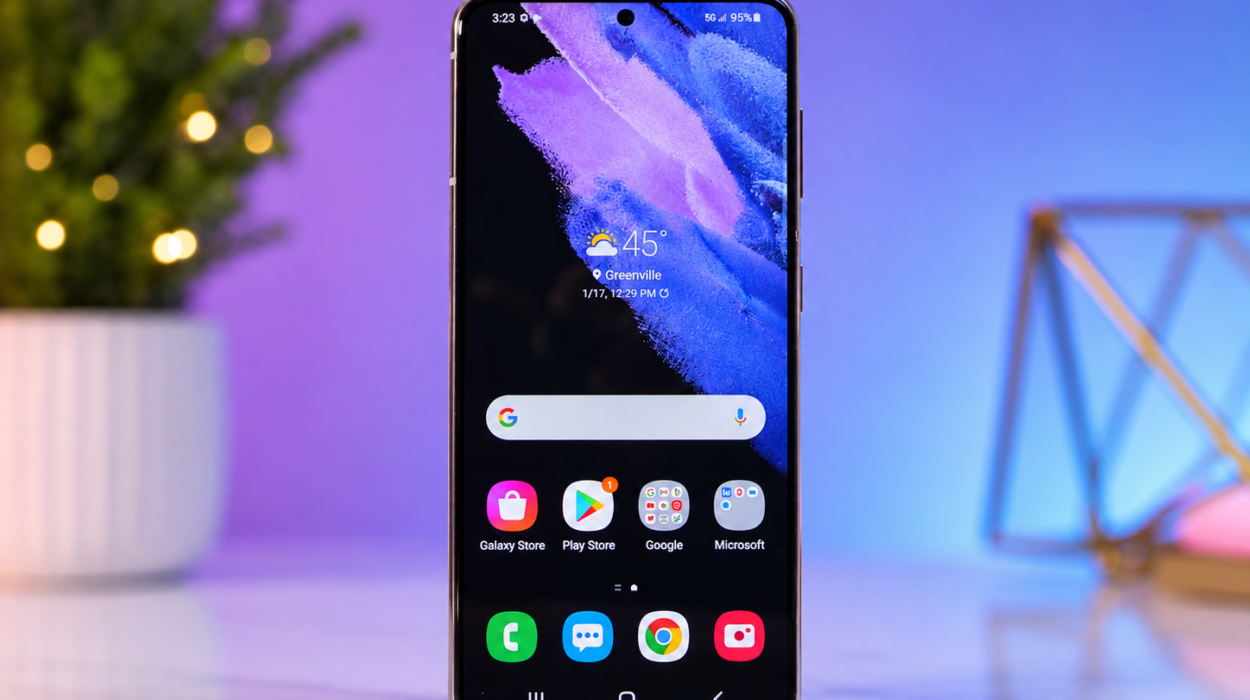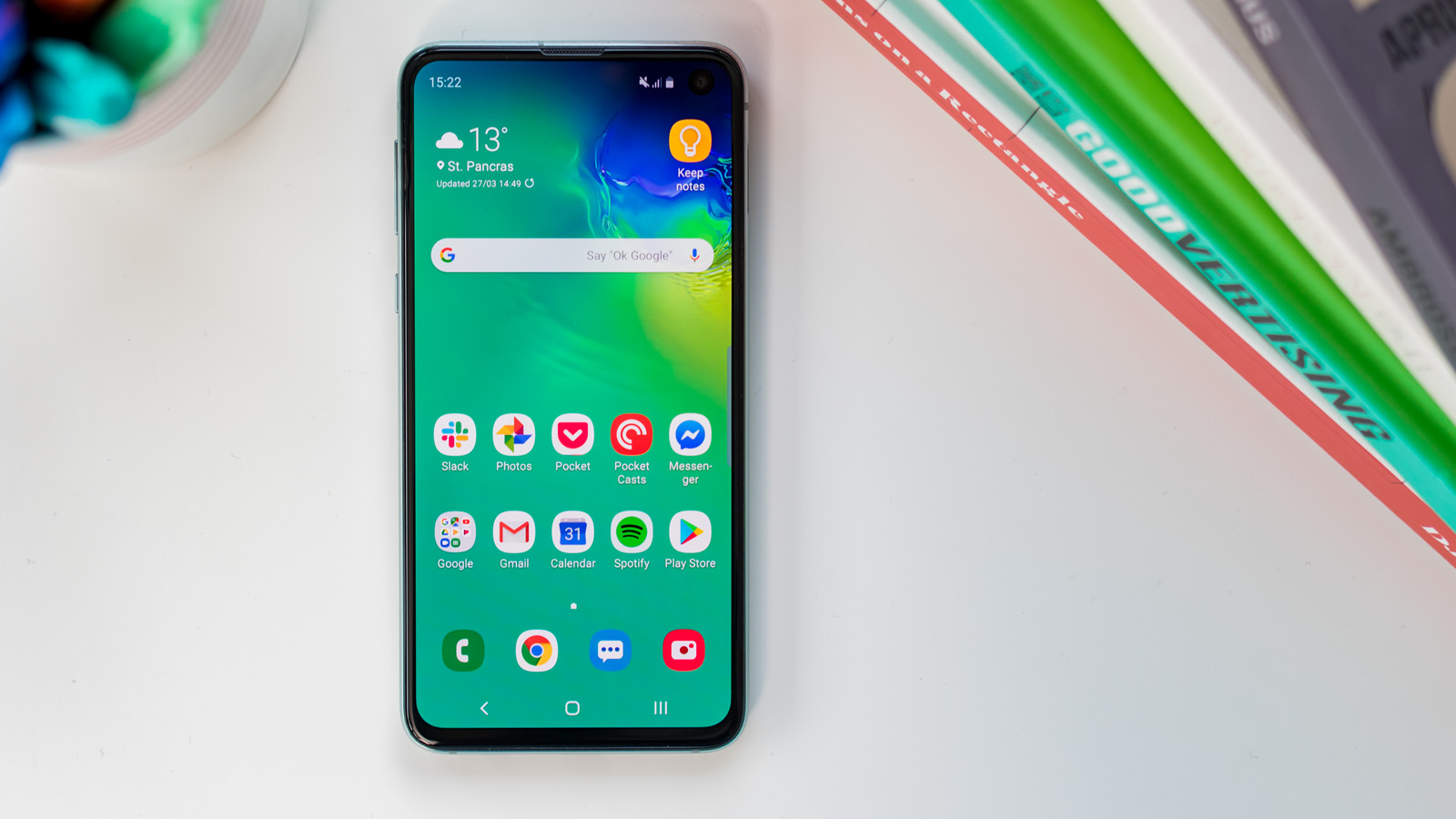
Almost every Android phone feels incredibly fast when it is brand new. Apps open instantly, games run smoothly, and switching between tasks is effortless. But after months or years of daily use, many people notice that their phone no longer performs the way it once did. Apps take longer to launch, scrolling becomes less smooth, the keyboard lags while typing, and even simple tasks can feel frustratingly slow.
The good news is that a slow Android phone does not always mean it is time to buy a new one. In many cases, sluggish performance is caused by software, storage limitations, or background processes rather than damaged hardware. With the right maintenance and settings, you can often make your Android phone feel significantly faster.
This guide explains why Android phones slow down and shows you scientifically sound ways to improve their performance safely.
Why Android Phones Slow Down Over Time
An Android phone is essentially a small computer. Just like a laptop or desktop PC, it manages storage, memory, processors, and countless software processes every second.
As you continue using your phone, it accumulates thousands of files, photos, videos, downloaded documents, app data, temporary cache files, and background services. Many apps also continue running even when you are not actively using them.
Over time, these factors increase the workload on your phone’s processor and memory. If storage becomes nearly full, the operating system has less room to work efficiently, which can noticeably reduce performance.
Battery aging can also play a role. Older batteries may not provide power as effectively as new ones, and some devices automatically reduce processor speed to improve stability when battery health declines.
Understanding these causes helps you solve the problem instead of simply treating the symptoms.
Restart Your Phone Regularly
One of the simplest ways to improve performance is restarting your phone.
Many people leave their phones running continuously for weeks without turning them off. During that time, background processes, temporary files, and memory usage gradually build up.
Restarting clears temporary system data, closes unnecessary processes, and gives Android a fresh start.
Although this is not a permanent solution, restarting once every few days can noticeably improve responsiveness.
Free Up Storage Space
Storage plays a much bigger role in performance than many people realize.
When internal storage becomes almost full, Android has less space to manage apps, temporary files, and system operations efficiently. This can slow down app launches and overall responsiveness.
Deleting unnecessary files can make a significant difference.
Old videos often consume several gigabytes of storage. Duplicate photos, forgotten downloads, large documents, and unused recordings also take up valuable space.
Moving important files to cloud storage or a computer can free substantial room while keeping your memories safe.
Many Android manufacturers recommend keeping at least 10–20% of internal storage available for the best performance.
Remove Apps You No Longer Use
Many people install dozens or even hundreds of apps over time.
Some of these applications are opened only once and then forgotten.
Unused apps do more than occupy storage. Many continue updating themselves, checking for notifications, synchronizing data, or running background services.
Removing apps you no longer need reduces background activity and frees storage at the same time.
If you are unsure whether you still use an app, check when it was last opened. You may discover software you have not touched in months.
Clear App Cache
Many Android apps store temporary files called cache.
These files help apps load frequently used information more quickly.
However, cache files can gradually grow very large. Social media apps, web browsers, video streaming apps, and messaging services often accumulate hundreds of megabytes—or even several gigabytes—of cached data.
Clearing cache removes temporary files without deleting your personal information.
This can improve app responsiveness and recover valuable storage space.
It is generally safe to clear cache whenever an app appears unusually slow or behaves unexpectedly.
Keep Android Updated
Software updates do much more than introduce new features.
They often include performance improvements, security patches, battery optimizations, and bug fixes.
Phone manufacturers continually improve how Android manages memory, processor resources, and applications.
Installing official updates helps ensure your phone benefits from these improvements.
The same principle applies to individual apps. Updated apps often use system resources more efficiently than older versions.
Reduce Background Activity
Many apps continue working even after you stop using them.
Email apps check for new messages.
Weather apps update forecasts.
Social media apps synchronize notifications.
Cloud storage services upload files.
Fitness apps monitor activity.
Having too many apps performing these tasks simultaneously can slow your device and increase battery consumption.
Reviewing which apps are allowed to run in the background helps reduce unnecessary workload without affecting essential functions.
Disable or Remove Bloatware
Many Android phones come with pre-installed applications from manufacturers or mobile carriers.
Some of these apps are useful, while others may never be opened.
Even unused pre-installed software can occupy storage and occasionally consume system resources.
If these apps cannot be uninstalled, many can at least be disabled through the phone’s settings.
Disabling unused software prevents it from running and frees some system resources.
Reduce Animations
Android uses animations when opening apps, switching screens, and navigating menus.
These visual effects make the interface feel polished, but they also require processing power.
Reducing or disabling animations can make the phone feel much faster because transitions happen almost instantly.
Importantly, this does not actually increase processor speed. Instead, it reduces the time spent displaying visual effects, making navigation appear more responsive.
Many experienced Android users choose shorter animation durations for this reason.
Use a Lightweight Home Screen
Widgets, animated wallpapers, and heavily customized launchers can consume memory and processor resources.
Live wallpapers constantly generate moving graphics.
Large weather widgets update frequently.
Complex launchers may include visual effects that require additional processing.
Using a simpler home screen with fewer widgets reduces system workload and can improve smoothness, especially on older devices.
Static wallpapers also consume fewer resources than animated ones.
Close or Limit Resource-Intensive Apps
Some applications naturally require far more processing power than others.
Modern games, video editors, augmented reality apps, and high-resolution camera software place heavy demands on the processor, graphics chip, and memory.
If several demanding apps remain open simultaneously, switching between them may become slower.
Closing apps you no longer need allows Android to allocate memory more efficiently.
However, constantly force-closing every app is generally unnecessary because Android is designed to manage memory automatically.
Watch for Problematic Apps
Occasionally, one poorly optimized app can significantly slow an entire phone.
Signs include unusual battery drain, excessive heating, frequent crashes, or consistently high processor usage.
If your phone suddenly becomes slow after installing a particular app, that app may be responsible.
Removing or updating the problematic software often restores normal performance.
Scan for Malware
Although Android includes strong security protections, malicious software can sometimes affect device performance.
Some harmful apps secretly display advertisements, collect data, or perform background tasks without the user’s knowledge.
Downloading apps only from trusted sources such as the Google Play Store significantly reduces this risk.
Google Play Protect also helps detect potentially harmful applications automatically.
If your phone suddenly becomes unusually slow along with excessive battery drain or strange pop-up advertisements, scanning for malware is a sensible step.
Keep Your Battery Healthy
Battery health affects overall device performance more than many people realize.
Lithium-ion batteries gradually lose capacity with age and repeated charging cycles.
As batteries deteriorate, some phones reduce processor performance to maintain stability and prevent unexpected shutdowns.
Keeping your battery between moderate charge levels, avoiding excessive heat, and using quality chargers can help preserve long-term battery health.
If an older phone has severe battery degradation, replacing the battery may dramatically improve both performance and battery life.
Manage Photos and Videos
Modern smartphone cameras produce extremely high-resolution images and videos.
Over time, thousands of photos and videos can consume enormous amounts of storage.
Backing up media to cloud storage or a computer allows you to safely remove local copies while preserving your memories.
This not only frees storage but can also improve overall system responsiveness.
Avoid Too Many Notifications
Every notification requires background activity.
Apps regularly wake the processor to check for new messages, updates, promotions, or alerts.
Reducing unnecessary notifications limits background processing and can improve both speed and battery life.
It also creates a less distracting smartphone experience.
Use Lite Versions of Apps
Many popular services offer lightweight versions of their apps.
These versions are designed for devices with limited memory, slower processors, or slower internet connections.
Lite apps generally consume less storage, less memory, and fewer processing resources while still providing essential features.
For older Android phones, these versions can noticeably improve performance.
Factory Reset as a Last Resort
If your phone remains slow despite trying other solutions, performing a factory reset may help.
A factory reset removes installed apps, user data, settings, and accumulated software clutter, returning the phone to its original software state.
Many users are surprised by how much faster their device feels afterward.
However, this process permanently erases local data unless it has been backed up beforehand.
A factory reset should therefore be considered only after saving important photos, contacts, documents, and other personal files.
When a Slow Phone Is Limited by Hardware
Sometimes, no amount of optimization can fully restore the performance of an older phone.
Technology advances rapidly.
New versions of Android and modern applications often require more processing power, more memory, and more advanced graphics capabilities than devices from several years ago can provide.
Phones with very limited RAM or older processors may struggle with today’s demanding apps despite proper maintenance.
In these cases, improving software can help, but hardware limitations ultimately define the phone’s maximum performance.
Everyday Habits That Keep an Android Phone Fast
Maintaining a fast Android phone is easier than fixing a severely slowed one.
Regularly removing unused files, installing updates, restarting occasionally, monitoring storage space, and avoiding unnecessary apps all contribute to long-term performance.
Keeping the phone cool also matters. Excessive heat forces processors to reduce speed temporarily to prevent damage. Avoid leaving your phone in direct sunlight or using demanding apps continuously in very hot environments.
Small maintenance habits practiced consistently often have a greater impact than dramatic changes made only once.
Common Myths About Speeding Up Android Phones
Many myths continue circulating online.
One common belief is that task killer apps permanently speed up Android. In reality, Android is specifically designed to manage memory efficiently. Constantly forcing apps to close can actually increase battery usage because the system must repeatedly restart them.
Another myth claims that deleting random system files improves speed. Removing important files can instead make the operating system unstable or even prevent the phone from functioning properly.
Some websites also recommend installing “RAM booster” apps. Most of these applications simply close background apps temporarily and rarely provide lasting performance improvements.
Following official maintenance practices is both safer and more effective.
The Future of Android Performance
Android continues evolving with every new release.
Modern versions use artificial intelligence to predict which apps users open most often. Frequently used applications are kept ready in memory, allowing them to launch more quickly.
Processors have also become far more efficient, combining powerful performance cores with energy-efficient cores that intelligently handle different workloads.
Storage technologies such as UFS (Universal Flash Storage) have dramatically increased data transfer speeds, making modern phones feel much faster than older devices even with similar processor performance.
As software and hardware continue improving together, Android devices are becoming increasingly responsive, efficient, and intelligent.
Conclusion
A slow Android phone can be frustrating, but it is often far from hopeless. In many cases, performance problems arise from full storage, unnecessary background activity, outdated software, or years of accumulated digital clutter rather than failing hardware.
By regularly freeing storage, uninstalling unused apps, clearing cached data, keeping software updated, reducing unnecessary background processes, and maintaining good battery health, you can significantly improve your phone’s speed and responsiveness. These methods are based on how Android manages memory, storage, and processing resources, making them both practical and scientifically sound.
Even older phones can often gain a new lease on life with proper care. While hardware eventually reaches its limits, thoughtful maintenance can help your Android device remain smooth, reliable, and enjoyable to use for much longer, allowing you to get the most from the technology already in your hands.