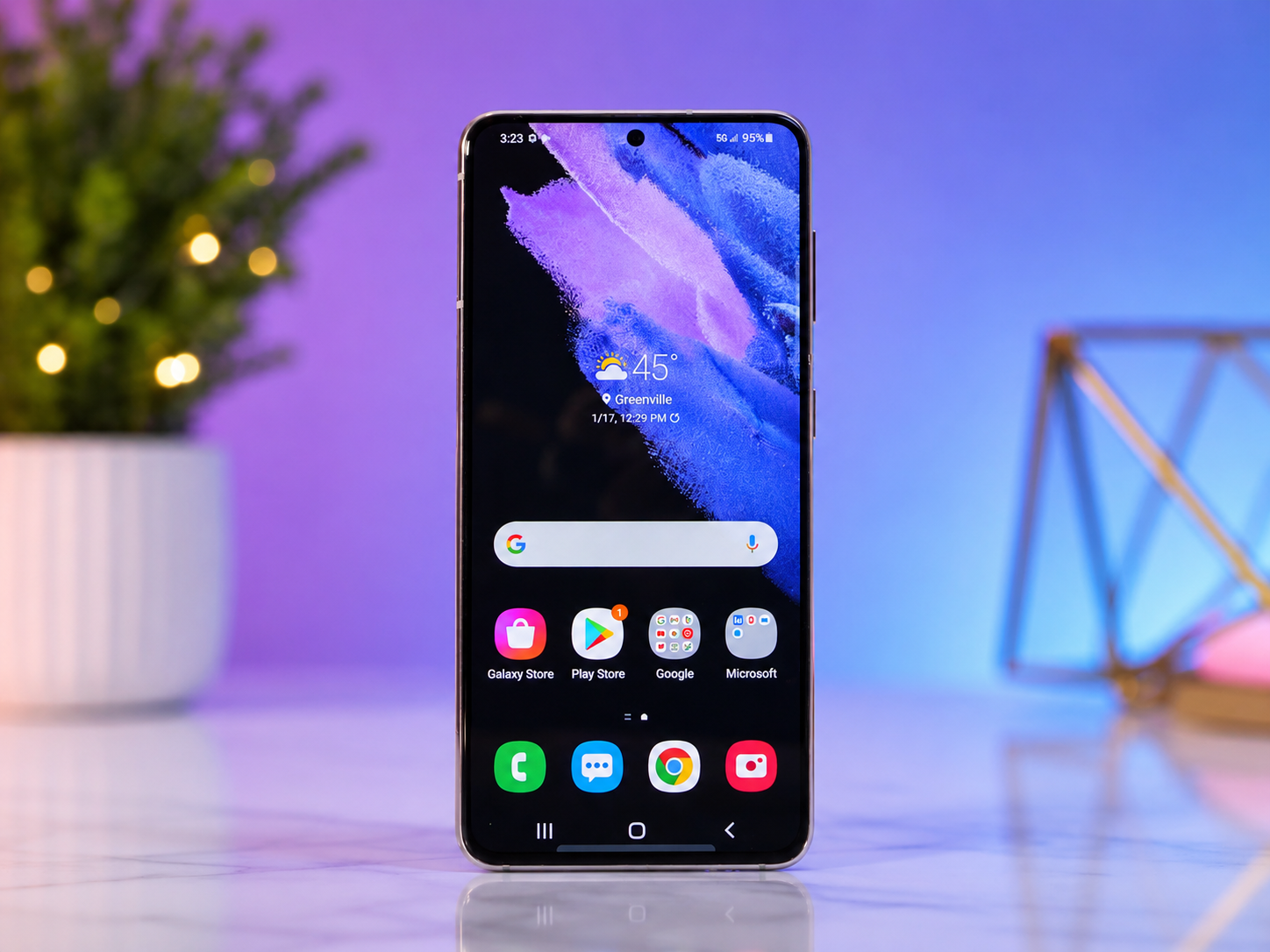
Almost everyone who owns an Android phone eventually encounters a frustrating moment. Apps begin crashing without warning, the device becomes unusually slow, storage fills up, or software problems seem impossible to fix. Sometimes the phone freezes repeatedly, refuses to boot properly, or is about to be sold or passed on to someone else. In situations like these, resetting the phone can feel like giving it a fresh start.
The word “reset” may sound intimidating because many people worry about losing their photos, contacts, messages, or important files. Fortunately, modern Android devices include several types of reset options, and understanding the differences can help you choose the safest and most appropriate solution.
Resetting an Android phone is not magic—it simply restores certain software settings or erases user data depending on the option you choose. When performed correctly, it is one of the most effective ways to solve persistent software issues and return a device to a clean, stable state.
This guide explains what resetting an Android phone really means, when you should reset your device, how to back up your information, and the correct way to perform different kinds of resets.
What Does It Mean to Reset an Android Phone?
Resetting an Android phone means returning some or all of the device’s software to a previous or default state.
There are several kinds of resets, and each serves a different purpose. Some simply restart the operating system, while others erase personal data and restore factory settings.
A reset does not usually repair damaged hardware. If a phone has a broken display, faulty battery, damaged charging port, or defective internal components, resetting the software will not fix those physical problems.
Instead, resets are designed to resolve software-related issues such as operating system errors, corrupted settings, malfunctioning apps, or performance problems.
Understanding the Different Types of Android Resets
Not every reset deletes your files. Android provides different reset methods depending on the situation.
A simple restart, sometimes called a soft reset, turns the phone off and back on again. This clears temporary memory and often fixes minor glitches without affecting any personal information.
A settings reset restores certain system settings, such as Wi-Fi, Bluetooth, mobile network settings, or app preferences, while leaving photos, videos, and other personal files untouched.
A factory reset completely removes user-installed apps, accounts, settings, and personal data stored on the device’s internal storage. After the reset, the phone returns to the same software condition it was in when first purchased, although it usually keeps the current version of Android unless the manufacturer specifies otherwise.
Understanding these differences helps prevent unnecessary data loss.
When Should You Reset Your Android Phone?
A factory reset should not be the first solution for every problem. Many issues can be fixed by restarting the device, clearing an app’s cache, updating Android, or uninstalling problematic applications.
However, resetting becomes a useful option when software problems continue despite other troubleshooting methods.
For example, your phone may freeze repeatedly, restart unexpectedly, become unusually slow, display frequent error messages, or experience severe software instability after a failed update.
Resetting is also recommended before selling, trading in, recycling, or giving your phone to another person. Removing your personal information helps protect your privacy and prevents unauthorized access to your accounts.
In some cases, malware or persistent software corruption may also justify a factory reset.
Why Backing Up Your Data Is So Important
Before performing a factory reset, creating a backup is one of the most important steps.
A factory reset permanently removes information stored in your phone’s internal memory. This can include photos, videos, downloaded files, installed apps, text messages, call history, documents, notes, and app data.
Although many Android phones automatically synchronize contacts, calendars, and certain settings with your Google Account, not every app saves its data to the cloud.
Backing up your information ensures you can restore your digital life after the reset.
Many manufacturers also provide their own backup tools alongside Google’s backup system.
Checking that your important files have actually been backed up before resetting can prevent irreversible data loss.
How to Back Up an Android Phone
Android makes backing up your device relatively simple.
Signing into a Google Account allows many types of information to synchronize automatically, including contacts, calendars, passwords, Wi-Fi settings, and supported app data.
Photos and videos can be backed up using cloud services such as Google Photos if backup has been enabled.
Important documents may be copied to cloud storage services or transferred manually to a computer using a USB cable.
Some phone manufacturers, including Samsung, offer additional backup solutions that store device settings, messages, and other information.
Before resetting, verify that recent backups have completed successfully.
Make Sure You Know Your Google Account
Modern Android phones include an important security feature called Factory Reset Protection (FRP).
After a factory reset, the device may require the Google Account previously associated with the phone before it can be used again.
This security measure helps protect stolen devices from unauthorized use.
Because of this, you should know your Google Account email address and password before performing a factory reset.
If you cannot remember your account credentials, recovering them before resetting the phone is much easier than trying to solve the problem afterward.
How to Restart an Android Phone
Sometimes the simplest solution is also the most effective.
If your phone is responding normally, press and hold the power button or the appropriate button combination used by your device, then select Restart.
If the phone has completely frozen, holding the power button for several seconds may force the device to restart.
A restart clears temporary system memory, closes background processes, and reloads Android without deleting any personal information.
Many temporary software issues disappear after a simple restart.
How to Perform a Factory Reset Through Settings
When the phone is functioning normally, the easiest way to perform a factory reset is through the Settings app.
Open the Settings application and navigate to the section for System, General Management, or a similar category, depending on the phone manufacturer.
Look for options such as Reset or Reset Options.
Select the option to erase all data or perform a factory data reset.
Android will display a summary explaining what information will be removed.
After confirming your choice, you may need to enter your PIN, password, or screen lock.
The phone will begin deleting user data and restoring factory settings.
This process usually takes several minutes.
When complete, the device will restart and display the initial setup screen.
How to Reset an Android Phone That Won’t Start
Sometimes a phone cannot boot into Android because of severe software problems.
Many Android devices provide a recovery environment that allows users to perform maintenance even when the operating system will not start.
The exact button combination varies by manufacturer, but it generally involves holding the power button together with one or more volume buttons while turning the device on.
Once recovery mode appears, users can choose the factory reset option using the physical buttons.
Because recovery menus differ between manufacturers, consulting the device’s official instructions is recommended if you are unsure of the correct procedure.
What Happens During a Factory Reset?
During a factory reset, Android removes user-installed applications, deletes personal settings, clears user accounts, and erases most information stored in the phone’s internal memory.
The operating system itself remains installed.
After the reset finishes, Android recreates its default software environment.
When the phone starts again, it behaves much like a brand-new device waiting for initial setup.
You will need to select a language, connect to Wi-Fi, sign into your Google Account, and restore backups if available.
What Data Will Be Deleted?
A factory reset removes nearly everything stored on the device’s internal storage.
Installed applications are removed.
Downloaded files disappear.
Saved settings return to their defaults.
Personal accounts are deleted from the device.
Messages, call logs, locally stored photos, downloaded music, documents, and application data are generally erased unless backed up elsewhere.
However, information synchronized with cloud services can often be restored after signing back into the same accounts.
What Usually Stays Safe?
Some information may survive a reset because it is stored outside the phone itself.
Data synchronized with your Google Account often remains available online.
Photos already uploaded to cloud storage remain accessible after signing in again.
Files stored on a removable microSD card usually remain untouched unless you specifically choose to erase the card.
Similarly, information saved on external drives or computers remains unaffected.
Even so, it is always wise to verify your backups before resetting.
How Long Does a Reset Take?
Most factory resets finish within several minutes.
The exact time depends on factors such as the phone’s storage capacity, processor speed, and the amount of data being erased.
Older devices may require more time than newer models.
After the reset completes, additional time is needed to configure the phone, install updates, restore backups, and download applications.
What to Do After Resetting Your Phone
Once the reset is complete, Android guides you through the setup process.
Connecting to Wi-Fi allows the phone to activate, check for software updates, and restore backups.
Signing into your Google Account restores synchronized contacts, calendars, passwords, and supported application data.
You can reinstall your favorite apps from the Google Play Store and adjust settings according to your preferences.
If you created a complete backup beforehand, much of your digital life can return within a relatively short time.
Can Resetting Improve Performance?
In many situations, yes.
Over months or years of use, temporary files, outdated app data, corrupted settings, and software conflicts may gradually affect performance.
A factory reset removes accumulated software clutter and gives Android a clean environment.
Many users notice faster performance, smoother operation, and improved stability afterward.
However, if slow performance results from aging hardware, a worn battery, insufficient memory, or physical damage, resetting alone may provide only limited improvement.
Does Resetting Remove Viruses?
A factory reset can remove many forms of malware because it deletes installed applications and user data.
However, modern Android security features already prevent most malicious software from causing serious damage when users install apps only from trusted sources.
If malware returns immediately after restoring an infected backup or reinstalling unsafe applications, the problem may persist.
Keeping Android updated and downloading apps only from reputable sources remains one of the best defenses against malware.
Is a Factory Reset Safe?
When performed correctly, a factory reset is a safe and officially supported maintenance procedure.
Android manufacturers include this feature because it helps resolve software issues and prepares devices for new owners.
The greatest risk is accidental data loss.
This is why creating reliable backups beforehand is essential.
Ensuring that the phone has sufficient battery charge or remains connected to power during the reset process also helps prevent interruptions.
Common Myths About Resetting Android Phones
Many misconceptions surround factory resets.
Some people believe a reset permanently damages a phone. In reality, factory resets are designed by manufacturers as normal maintenance procedures.
Others think resetting always installs the newest Android version. In most cases, the phone keeps its current operating system version while removing user data.
Another common myth is that deleted information becomes completely impossible to recover. Although factory resets greatly reduce access to ordinary user data, specialized forensic techniques may recover fragments from certain storage technologies under specific circumstances. Modern Android devices increasingly use encryption, making recovery significantly more difficult, especially when encryption keys are removed during the reset process.
Keeping Your Android Phone Healthy Without Frequent Resets
Although factory resets can solve persistent software problems, they should not become a routine maintenance habit.
Regular software updates improve security and stability.
Removing unused applications helps conserve storage.
Restarting the phone occasionally refreshes system resources.
Managing storage space and avoiding untrusted apps can prevent many issues before they appear.
Good maintenance often eliminates the need for frequent factory resets.
Conclusion: A Fresh Start for Your Android Device
Resetting an Android phone is one of the most effective ways to resolve stubborn software problems, improve performance, and prepare a device for a new owner. Understanding the different types of resets allows you to choose the right solution while protecting your valuable information.
The key to a successful reset is preparation. By backing up your data, confirming your Google Account credentials, and understanding what will be erased, you can perform the process with confidence and avoid unpleasant surprises.
Whether your phone has become slow, unstable, or simply needs a clean beginning, a properly executed factory reset can restore it to a reliable, organized, and responsive state—ready for many more months or even years of everyday use.