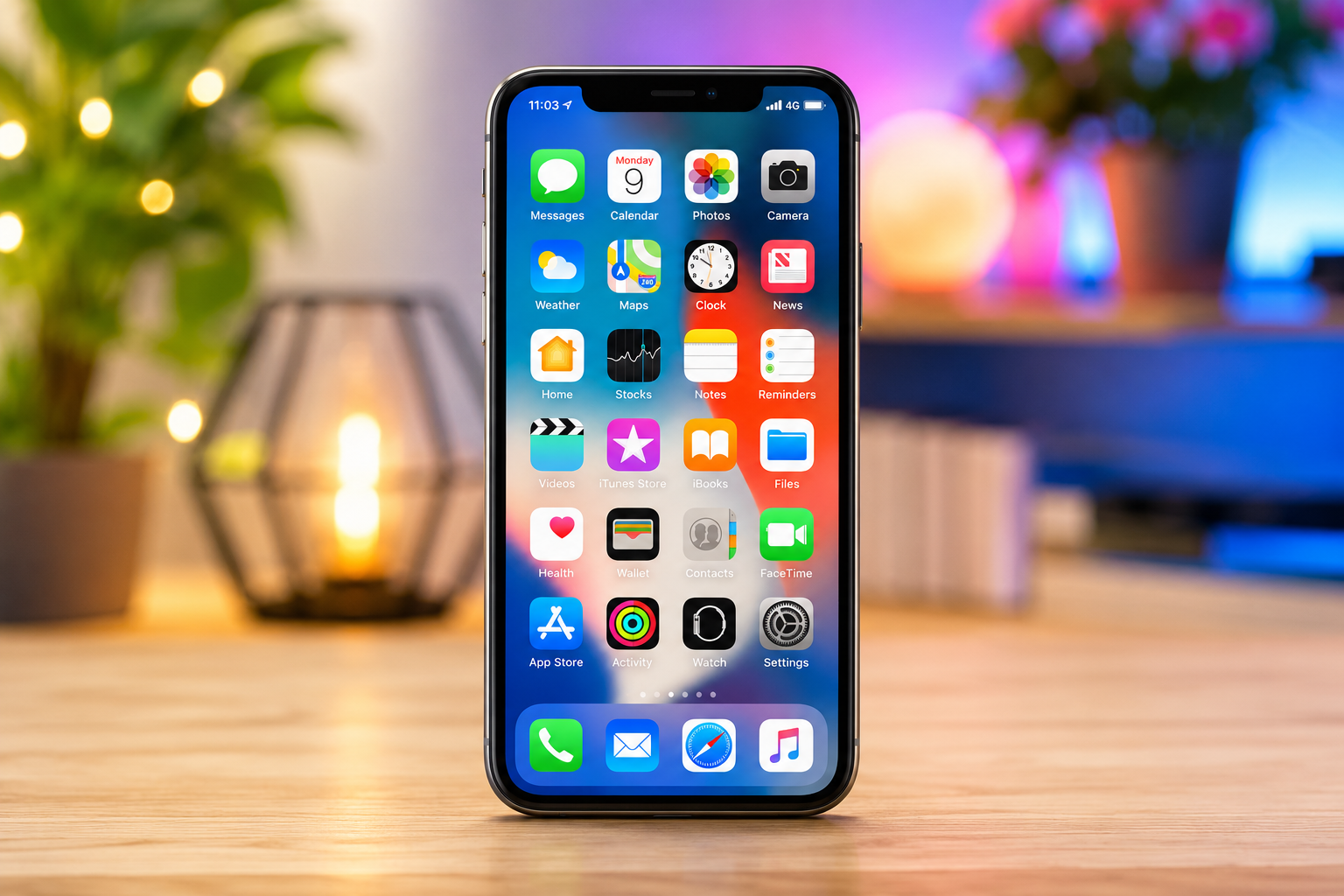
Imagine picking up your iPhone, glancing at the screen, and watching it unlock almost instantly—no passwords to remember, no fingerprints to scan, and no extra effort required. That simple experience is made possible by Face ID, one of Apple’s most advanced security technologies.
Since its introduction in 2017, Face ID has changed the way millions of people interact with their devices. It allows users to unlock their iPhone or iPad, approve purchases, sign in to apps, autofill passwords, and protect personal information using nothing more than their face.
While Face ID feels almost magical, it is actually the result of sophisticated hardware, advanced machine learning, and years of engineering. It does not simply take a picture of your face. Instead, it creates a detailed mathematical representation that helps distinguish you from everyone else.
Whether you have just purchased your first iPhone or want to get the most out of Face ID, understanding how it works and how to use it properly can make your device both more secure and more convenient.
What Is Face ID?
Face ID is Apple’s facial recognition authentication system designed to securely identify the owner of an iPhone or iPad.
Instead of relying on a passcode or fingerprint, Face ID verifies your identity by analyzing the unique features of your face. The system works with the TrueDepth camera, which is located near the top of compatible devices.
When you look at your device, Face ID projects thousands of invisible infrared dots onto your face. An infrared camera captures this detailed depth information, while sophisticated algorithms compare it with the encrypted facial data stored securely on your device.
If the match is successful, your device unlocks almost instantly.
Unlike ordinary facial recognition systems that depend only on photographs, Face ID measures three-dimensional facial features, making it significantly more secure.
Which Apple Devices Support Face ID?
Face ID is available on many modern iPhones and iPads.
Compatible devices include the iPhone X and later models, excluding iPhone SE models that continue to use Touch ID. Several iPad Pro models equipped with the TrueDepth camera also support Face ID.
If your device includes a front-facing TrueDepth camera, it almost certainly supports Face ID.
Setting Up Face ID for the First Time
Setting up Face ID takes only a few minutes.
Begin by opening the Settings app on your iPhone or iPad. Tap Face ID & Passcode, then enter your device passcode if prompted.
Choose Set Up Face ID.
Your device will display a circular frame on the screen. Position your face inside the circle while holding the device about 10 to 20 inches (25 to 50 centimeters) away.
Slowly move your head in a complete circle so the camera can capture your facial features from different angles.
After the first scan finishes, you’ll be asked to complete a second scan. This improves accuracy by collecting additional facial information.
Once both scans are complete, Face ID is ready to use.
The entire process usually takes less than a minute.
How to Unlock Your iPhone with Face ID
Using Face ID quickly becomes second nature.
Raise your iPhone or tap the screen to wake it. Look directly at the display. When Face ID recognizes your face, the lock icon near the top of the screen unlocks.
Swipe upward from the bottom of the screen to enter your Home Screen.
If Face ID cannot recognize your face after several attempts, your device will ask you to enter your passcode instead.
Unlocking While Wearing Glasses
Face ID works well with most prescription glasses.
Apple designed the system to recognize facial features rather than simply matching images. As a result, most users can unlock their devices while wearing glasses without any additional setup.
However, some sunglasses may block infrared light, especially those with certain polarized or reflective coatings. In those situations, Face ID may ask you to remove your sunglasses or enter your passcode.
If you regularly switch between glasses and no glasses, Face ID usually adapts automatically over time.
Using Face ID with a Face Mask
Earlier versions of Face ID required users to remove their masks before unlocking their devices.
Modern versions of iOS allow Face ID to work even while wearing a face mask on supported iPhones.
To enable this feature, open Settings, choose Face ID & Passcode, and activate Face ID with a Mask.
During setup, your device learns to recognize the unique characteristics around your eyes instead of relying on your entire face.
Although this method uses less facial information than standard Face ID, Apple designed it to maintain a high level of security.
Using Face ID for App Store Purchases
Face ID makes buying apps, games, subscriptions, books, and other digital content much faster.
When purchasing something from the App Store, you’ll see a prompt asking you to confirm the payment.
Simply double-click the Side button, look at your device, and wait for Face ID to verify your identity.
Once authenticated, the purchase proceeds automatically.
This process helps prevent accidental or unauthorized purchases.
Using Face ID with Apple Pay
Face ID also secures contactless payments through Apple Pay.
When you’re ready to pay at a compatible payment terminal, double-click the Side button.
Your default payment card appears.
Look at your iPhone so Face ID can verify your identity.
Hold your device near the payment reader until the transaction completes.
Because every payment requires facial authentication or your passcode, Face ID helps protect your financial information.
Signing In to Apps with Face ID
Many banking, shopping, healthcare, and productivity apps support Face ID authentication.
Instead of entering your username and password each time, simply look at your device.
The app requests authentication through Apple’s secure system, and Face ID verifies your identity within seconds.
This makes logging into secure apps both faster and safer.
Autofilling Passwords Securely
Face ID works seamlessly with Apple’s Passwords app and iCloud Keychain.
When visiting a website or opening an app that requires a password, Face ID can confirm your identity before automatically filling in your saved login credentials.
This encourages the use of stronger, more unique passwords because you no longer need to remember every one yourself.
Attention Awareness Features
Face ID includes intelligent attention detection.
By default, your device checks whether your eyes are open and whether you are looking directly at the screen.
This prevents someone from unlocking your phone simply by pointing it toward your face while you are asleep or looking away.
Attention awareness also enables helpful features throughout iOS.
For example, your screen may remain bright while you are reading, and notification volumes can decrease automatically once you look at your device.
These features improve both security and usability.
How Face ID Adapts Over Time
Your appearance naturally changes.
You may grow a beard, shave, wear makeup, change hairstyles, or age over the years.
Face ID is designed to learn these gradual changes.
Each successful unlock helps improve its understanding of your appearance, allowing it to adapt naturally without requiring frequent reconfiguration.
If your appearance changes dramatically in a short period, such as after major surgery or significant facial changes, you may need to set up Face ID again.
Adding an Alternate Appearance
Some users regularly change their appearance.
For example, someone might alternate between heavy protective equipment at work and their everyday appearance.
Face ID allows you to register an alternate appearance.
Open Settings, tap Face ID & Passcode, and choose Set Up an Alternate Appearance.
Complete the scanning process just as you did during the original setup.
This feature helps maintain accurate recognition under different conditions.
Improving Face ID Accuracy
Although Face ID is highly reliable, a few habits can improve its performance.
Keep the TrueDepth camera clean by gently wiping the front of your device with a soft microfiber cloth.
Hold your iPhone naturally in front of your face rather than at extreme angles.
Ensure your eyes, nose, and mouth remain visible whenever possible.
Good lighting can improve the overall user experience, although Face ID also works well in darkness because it uses infrared light instead of relying solely on visible light.
When Face ID Requires Your Passcode
Face ID occasionally asks for your passcode as an additional security measure.
This commonly happens after restarting your device, if it has not been unlocked for several days, after multiple failed recognition attempts, or after certain security settings have been changed.
This extra verification helps protect your personal information.
Is Face ID Safe?
Face ID is designed with privacy and security as its highest priorities.
Unlike many facial recognition systems, your facial data never leaves your device.
Instead, it is securely stored inside Apple’s Secure Enclave, a dedicated hardware security component.
The mathematical representation of your face is encrypted and cannot be viewed as an ordinary photograph.
Apple states that this facial data is not uploaded to its servers and is not shared with third-party apps unless you explicitly authorize authentication.
Because of this design, Face ID offers strong protection against unauthorized access while preserving user privacy.
Can Someone Unlock Your Phone with a Photo?
A common concern is whether someone could unlock your iPhone using a printed picture or another phone displaying your photograph.
The answer is generally no.
Face ID analyzes three-dimensional facial geometry using infrared depth mapping rather than relying only on a flat image.
Because it measures depth and shape, ordinary photographs lack the information needed to fool the system.
Apple also includes attention detection, requiring that your eyes be open and directed toward the screen unless this feature has been disabled.
These safeguards make Face ID much more resistant to spoofing than traditional facial recognition systems.
What Happens If Face ID Stops Working?
Occasionally, Face ID may fail to recognize you.
This can happen if the TrueDepth camera is blocked by dirt, a protective case, or screen accessories that cover the sensors.
Temporary software glitches may also affect performance.
Restarting your device often resolves minor issues.
If recognition remains unreliable, you can reset Face ID through Settings, choose Face ID & Passcode, then tap Reset Face ID and complete a new facial scan.
If the TrueDepth camera develops a hardware problem, your device may recommend professional service.
Face ID and Privacy
Privacy is a central part of Face ID’s design.
Your facial information remains encrypted on your own device rather than being stored in a cloud database.
Apps never receive access to your actual facial scan. Instead, they only receive confirmation that authentication was successful.
This approach allows Face ID to protect both your identity and your personal information.
Why Face ID Has Become So Popular
People increasingly expect technology to be both secure and effortless.
Face ID meets both expectations.
It eliminates the need to remember long passwords for routine device access while maintaining strong security standards. It adapts to natural changes in your appearance, works in bright sunlight and darkness, integrates seamlessly with Apple Pay and the App Store, and protects sensitive information without interrupting your daily routine.
Behind its simplicity lies advanced computer vision, infrared imaging, machine learning, and secure hardware working together in just a fraction of a second.
Conclusion
Face ID is much more than a convenient way to unlock an iPhone. It is a sophisticated biometric security system that combines advanced sensors, artificial intelligence, and encrypted hardware to recognize your unique facial features while keeping your personal information private.
Once you understand how Face ID works and how to use its features, everyday tasks become faster, smoother, and more secure. From unlocking your device and approving purchases to signing into apps and protecting sensitive data, Face ID transforms your face into a secure digital key—one that stays with you wherever you go.
As Apple continues to improve biometric technology, Face ID remains one of the most secure and user-friendly authentication systems available, making it an essential part of the modern iPhone and iPad experience.